
Authentication
Overview
VPORT provides Log In, Sign Up, email verification, and password-recovery flows. The current web forms use a username or email address together with a password; they do not provide Google or Apple social sign-in.
Purpose
The authentication and onboarding feature protects account access while supporting account creation, login, email verification, and password recovery. The same VPORT account is used across supported web and Apple Vision Pro experiences.
Web
Logging In (For Existing Members)
1. Enter Your Details
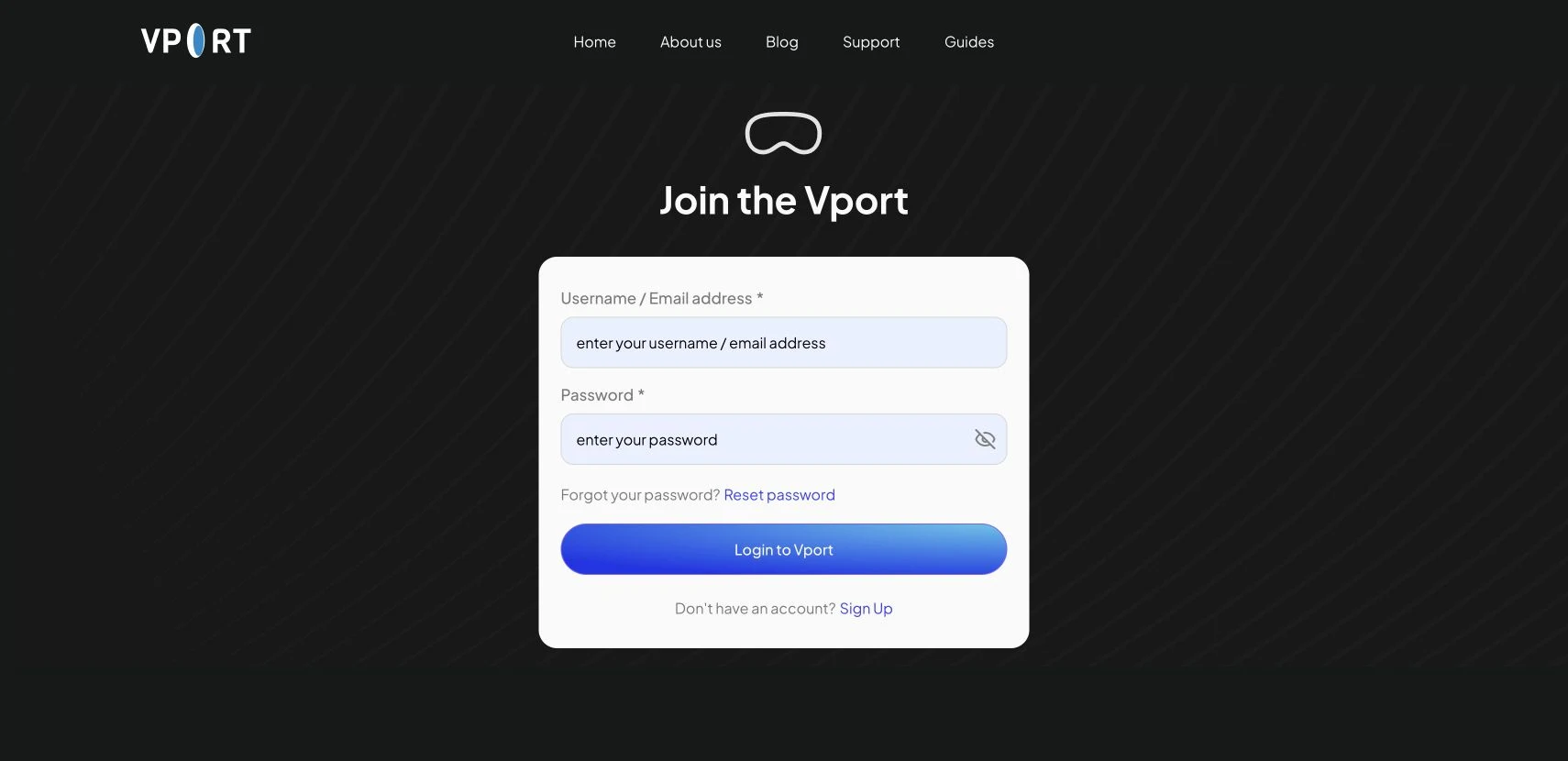
In the login box, enter either your email address or your username, along with your password.
2. Show Password
If you're having trouble typing your password, click the eye icon next to the password field to reveal what you're entering.
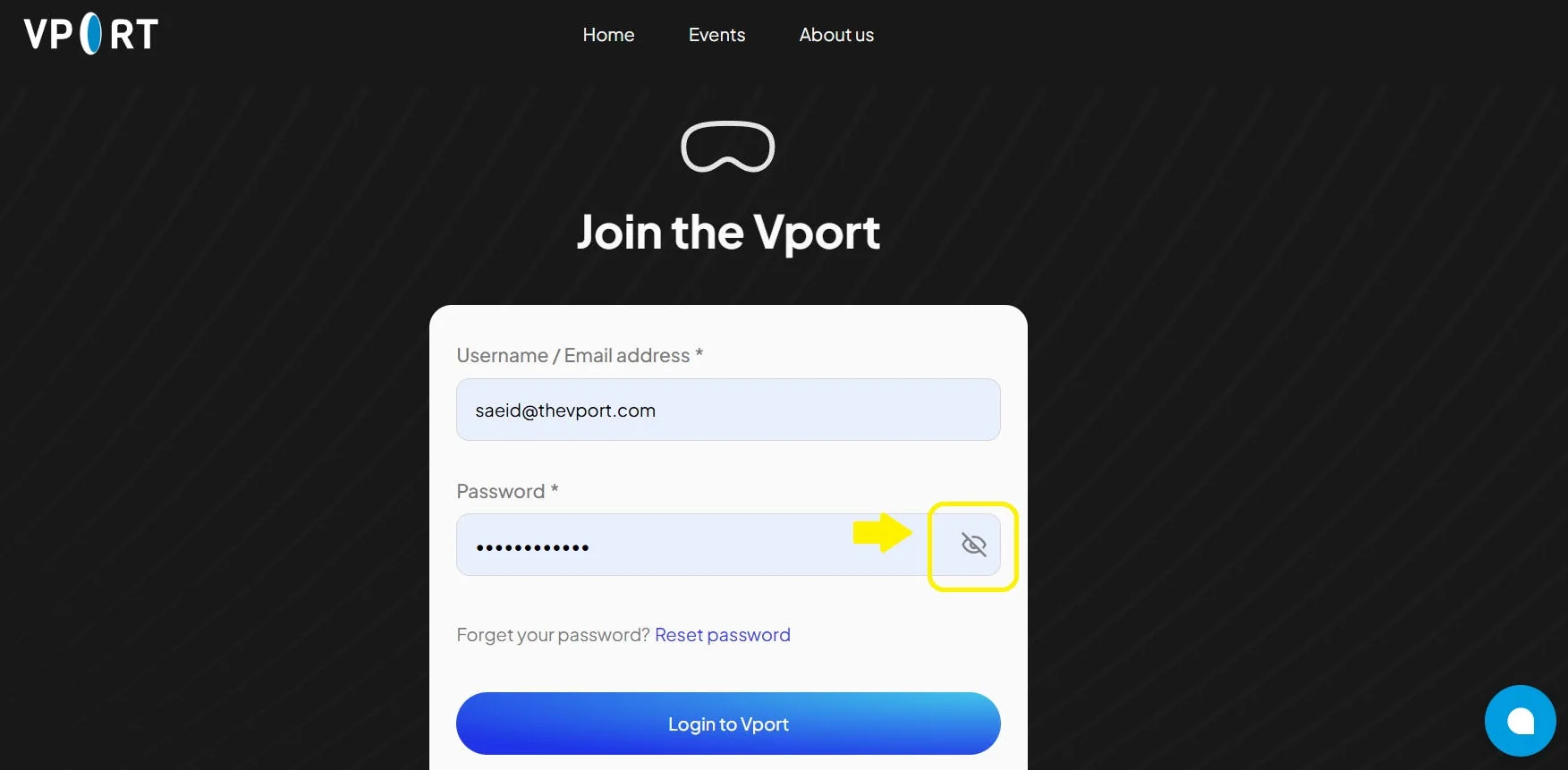
The original guide image above is retained as a workflow reference. The current production form is shown below.
3. Forgot Password
If you can't remember your password, click the Reset password link. You'll be taken to the Reset Password page where you can enter your email address or username.
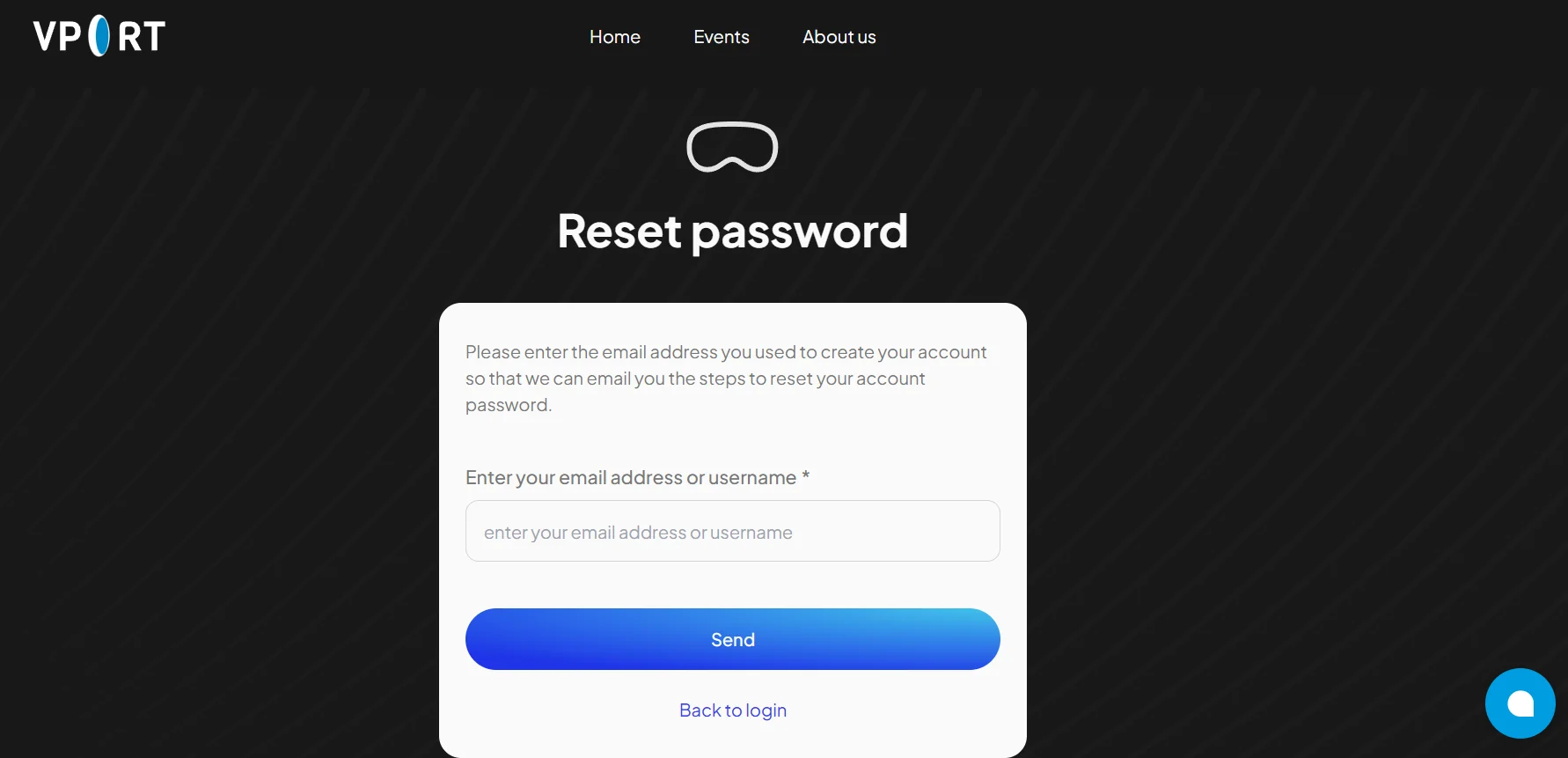
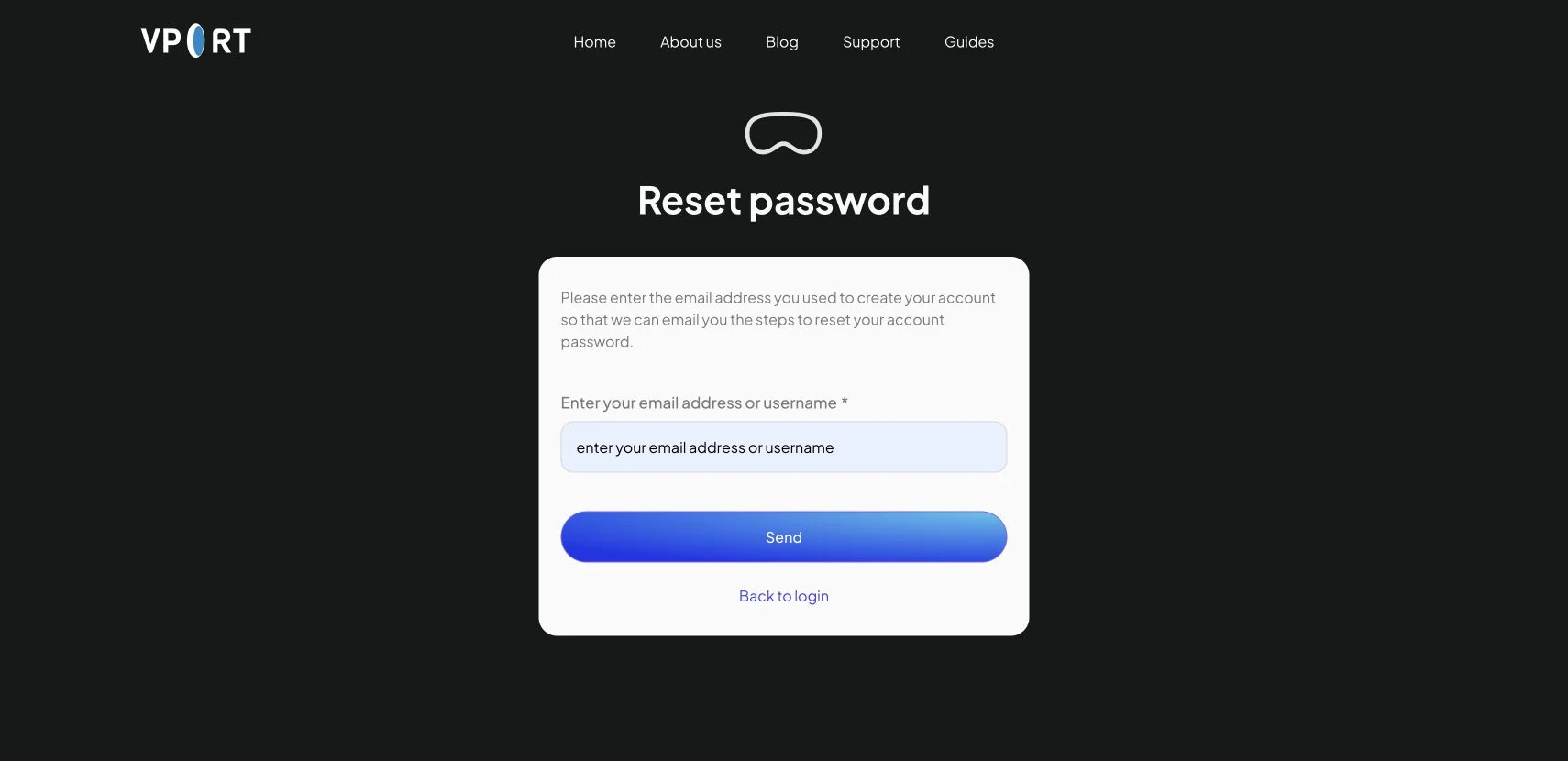
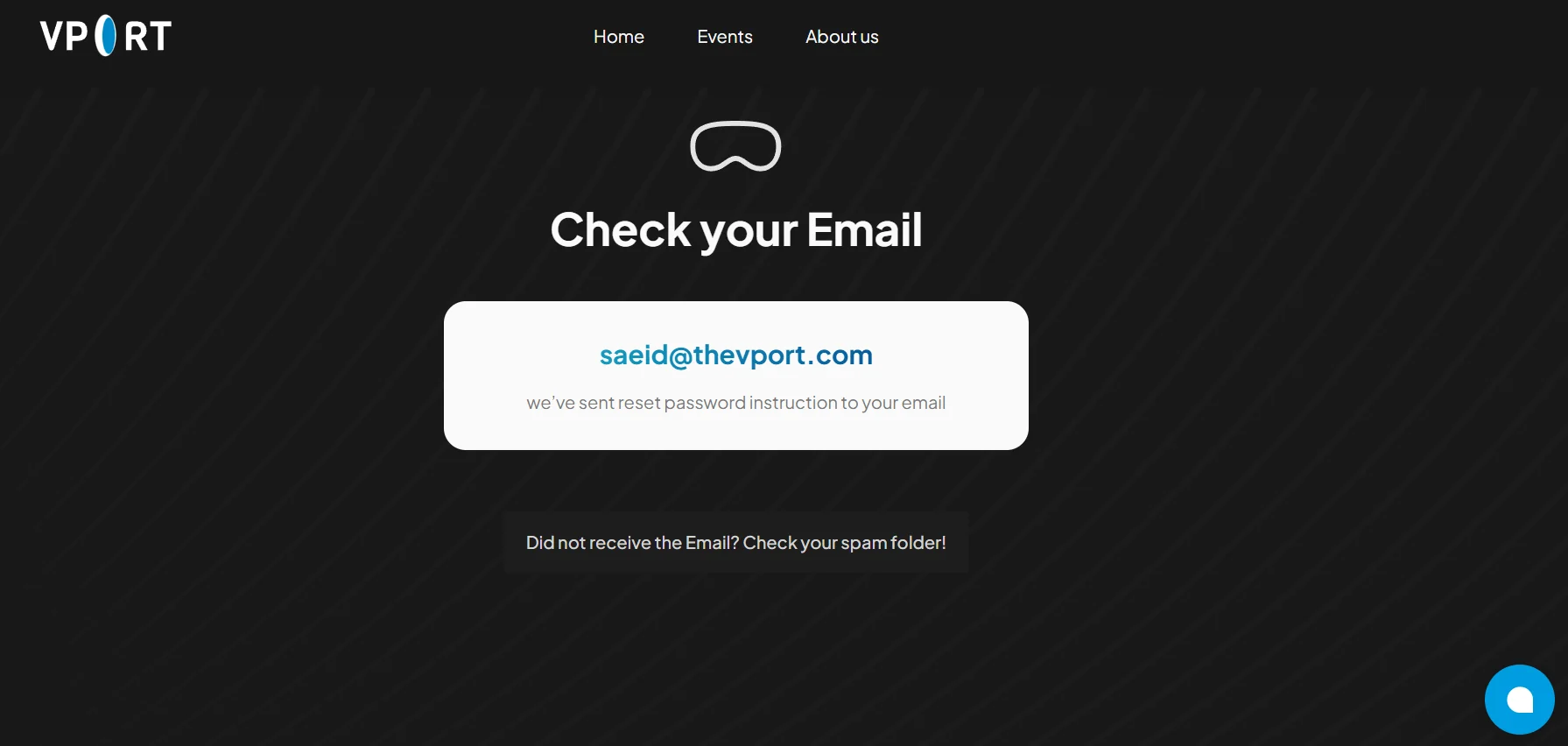
After submitting, you'll see a confirmation screen letting you know that reset instructions have been sent to your email.
Troubleshooting Login Issues (Web)
Incorrect Information
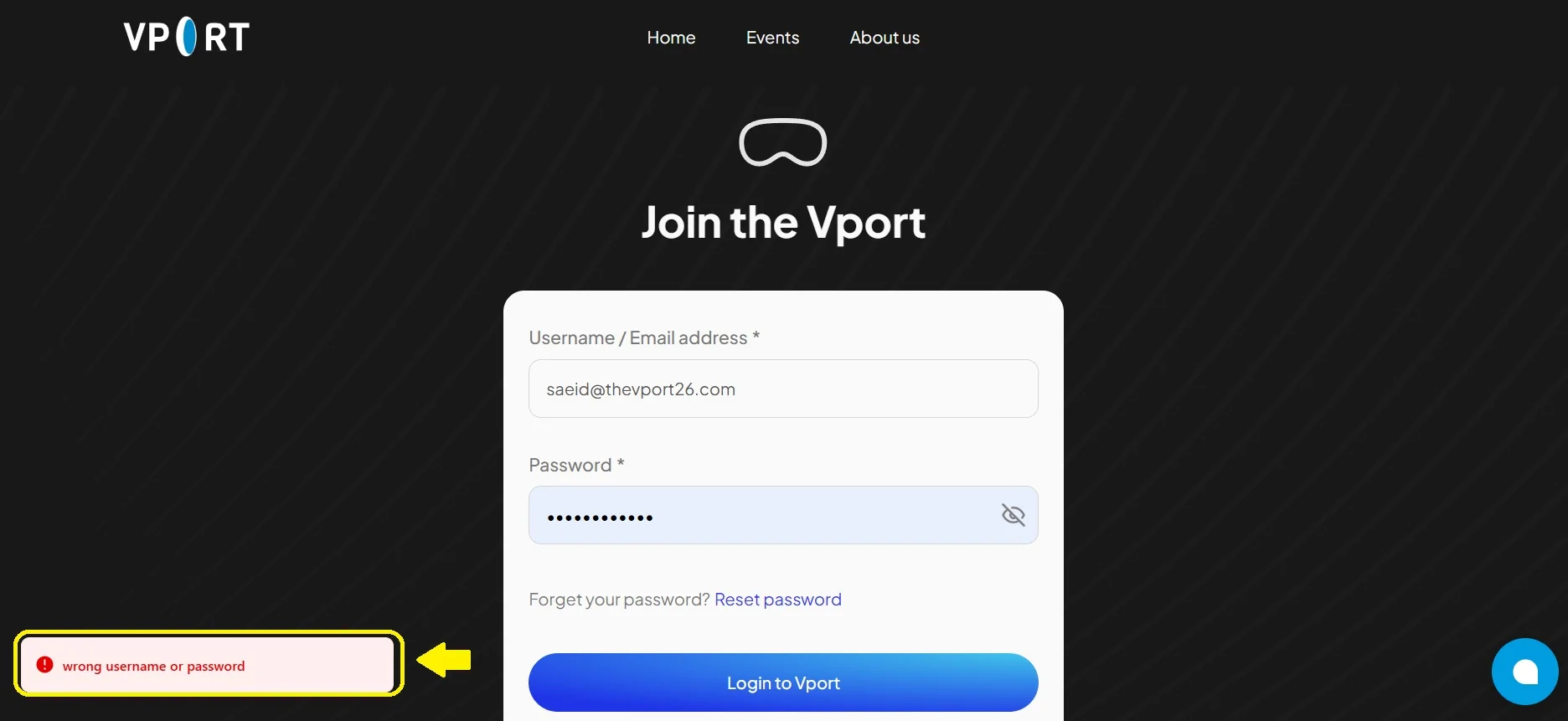
If you enter the wrong email/username or password, follow the current error, double-check your spelling, and try again.
Still Can't Log In?
If you're still having trouble, contact our support team for assistance.
Signing Up (For New Users): Web
1. Fill Out the Form
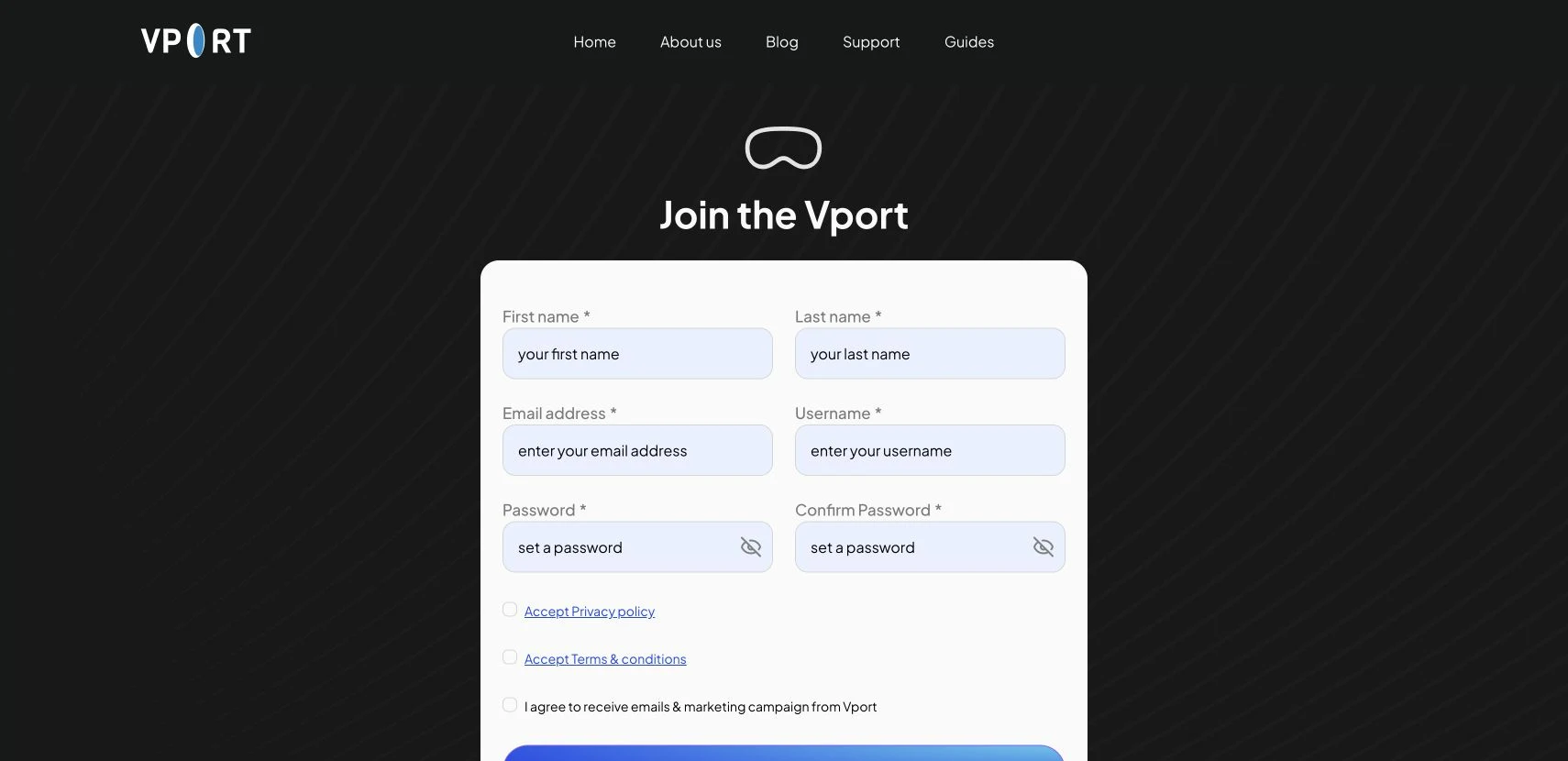
Click the Sign Up button and provide the following information:
- First name and Last name
- Valid email address
- Username
- Password and Confirm Password
2. Accept Terms
Check the boxes to accept the Privacy Policy and Terms & Conditions before continuing. The separate marketing-email checkbox is optional.
3. Verify Your Email
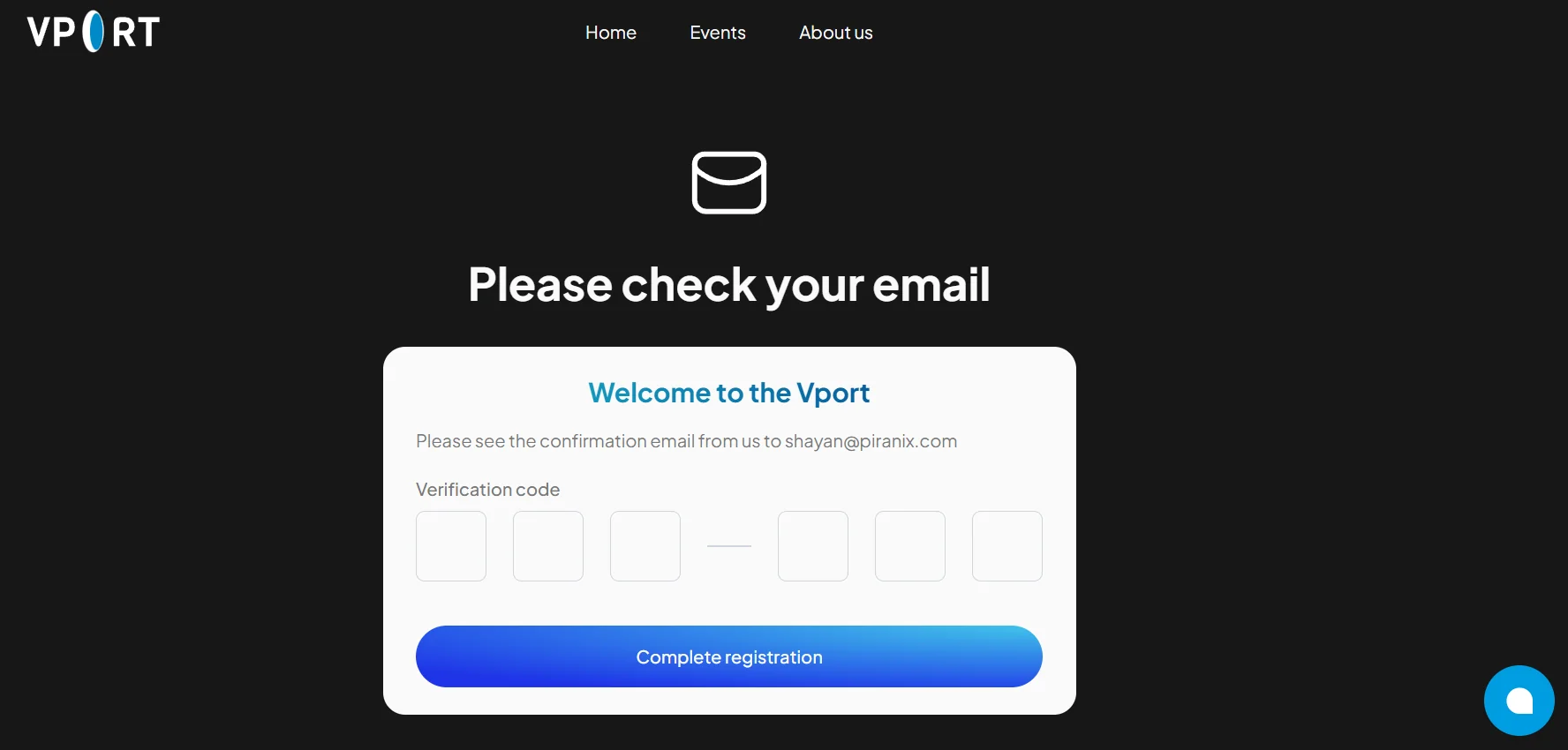
After submitting the form, you'll be prompted to enter a verification code sent to your email address.
Troubleshooting Signup Issues (Web)
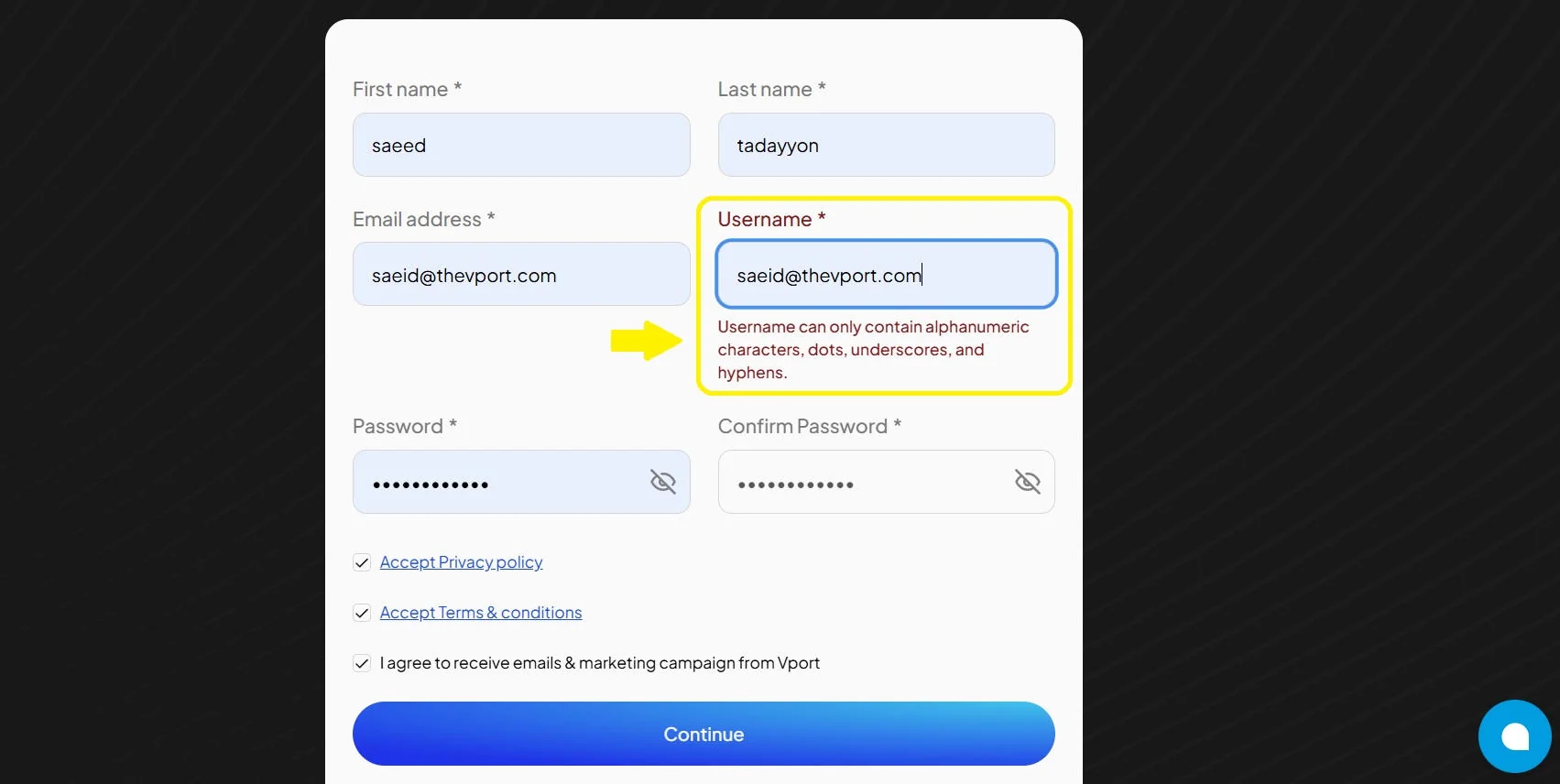
Invalid Username
The current form validates the username and highlights an invalid value with an explanation. Follow the inline requirement shown by the form rather than relying on a fixed character rule in this guide.
Didn't Receive Verification Email?
Check your spam or junk folder. If you still don't see it, contact our support team.
Apple Vision Pro
Logging In (For Existing Members)
1. Enter Your Details
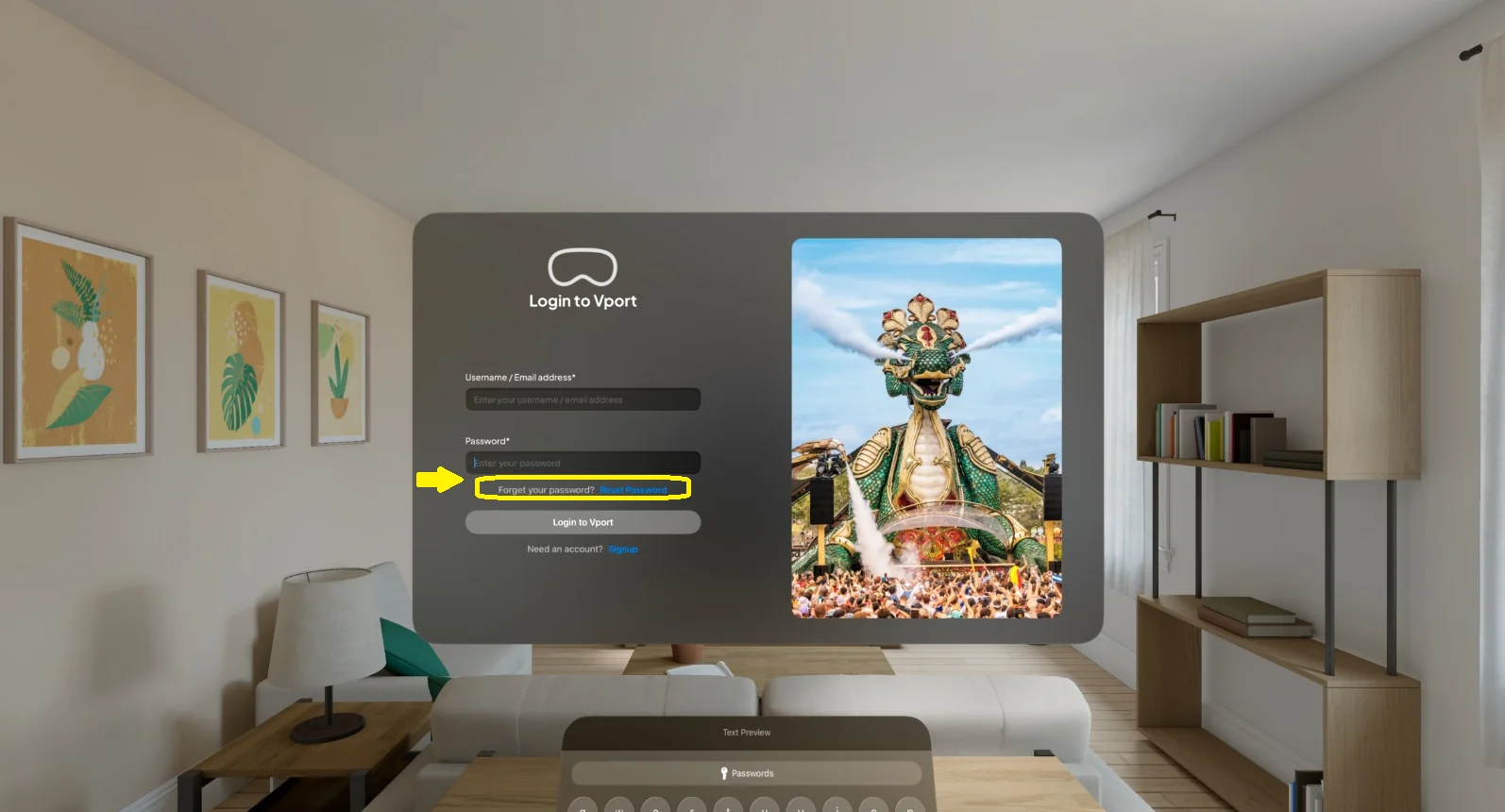
When you open Vport on Apple Vision Pro, you'll see the Login to Vport screen. Use gaze and pinch to select the fields, then enter your username or email address and password with the visionOS keyboard or dictation.

2. Forgot Password
Look at the Forgot your password? Reset Password link and pinch to open the password-reset flow. Enter your username or email address and select Send. Vport then asks for the verification code before you set a new password.
Signing Up (For New Users): Apple Vision Pro
1. Fill Out the Form
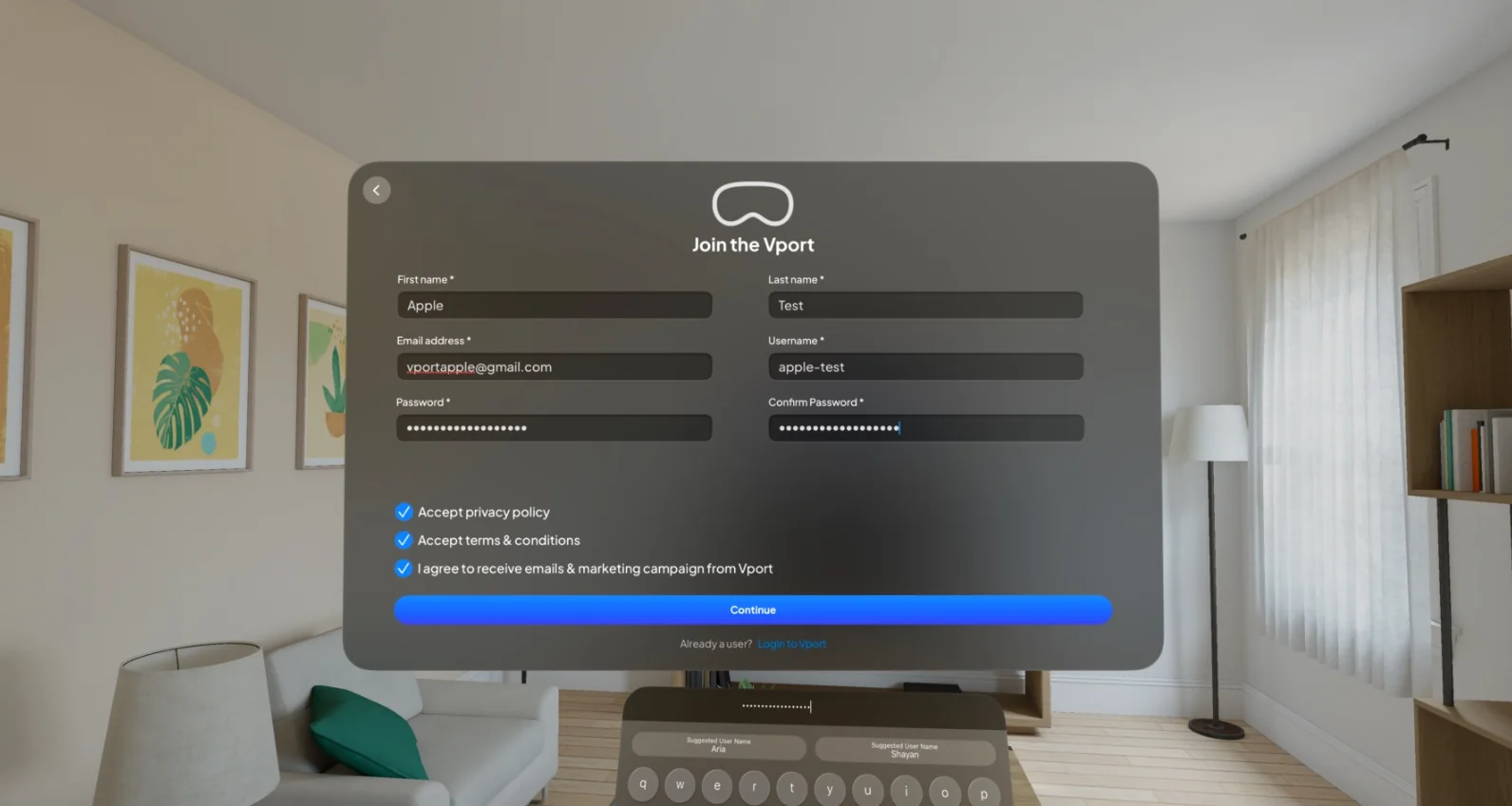
Select Signup from the login screen to open the Join the Vport registration form. Fill in your first name, last name, email address, username, password, and confirm password using the visionOS keyboard.
2. Accept Terms
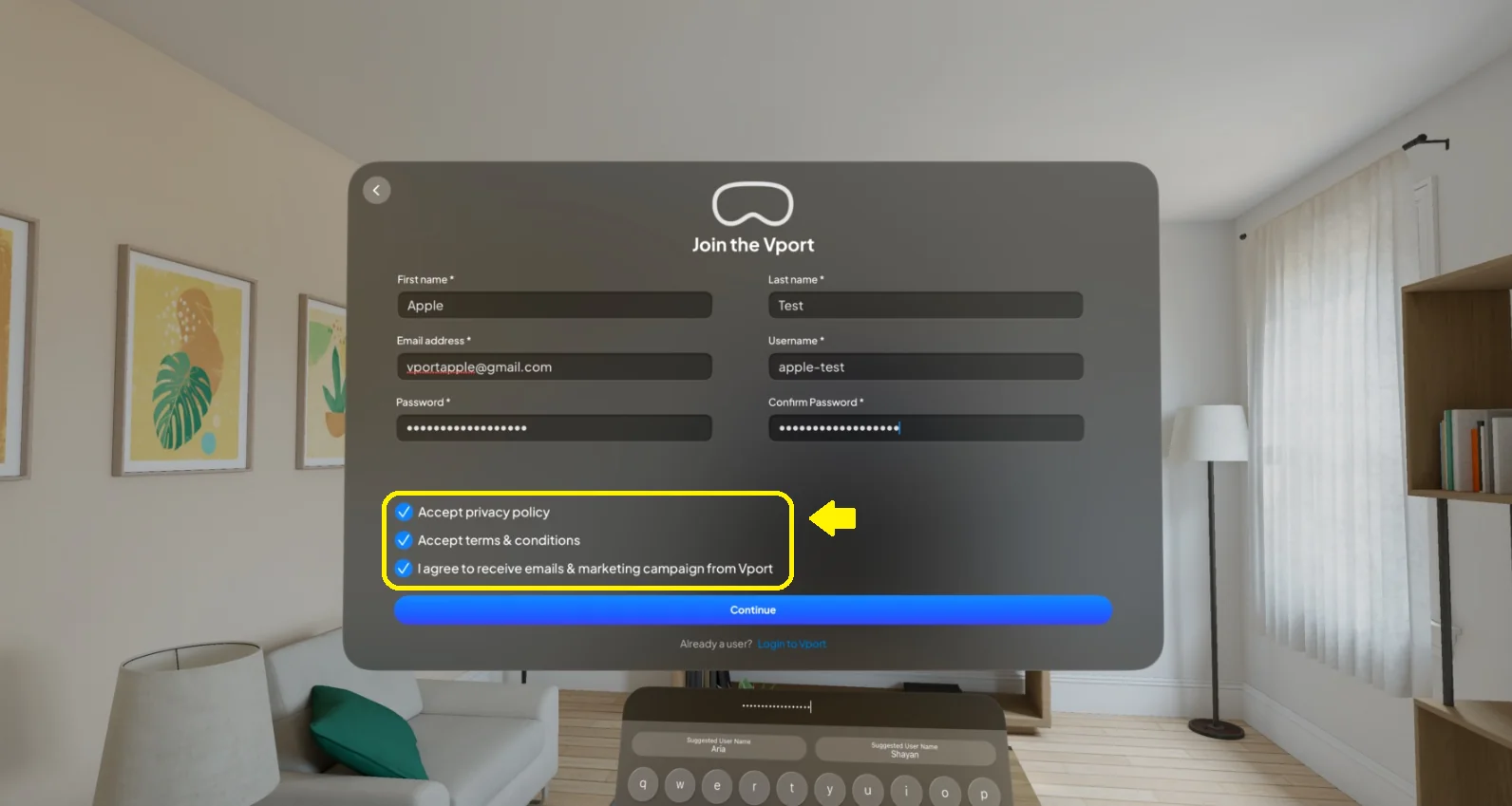
Select the Privacy Policy and Terms & Conditions rows, review each document, and accept both. The marketing-email preference is optional. Select Continue only after the required fields, password checks, and both legal acceptances are complete.
After Logging In: Apple Vision Pro
Once logged in, Vport opens the Home tab. The global tab bar also provides Search, Following, Profile, and Your Balance.

Keeping Your Account Secure
We take your security seriously. Here are a few things to keep in mind:
- Use a strong password
- Never share your password
- Be cautious of phishing attempts
- Log out when using shared devices
- On the web, enable New Login Alerts from Account Security
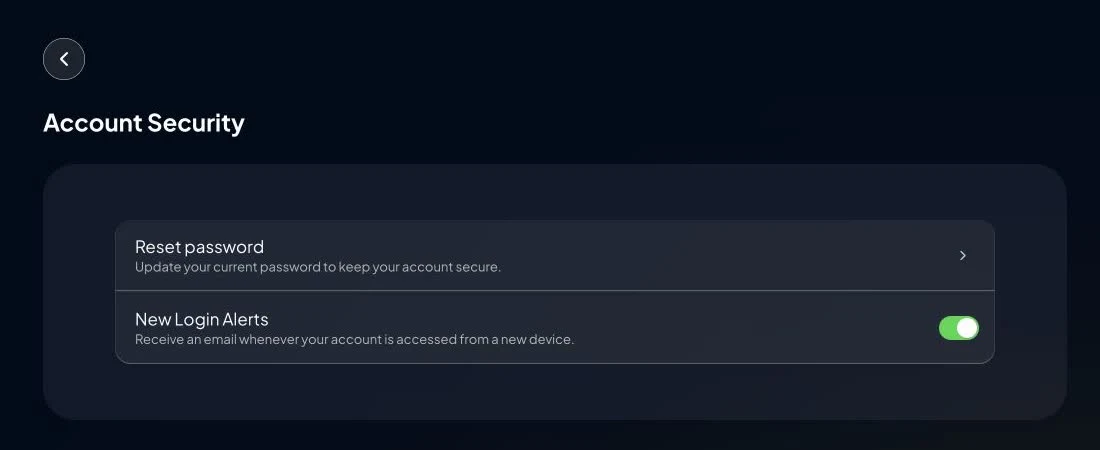
The current web Profile does not expose self-service two-factor-authentication setup or an active-session manager. Never send your password, reset link, verification code, or complete payment-card details to VPORT Support.