
Overview
The Event Page on Apple Vision Pro is where you can explore everything about a specific event before or after watching it.
From this page, you can:
- View key event details in a large mega banner
- Browse the full event lineup (all sets or instances)
- Discover all artists who performed
- View venue information, including name and address
- Hide or unhide the event using the options menu
If you open an event from the Portal or Search, this is the page where you get the full picture.
Purpose
The Event Page helps you:
- Understand an event at a glance (what, when, how long, where)
- Choose which set or instance you want to watch
- Discover new artists and jump to their performances
- Identify venues you like or recognize
- Hide events you’re not interested in to keep your experience clean
How to Use (Step-by-step Guide)
3.1 Opening an Event Page
You can open an Event Page by:
- Selecting an event card from the Portal
(Past Events, Upcoming Events, Top Events), or
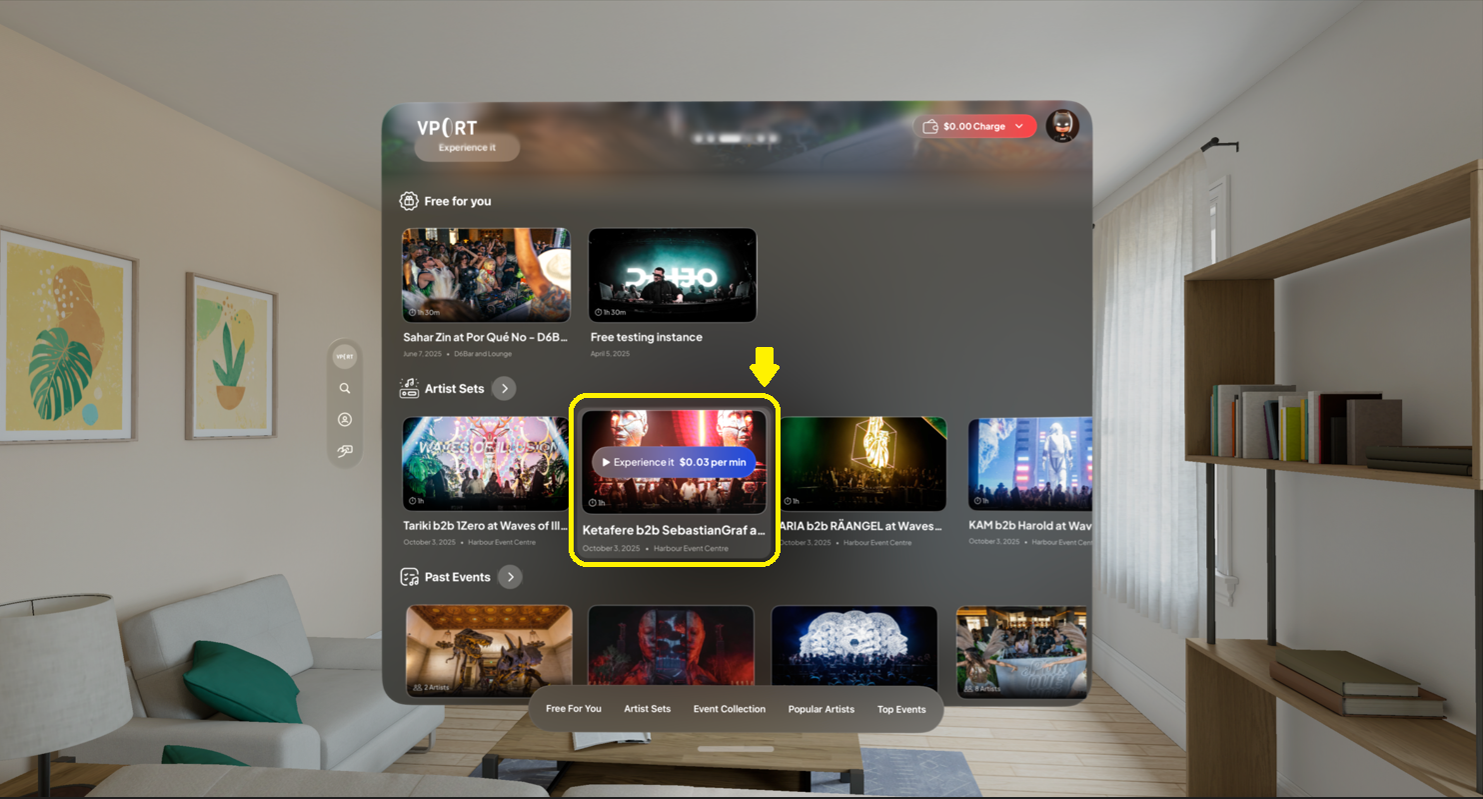
- Choosing an event from Search results
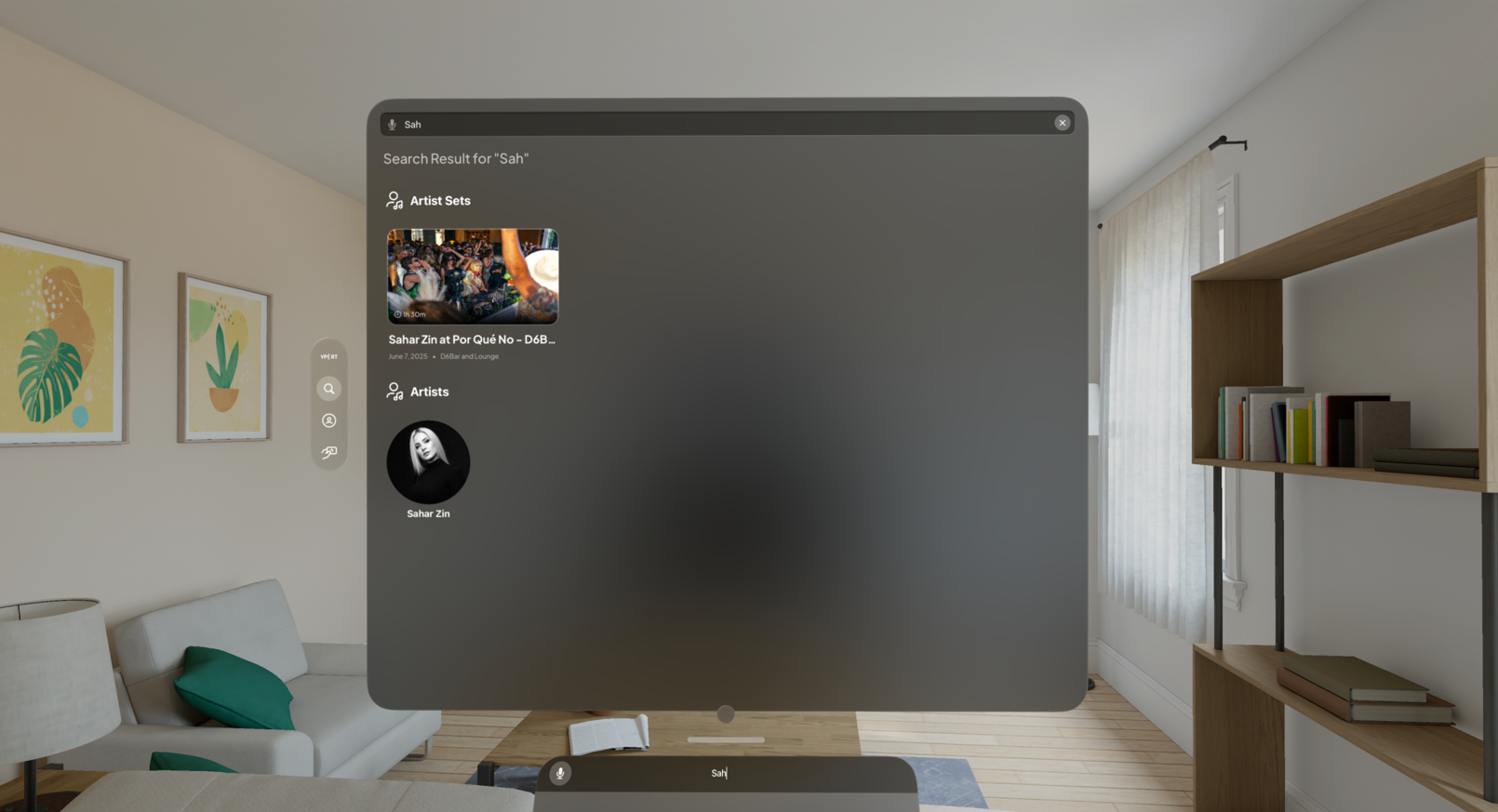
Use gaze + pinch on the event card to open its Event Page.
3.2 Reading the Mega Banner (Top Section)
At the top of the Event Page, you’ll see a large hero banner showing:
- Event name
- Event date
- Total event length
- Location / venue name
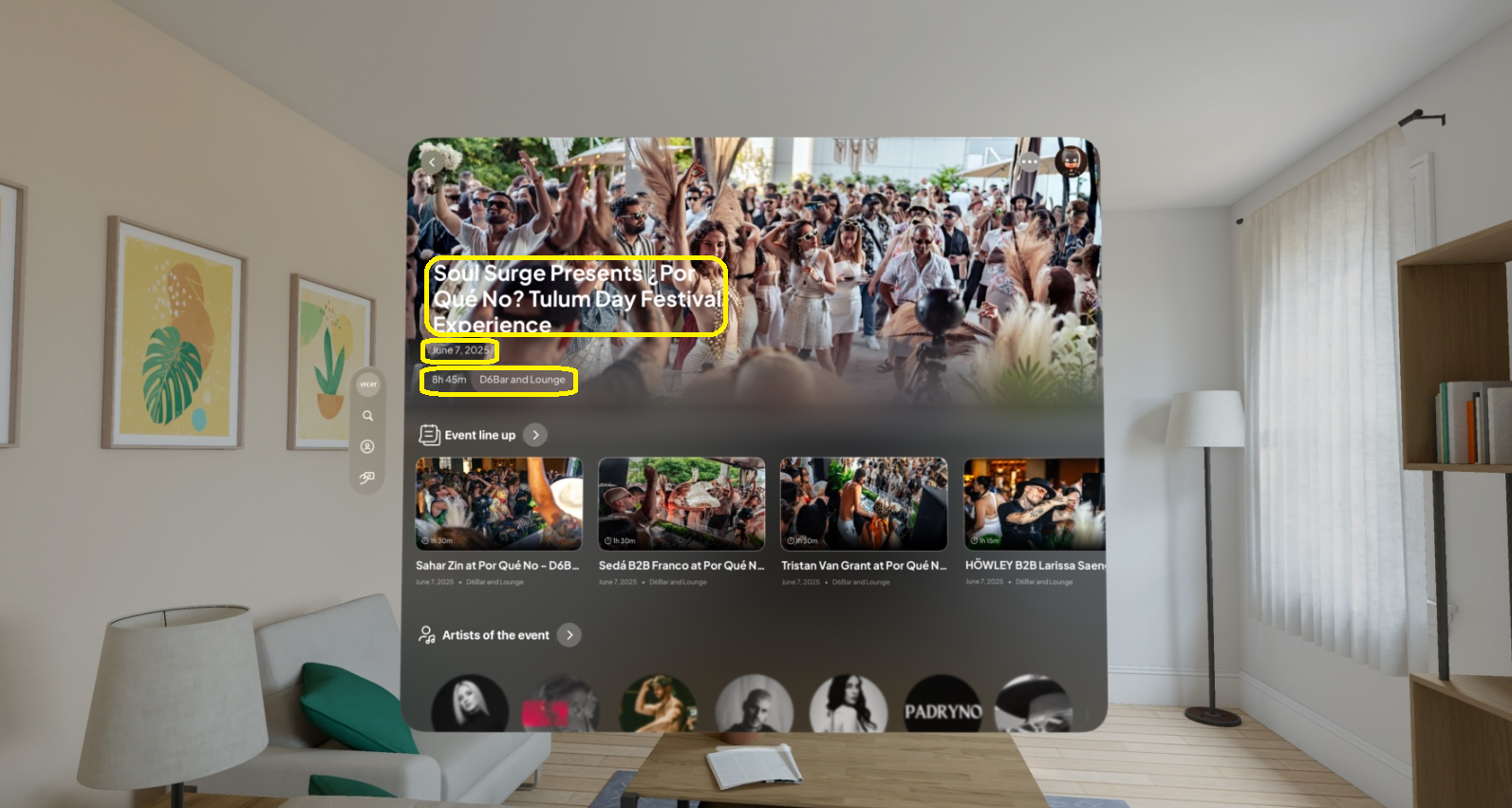
Use this section to quickly understand what the event is, when it happened, how long it runs, and where it took place.
Scroll down (look down + pinch) to explore more details.
3.3 Event Lineup (Event Instances)
Below the banner is the Event Lineup section.
This is typically a horizontal carousel containing all sets or instances from the event.
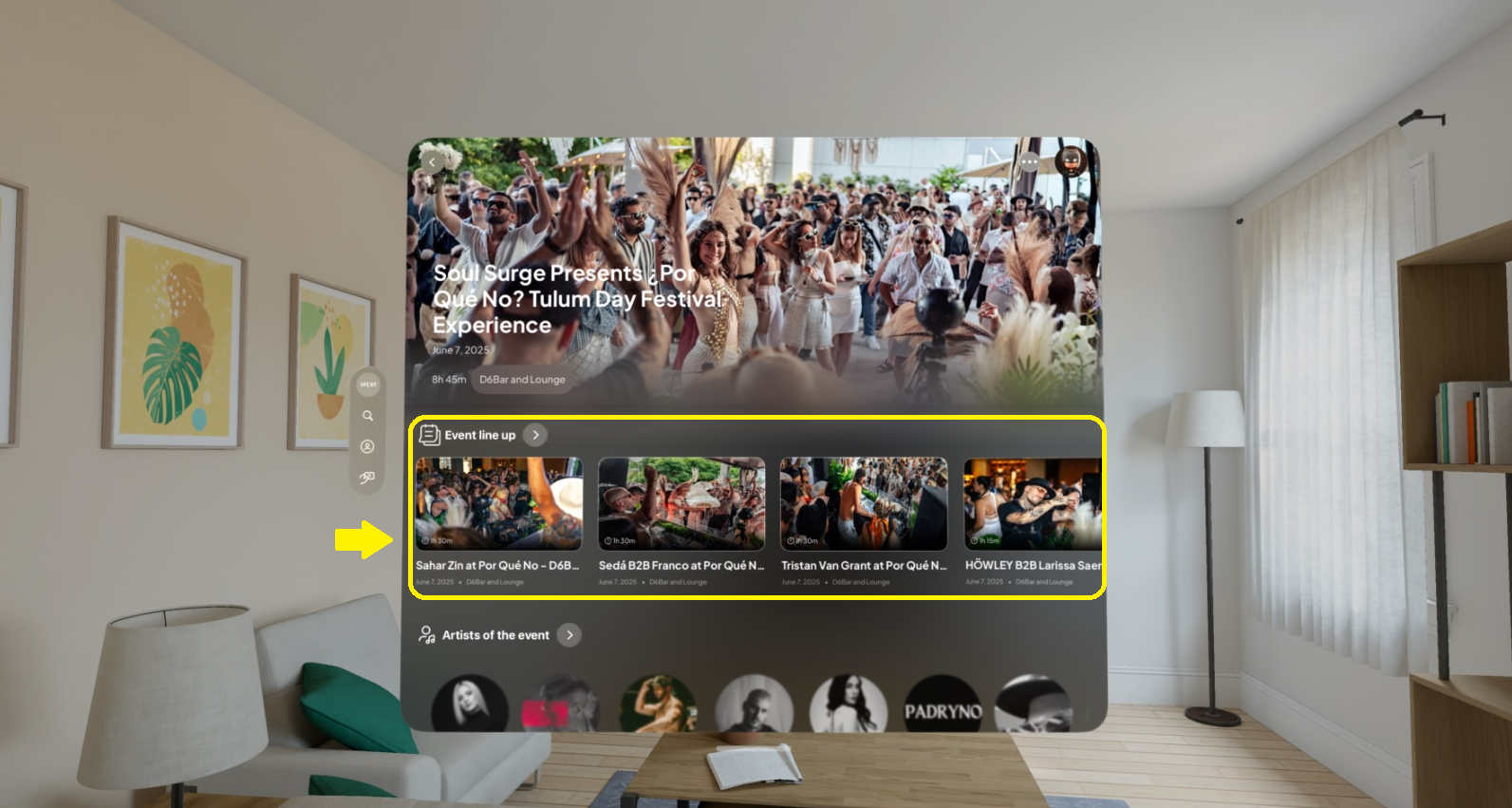
Each card may include:
- Thumbnail image
- Set or DJ name
- Date and individual set duration
To interact:
- Gaze at the lineup or a card
- Scroll horizontally using gaze + pinch
- Pinch on a set to open its page or start playback (depending on flow)
3.4 Artists of the Event
Next is the Artists of the Event carousel.
It shows all artists who performed, displayed as circular avatars.
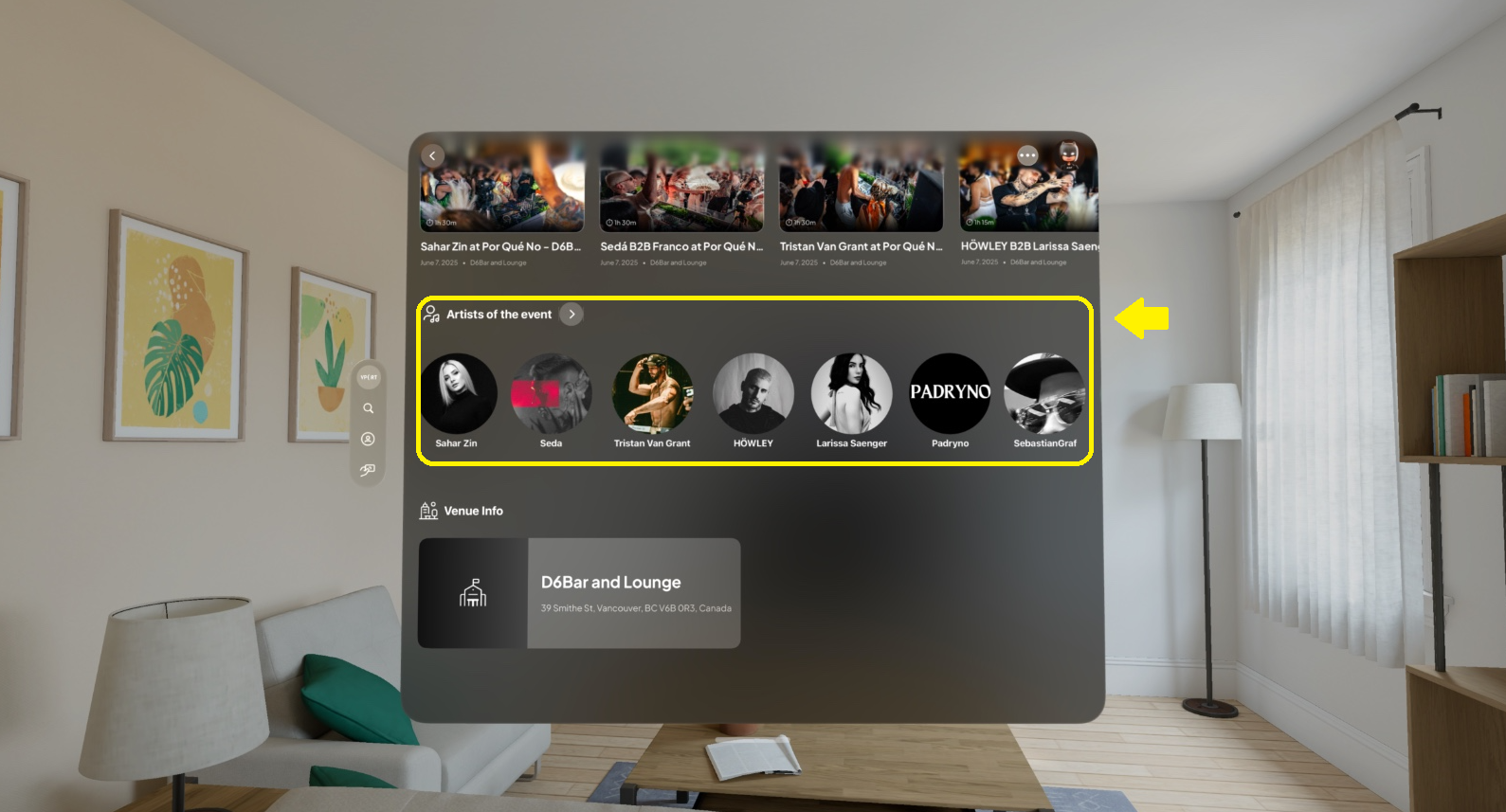
Each artist card includes:
- Artist image
- Artist name
To explore an artist:
- Gaze at the artist avatar
- Pinch to open the Artist Page
From there, you can see their sets and other events they’ve participated in.
3.5 Venue Info
Further down the page, you’ll find the Venue Info section.
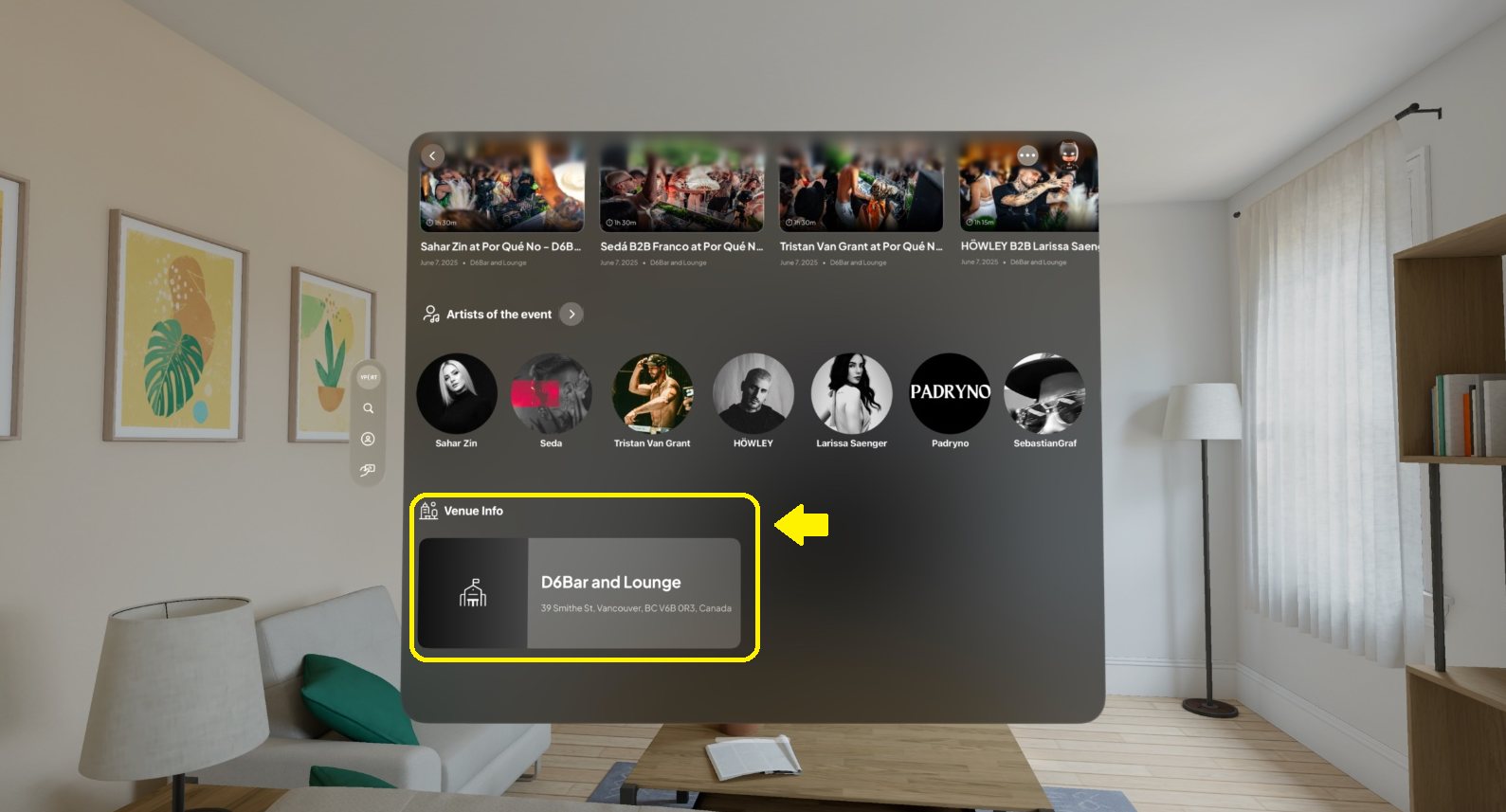
This block displays:
- Venue name
- Venue address
Use this section to understand where the event took place or to recognize venues you like.
3.6 Hiding and Unhiding an Event
3.6.1 Hiding an Event
If you don’t want to see an event anymore:
- On the Event Page, look at the three-dot (⋯) menu in the top-right corner
- Pinch to open the menu
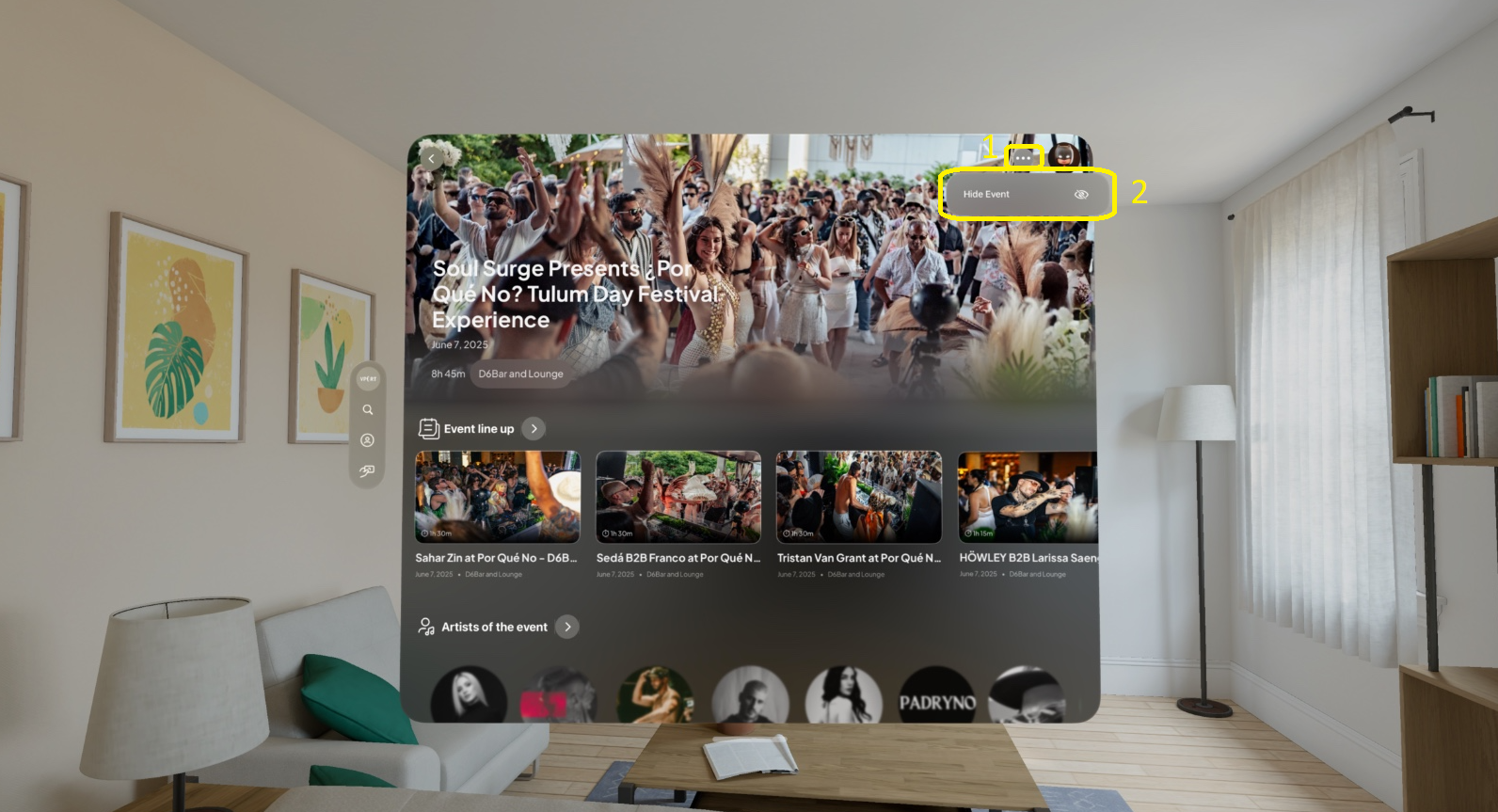
- Select Hide event
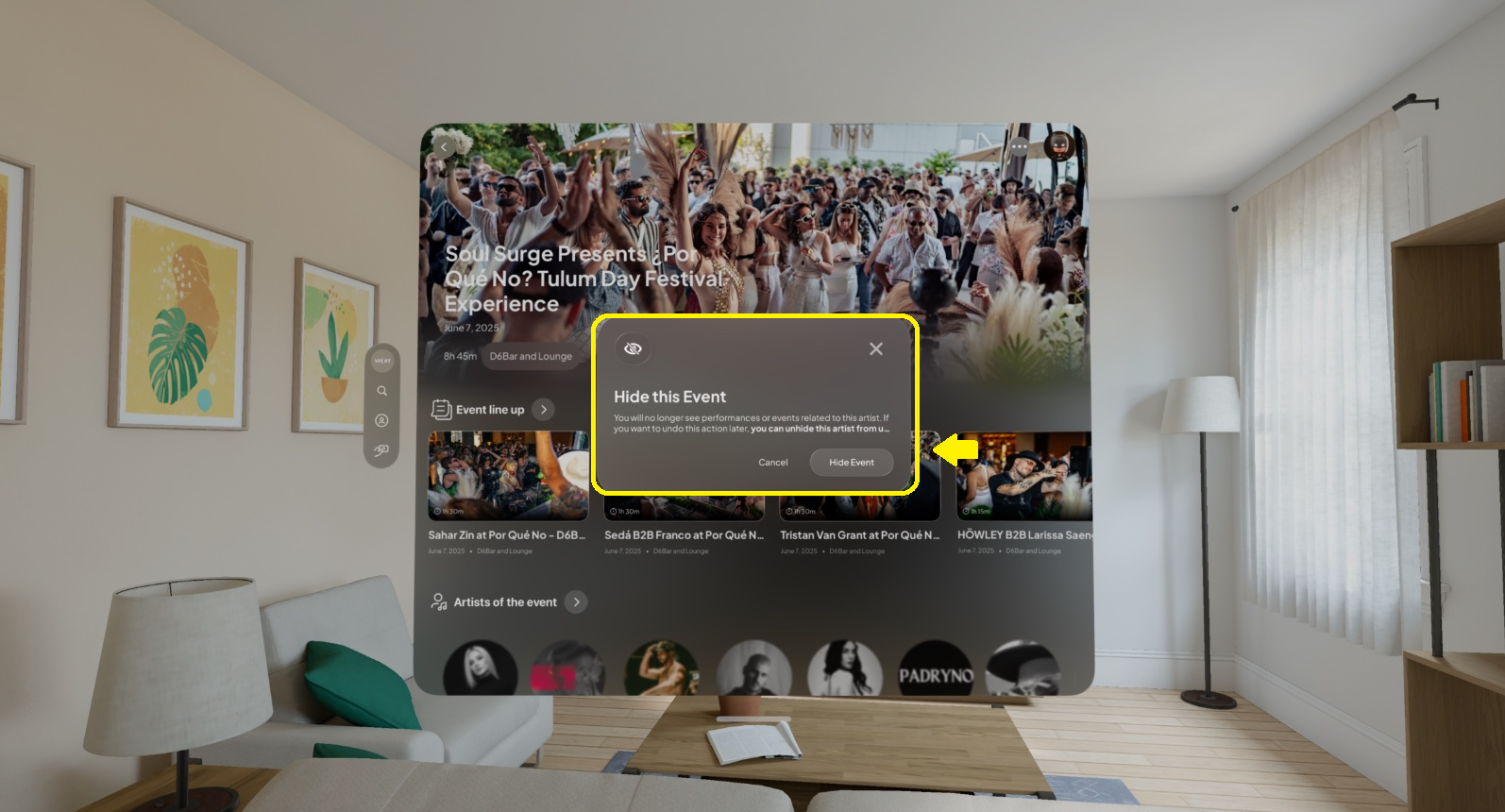
Once hidden, the event will no longer appear in your normal discovery and event lists for that account.
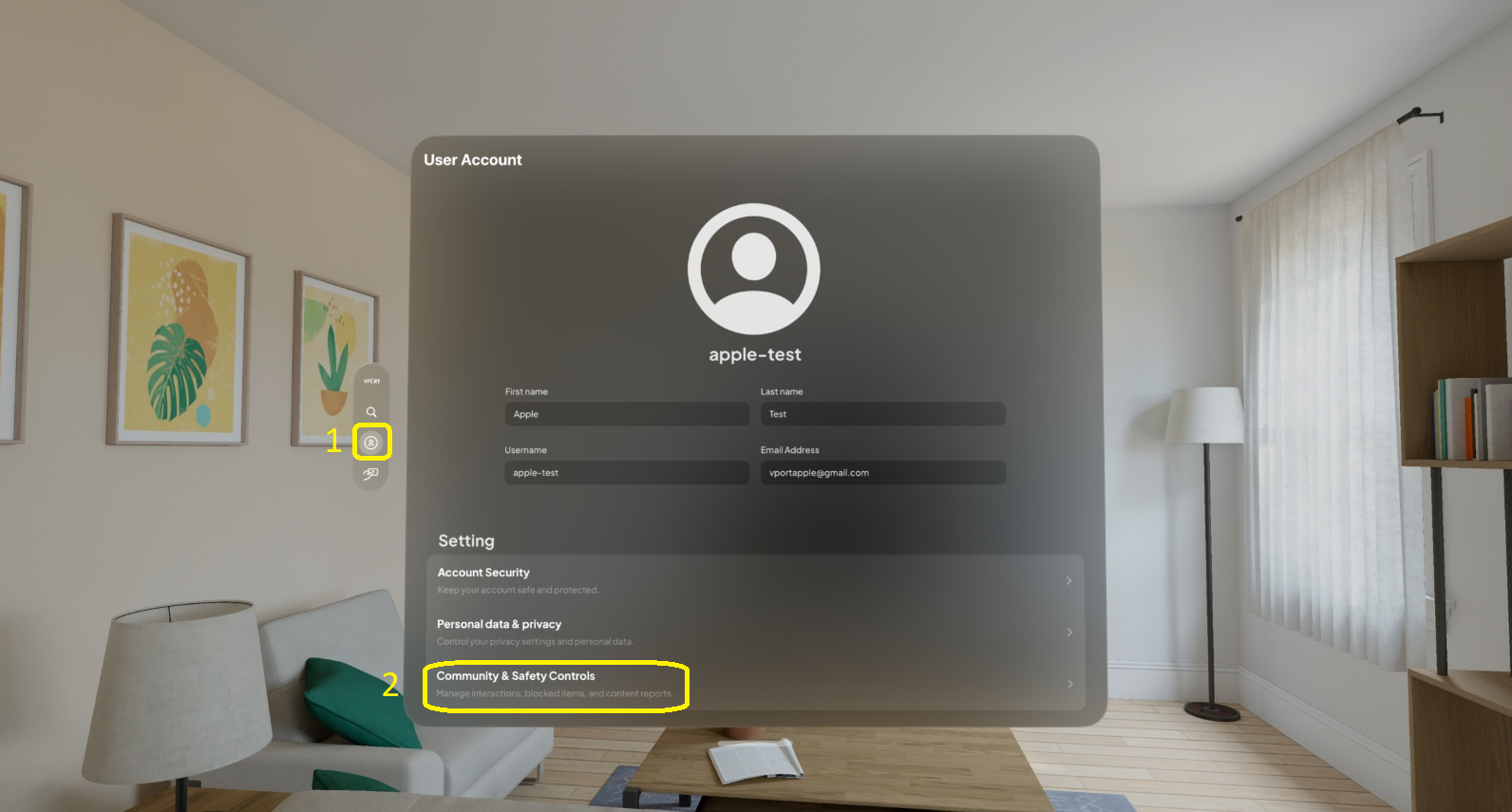
3.6.2 Unhiding an Event (From Profile Settings)
If you want to restore a hidden event:
- Open your Profile
- Go to Settings
- Open the Hidden events list
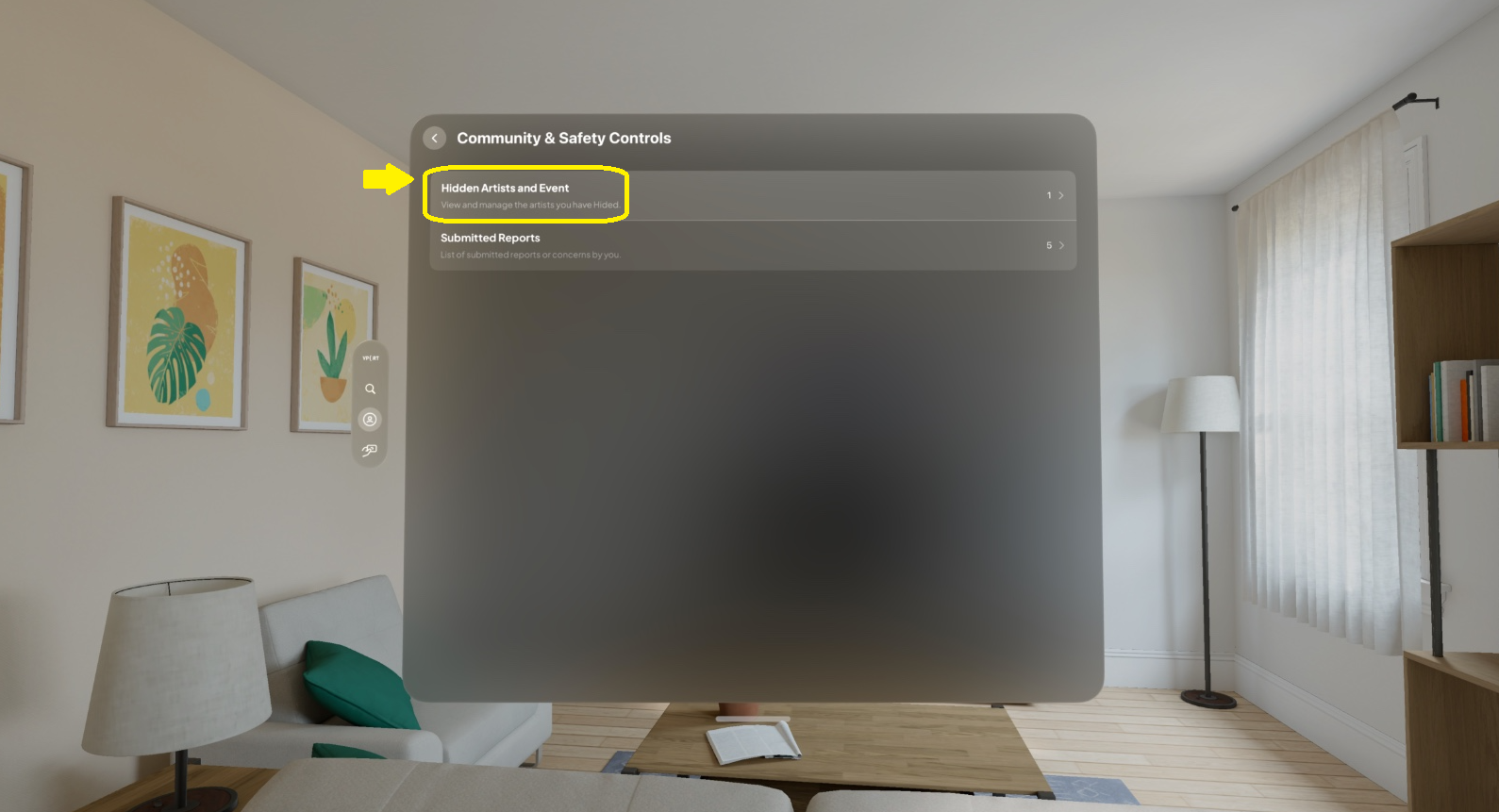
- Select the event or artist
- Choose Unhide
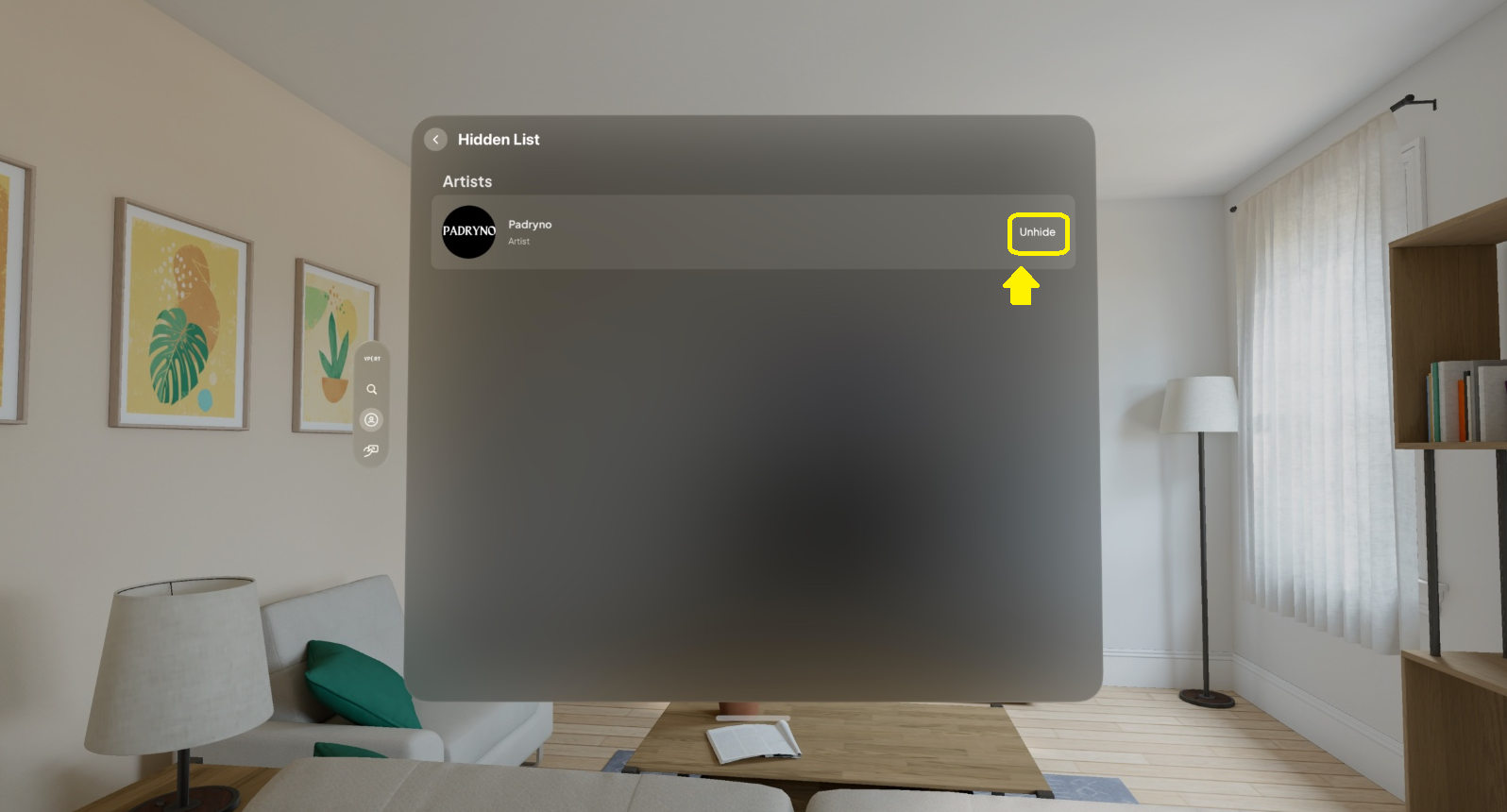
The event will become visible again in discovery and event views.
Key Features
Feature 1: Mega Banner with Core Event Details
Immediately see event name, date, full duration, and location.
Feature 2: Event Lineup Carousel
Browse all sets belonging to the event and choose what to watch.
Feature 3: Artists of the Event Carousel
Quickly discover artists and jump to their profiles.
Feature 4: Venue Information Block
View venue name and full address.
Feature 5: Hide / Unhide Event
Control which events appear in your discovery views.
Common Issues & Troubleshooting
Issue 1: I Can’t Find the Hide Option
Possible causes:
- Not looking directly at the three-dot menu
- Not on the Event Page
Try this:
- Confirm you are on the Event Page
- Look at the top-right corner next to your profile picture
- Gaze at the three dots until they highlight, then pinch
Issue 2: I Hid an Event and Can’t See It Anywhere
This is expected behavior.
To restore it:
- Profile → Settings → Hidden events
- Select the event and unhide it
Issue 3: Event Lineup or Artists Carousel Isn’t Loading
Possible causes:
- Slow or unstable internet
- Temporary loading issue
Try this:
- Check your network connection
- Scroll slightly or navigate away and back
- Restart the Vport app if the issue persists
Issue 4: Venue Info Looks Empty or Incomplete
Some events may have limited venue data.
If something looks incorrect:
- Take a screenshot if possible
- Contact Vport Support with the event name and venue details shown