
Overview
The Vport Media Player on Apple Vision Pro lets you watch immersive concert experiences in a spatial environment.
Before the player opens, you’ll see an Event Access Modal showing:
- Event name
- Duration
- Price (free or pay-per-minute)
- Your wallet balance
Depending on your balance, you can:
- Teleport into the event
- Charge your wallet
- Explore free events
You can watch in:
- A floating window, or
- A fully immersive spatial mode
Controls use VisionOS gaze + pinch gestures for play/pause, skipping, volume, event info, reporting issues, quality settings, and horizontal lock for comfortable seated viewing.
Purpose (User Value)
The media player is built to:
- Make immersive watching easy without extra hardware
- Use familiar VisionOS-native controls (gaze + pinch)
- Provide event info directly inside playback
- Allow quick reporting of issues
- Deliver a comfortable and intuitive media experience for Apple Vision Pro users
This is the central place where you control any Vport viewing experience on VisionOS.
How to Use (Step-by-step Guide)
3.1 Opening the Media Player
- Launch Vport on your Apple Vision Pro.
- Look at the event you want to watch.
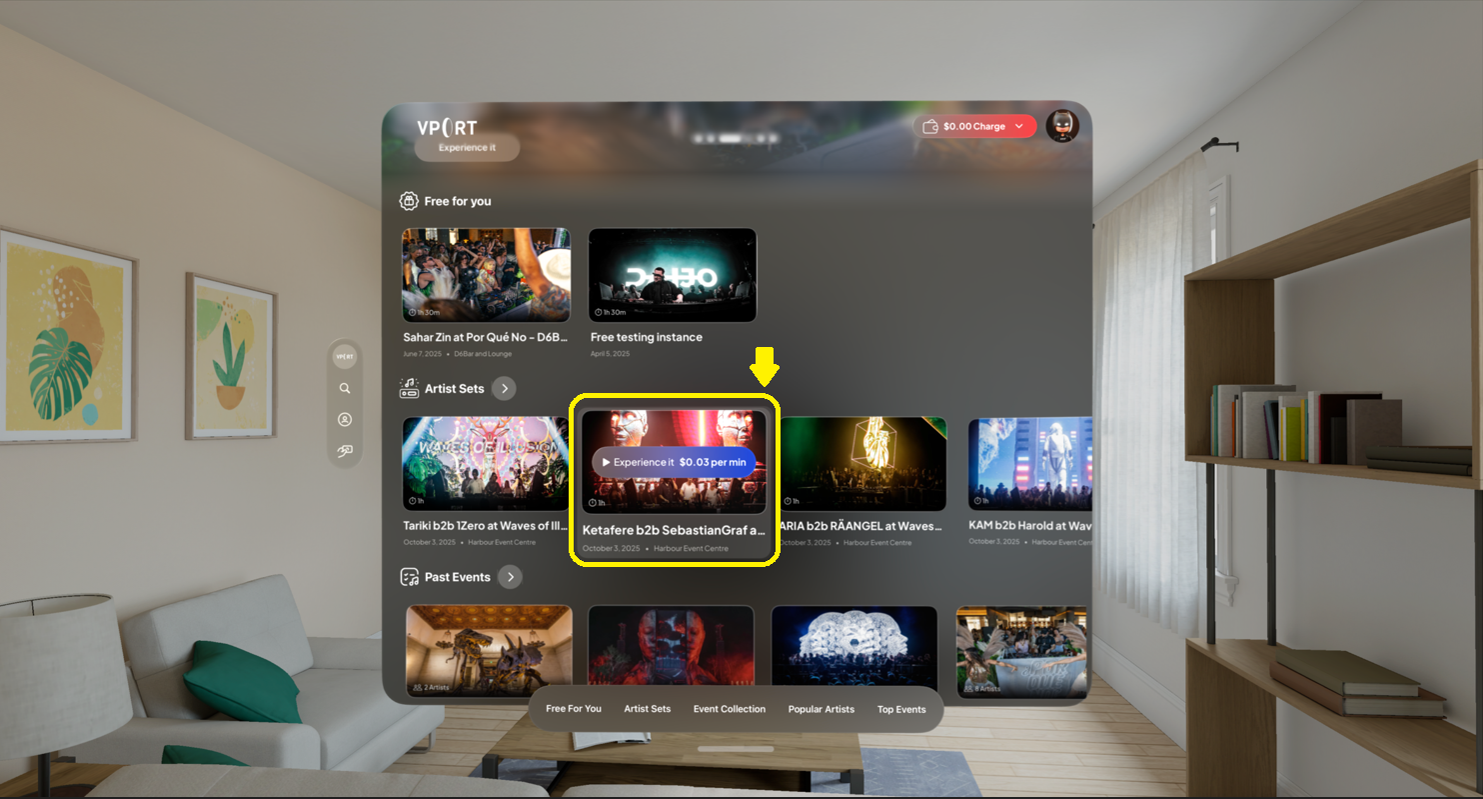
- Pinch to open the event.
- The Event Access Modal appears (see below).
- Select Teleport Now (if eligible).
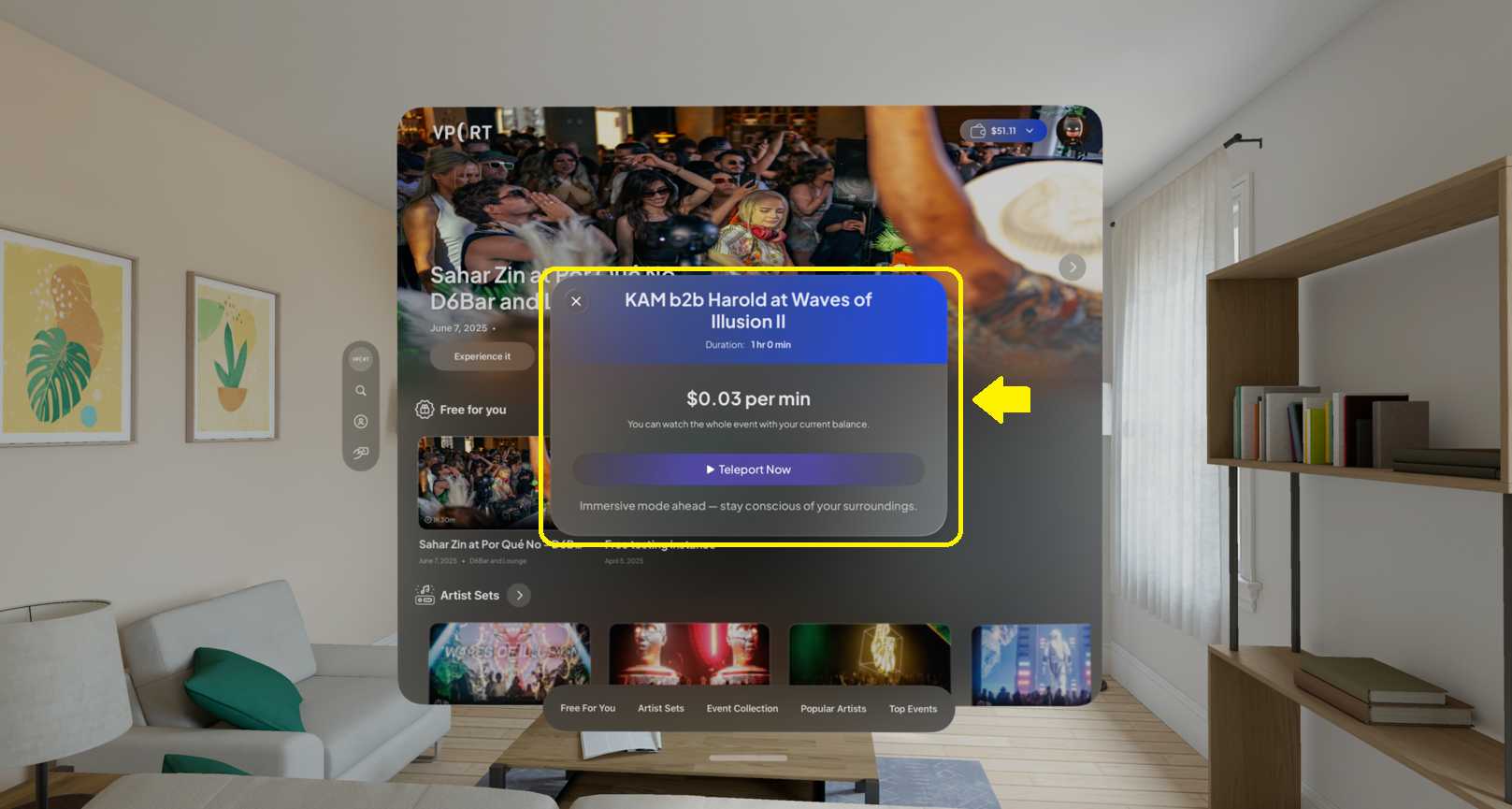
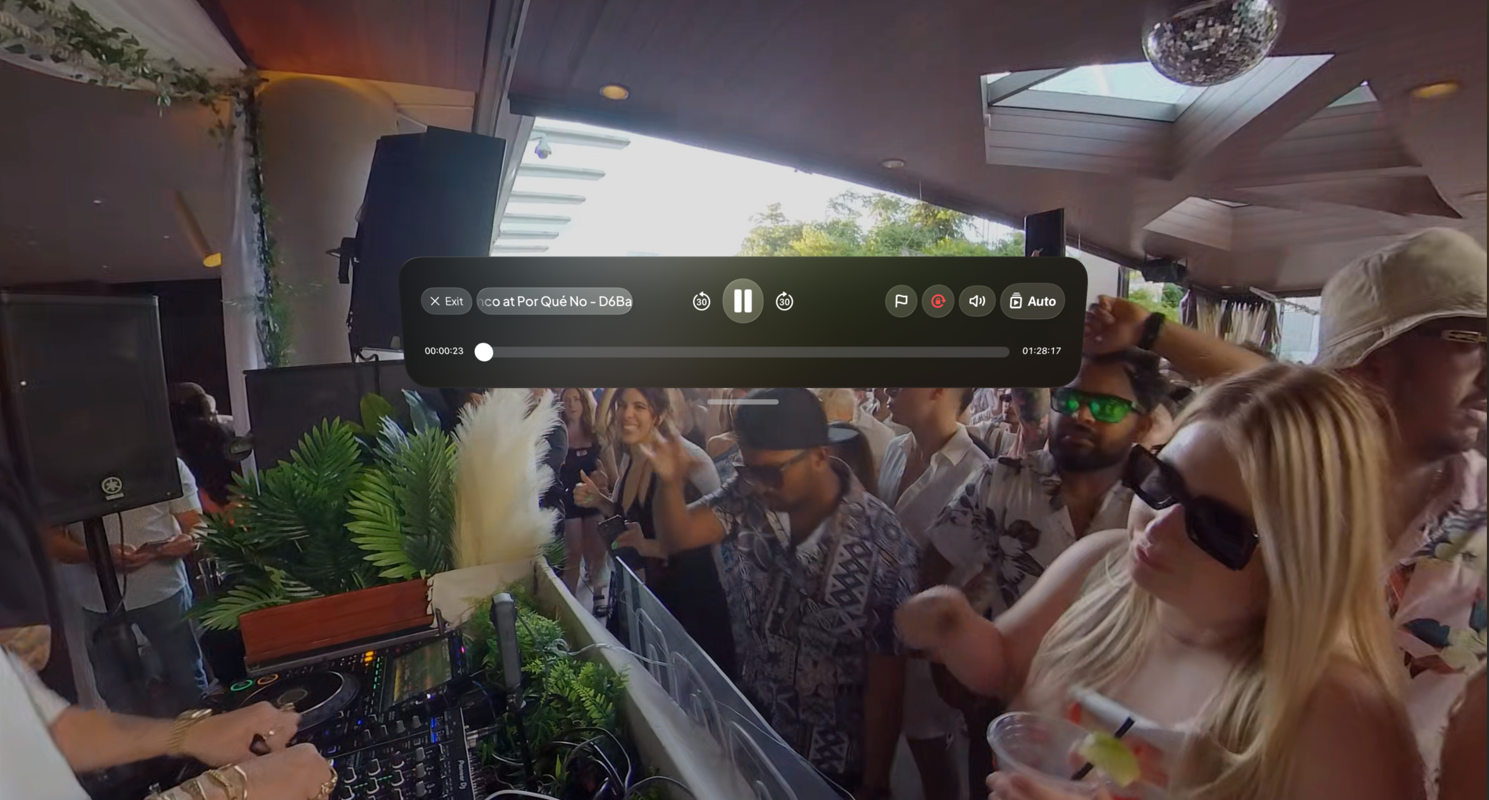
- The media player opens in windowed or immersive mode.
3.2 Event Access Modal (Pricing & Balance)
When opening an event, the modal shows:
- Event name
- Duration
- Price (e.g., "$0.03 per min") or “Free event”
- Wallet balance
3.2.1 Paid Event – Enough Balance
You see:
- Price per minute
- Note indicating your balance is sufficient
Button: Teleport Now
Playback will begin, and usage charges apply based on the event rate.
3.2.2 Paid Event – Not Enough Balance
If balance is below the minimum required amount (e.g., $2 minimum):
You see:
- Current balance
- Message indicating minimum credit required
- Buttons:
- Watch free events
- Charge Wallet
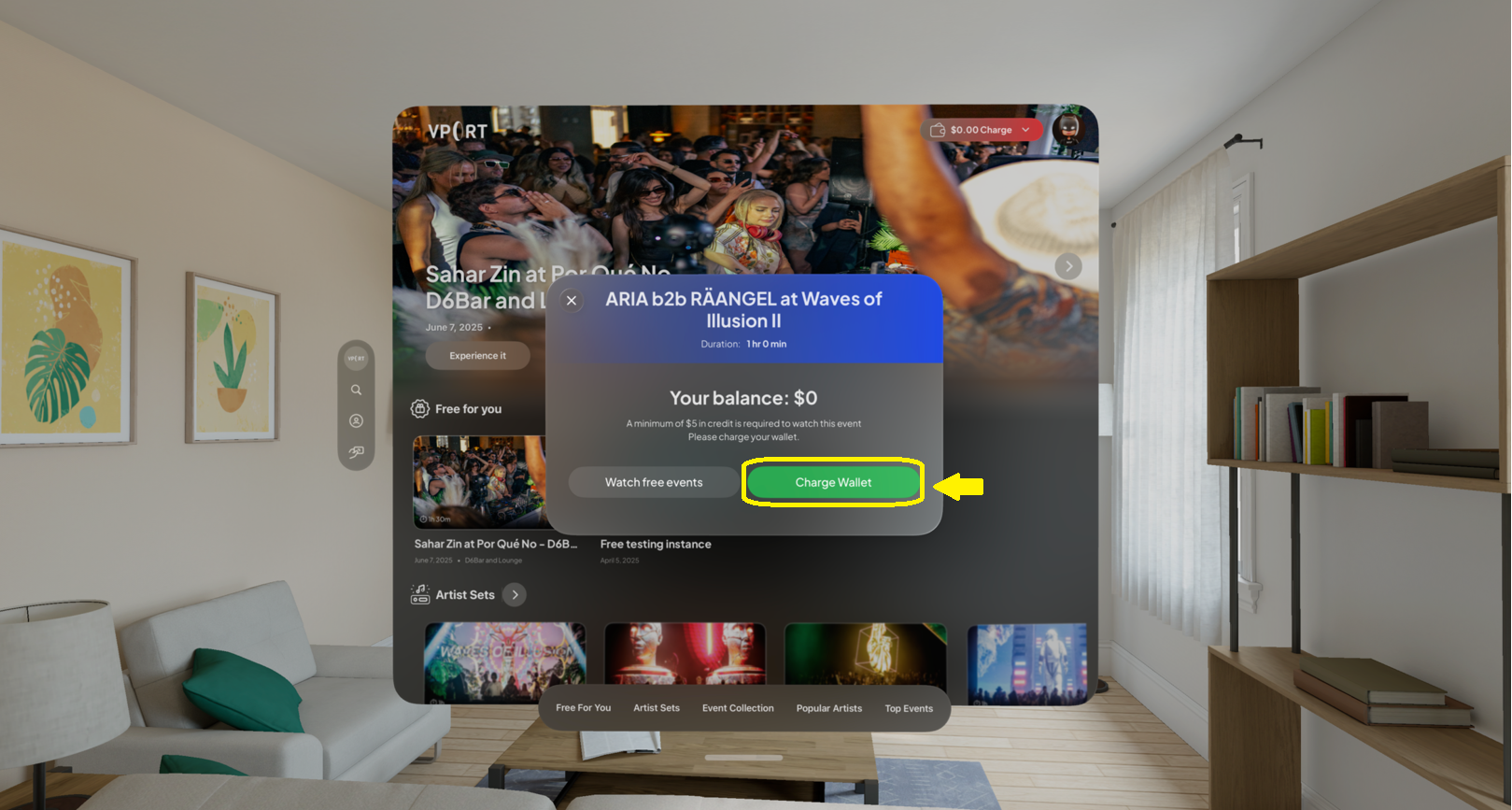
Teleport Now is not shown until balance requirements are met.
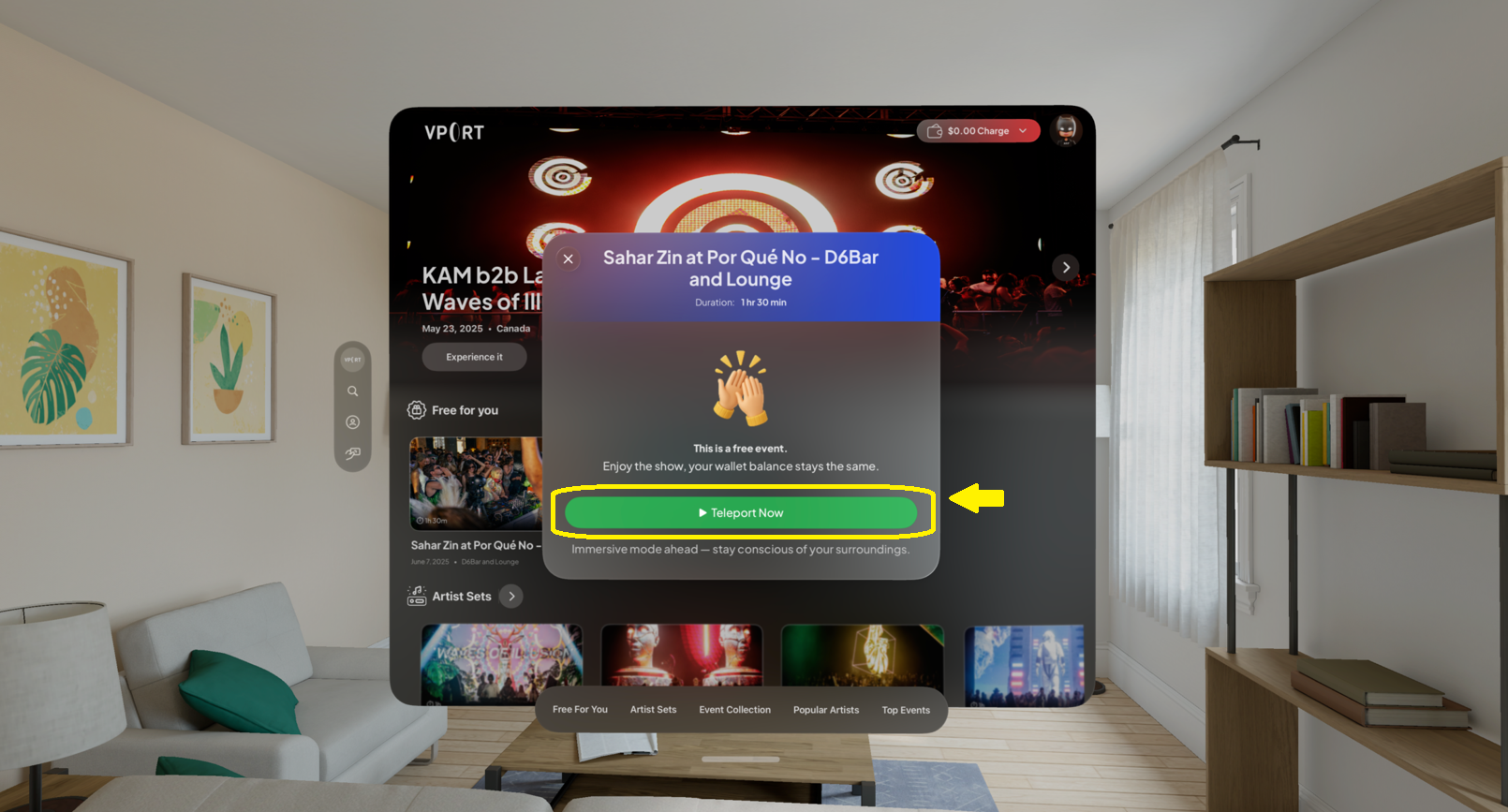
3.2.3 Free Event
You’ll see a celebratory message:
“This is a free event. Enjoy the show.”
Button: Teleport Now
Your balance will not be affected.
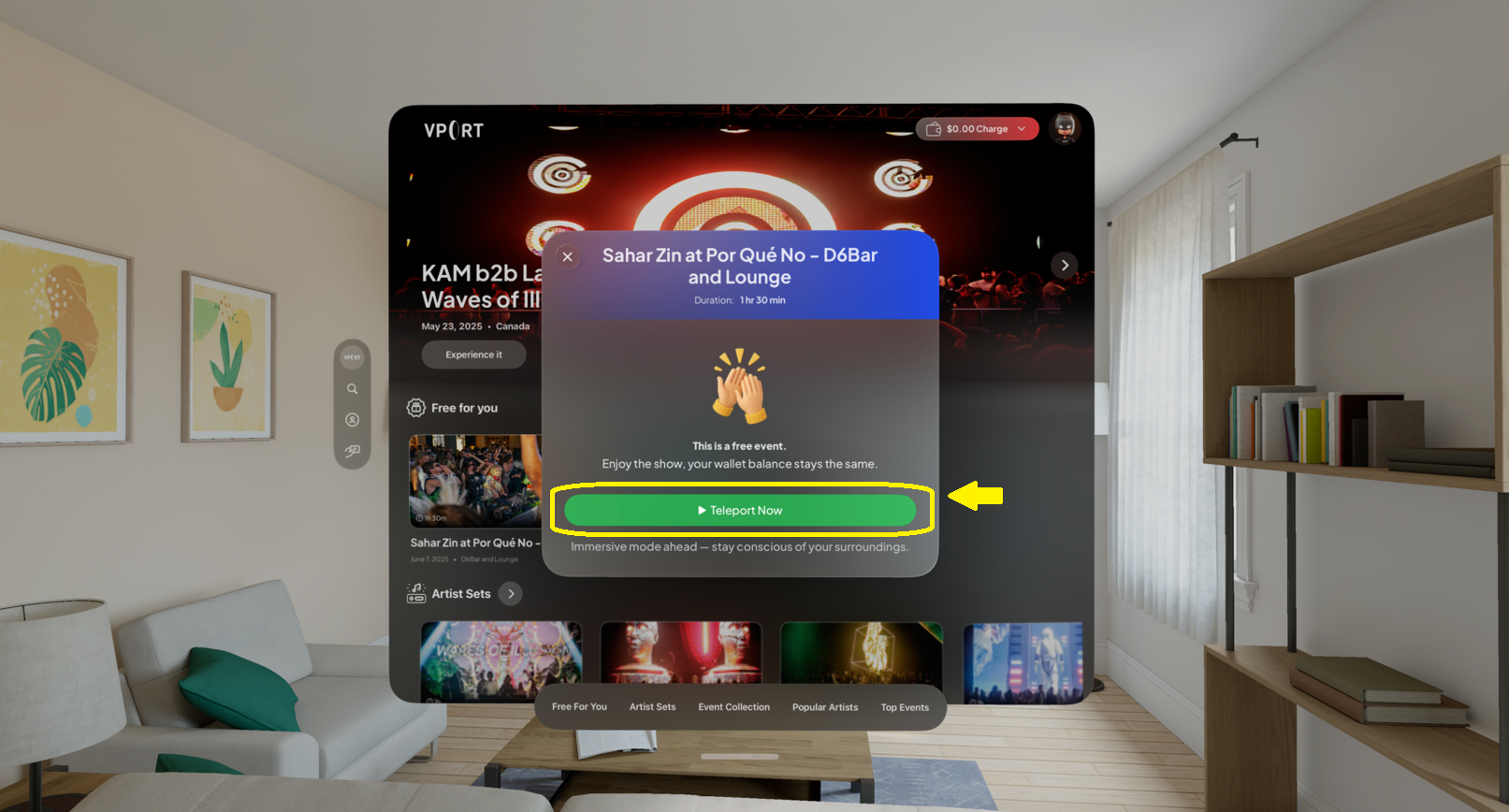
3.3 Basic Playback Controls
The control bar (bottom of view) includes:
Play / Pause
- Look at Play/Pause → pinch to toggle.
Skip Forward / Backward (±30s)
- Look at the 30s icons → pinch to jump.
Timeline (Seek)
- Look at the timeline → pinch and drag to seek.
3.4 Viewing Event Info
- Look at Event Info in the top bar.
- Pinch to open the info panel.
- View:
- Title
- Artist names
- Date and location
- Look away or pinch again to close.
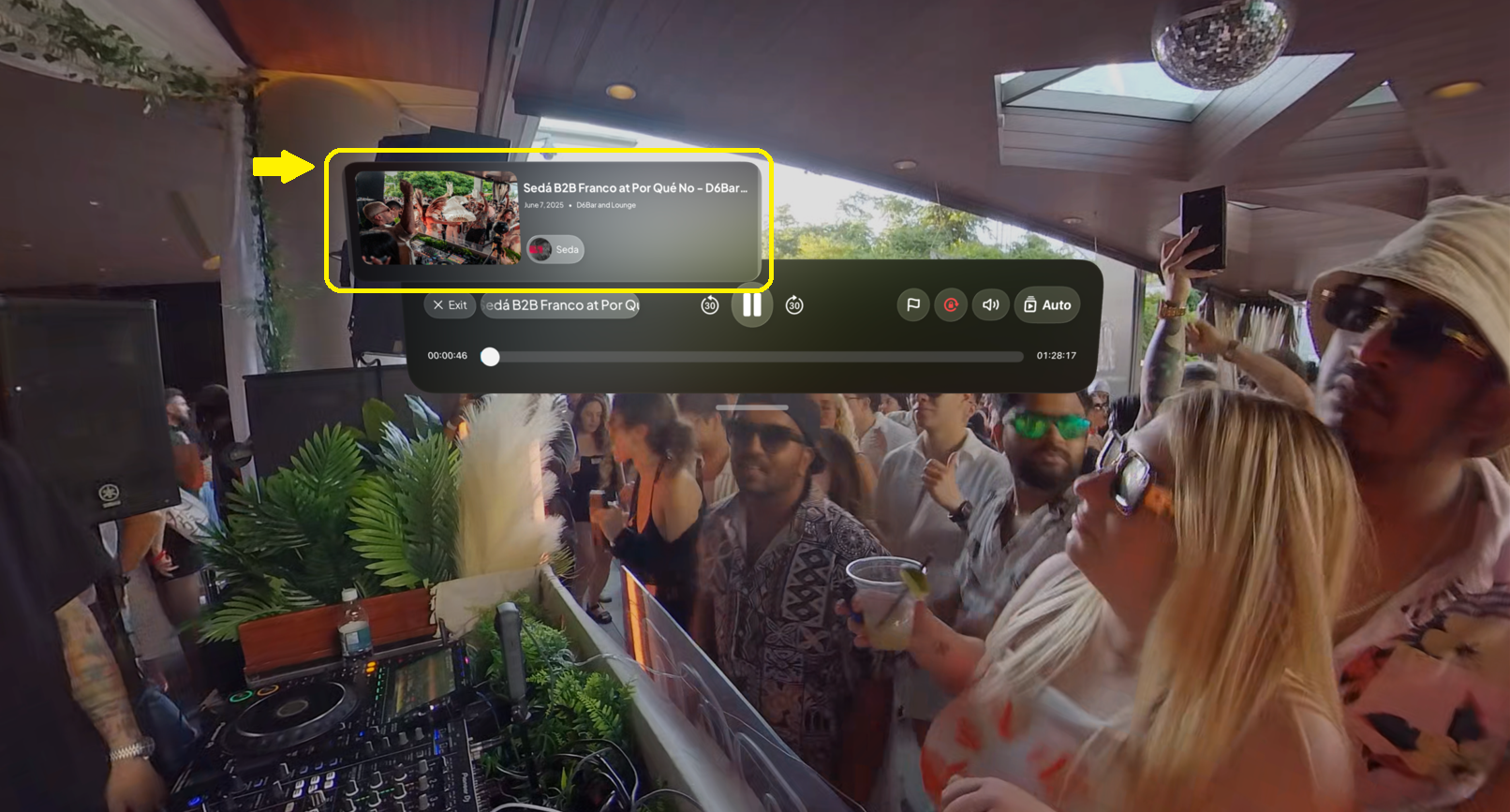
3.5 Adjusting Volume
- Look at the Volume icon.
- Pinch and drag the slider.
- You may also adjust system volume from VisionOS.
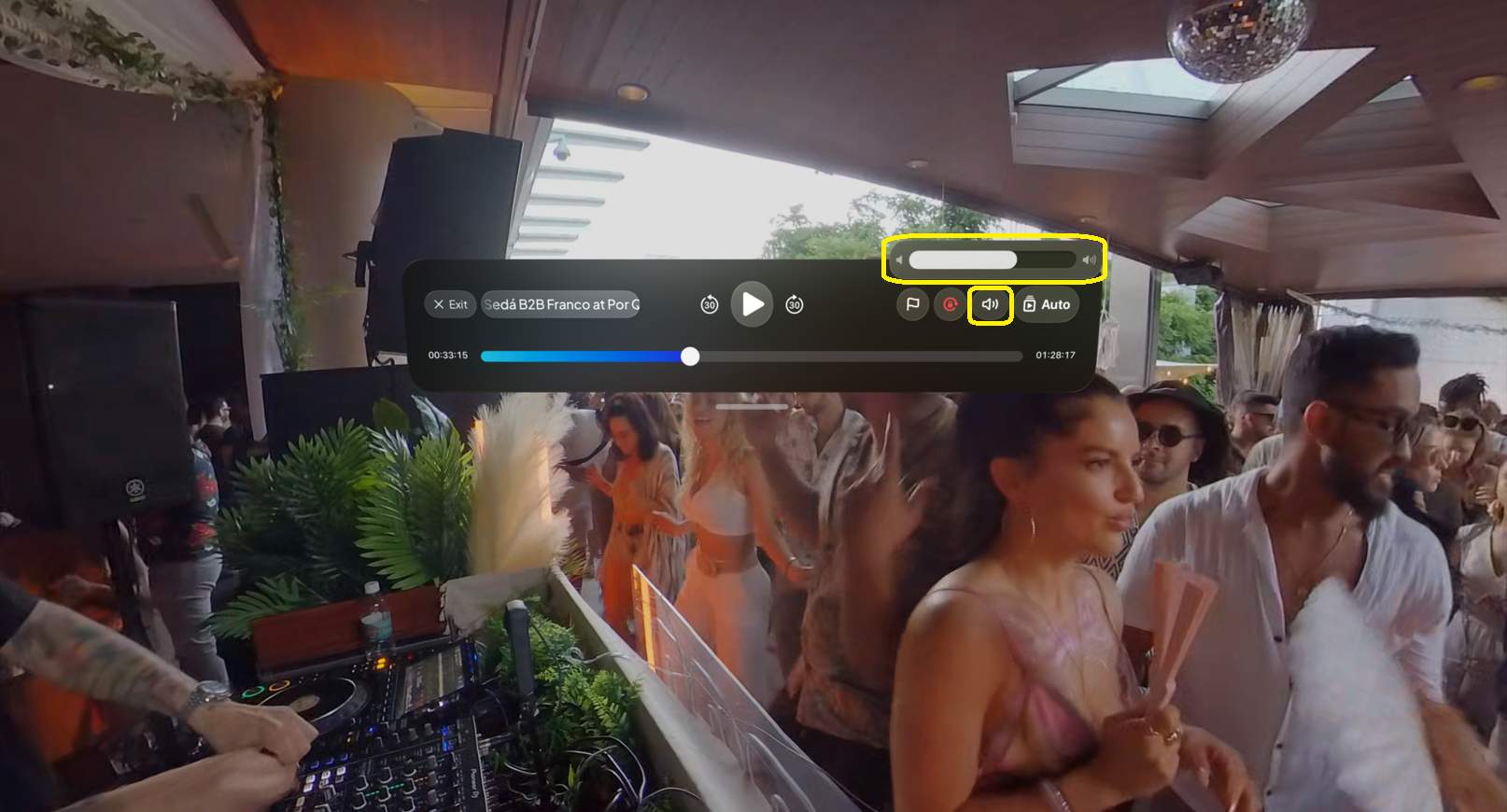
If you hear no audio, see troubleshooting.
3.6 Exiting the Player
You can exit via:
Exit Button
- Look → pinch to close and return.
VisionOS window controls
- Use standard VisionOS “close” action.
3.7 Horizontal Lock (Seated Viewing)
To keep the player stable when seated:
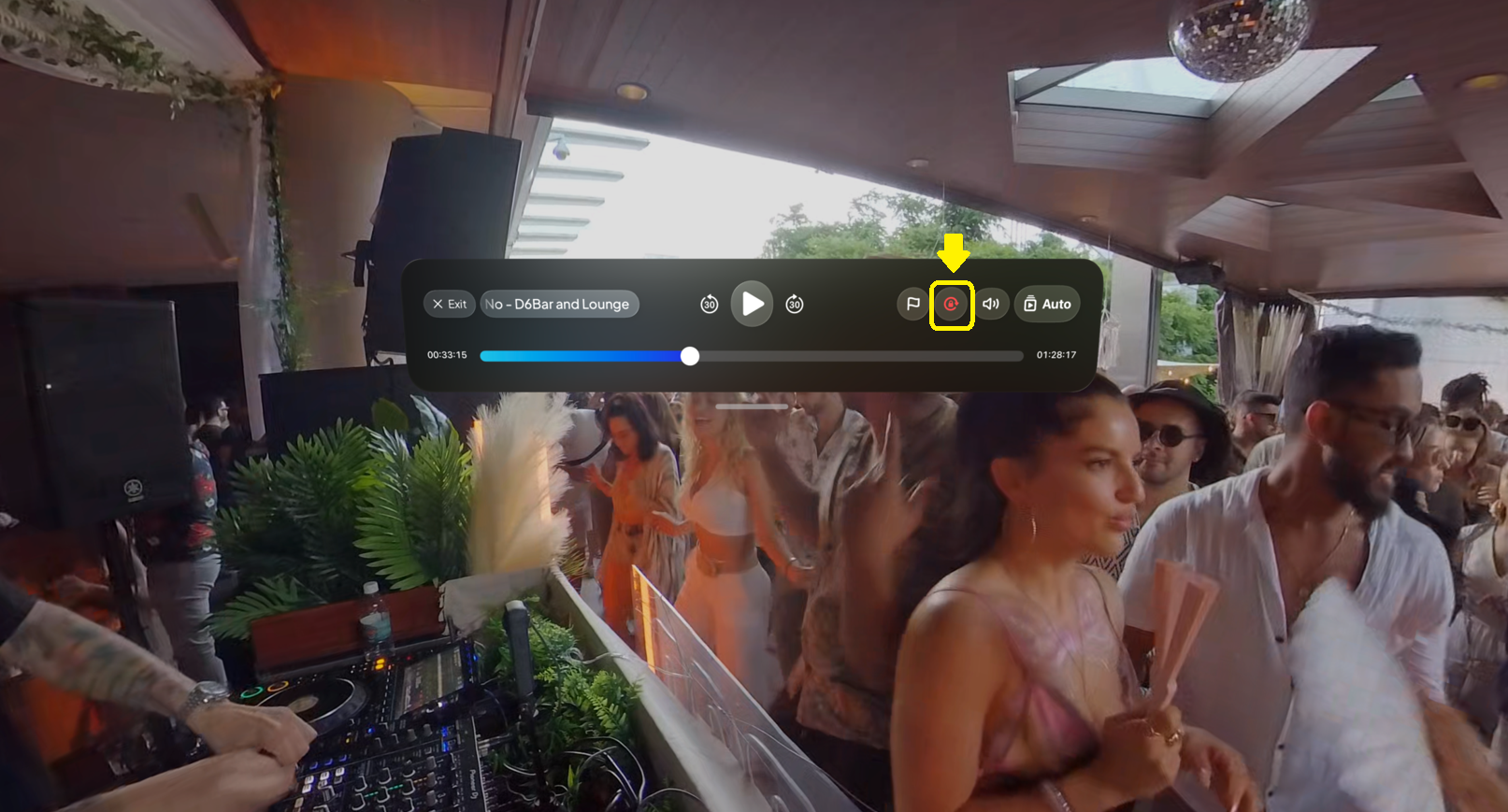
- Look at the Horizontal Lock icon.
- Pinch to enable lock.
- Pinch again to disable.
Prevents unnatural horizontal movement and improves comfort.
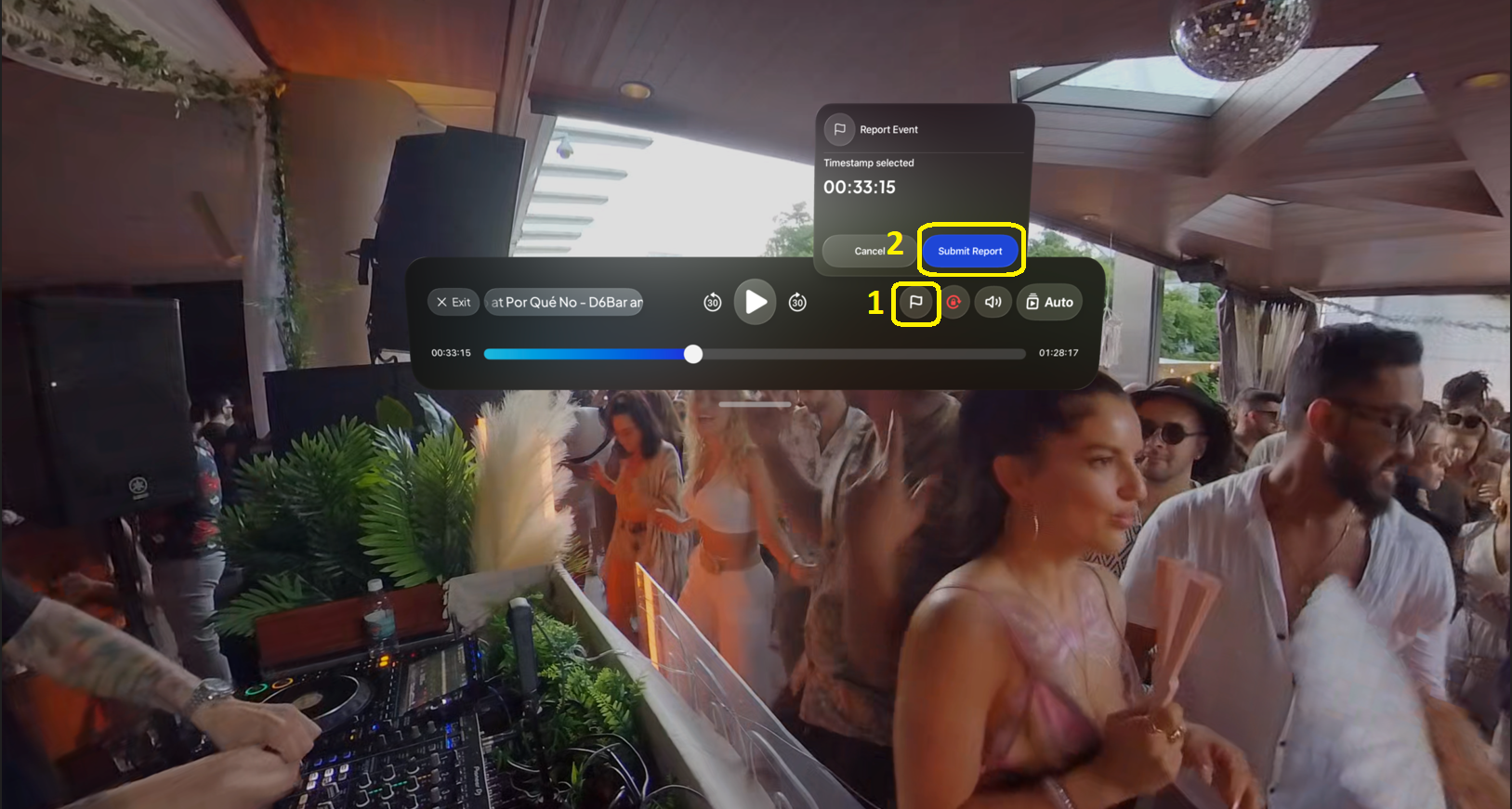
3.8 Reporting an Issue
If you see/hear something wrong:
- Look at the Report icon.
- Pinch to open the report menu.
- Select a reason.
- (Optional) Check the timestamp before sending.
Reports help our team investigate issues faster.
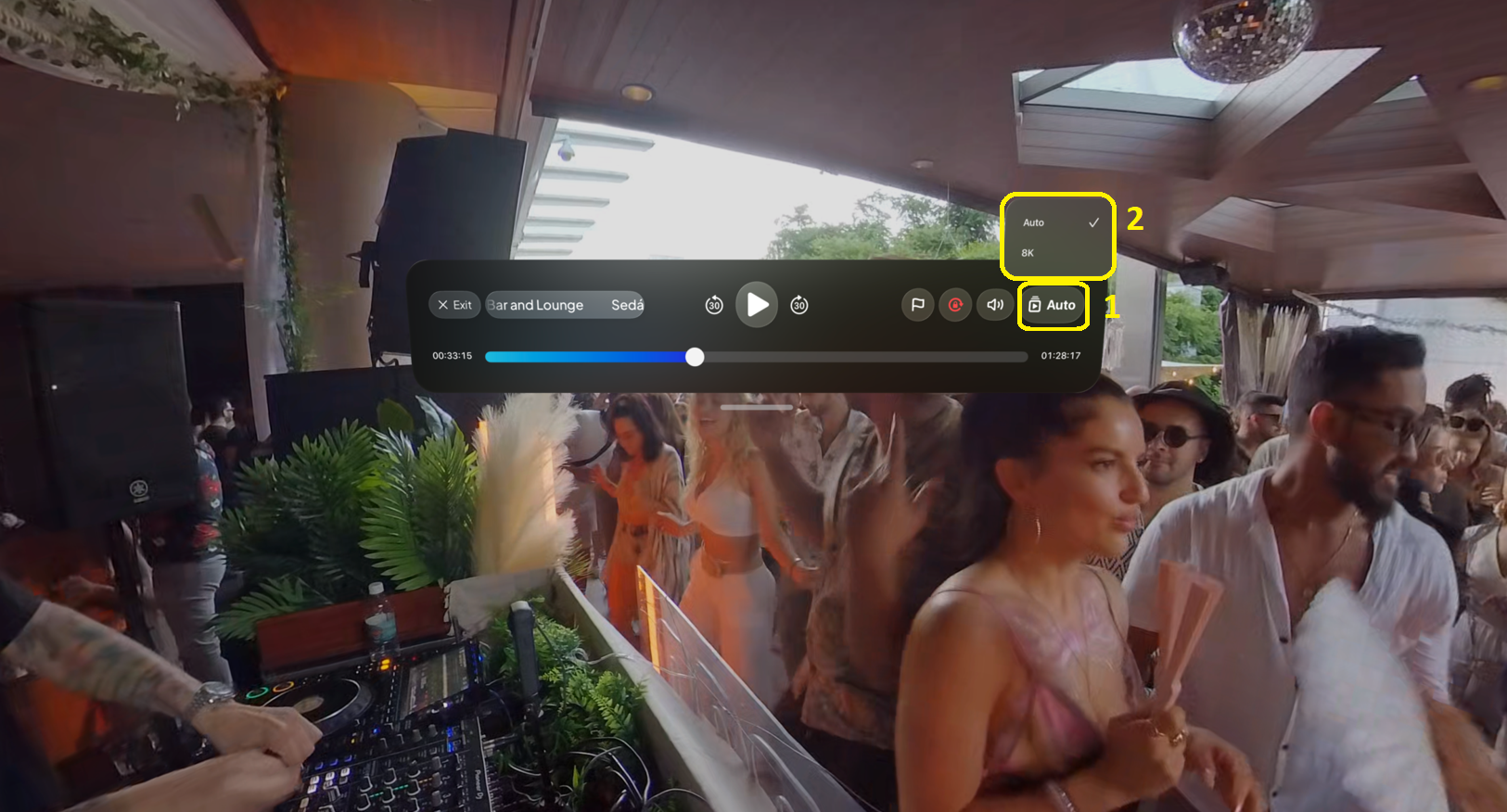
3.9 Changing Video Quality
- Look at the Quality icon.
- Pinch to open the quality menu.
- Choose a resolution (8K, 4K, Auto, etc.) based on availability.
3.10 Changing Immersion Level (VisionOS Feature)
Use the Digital Crown:
- Scroll one way → increase immersion
- Scroll the other → reduce immersion
This is built into VisionOS and works seamlessly with Vport.
Key Features
Feature 1: Spatial Concert Playback
Immersive concert experiences optimized for VisionOS.
Feature 2: VisionOS-native Controls
Gaze + pinch interactions—no controller required.
Feature 3: Quick Event Info
View full event details without leaving playback.
Feature 4: Seated Horizontal Lock
Keeps playback stable and comfortable.
Feature 5: In-Player Reporting
Report audio/video/content issues instantly.
Feature 6: Wallet-aware Event Access
Modal shows pricing, duration, and balance before playback starts.
Common Issues & Troubleshooting
Issue 1: Video Won’t Play or Stuck on Loading
Possible causes:
- Weak Internet
- Temporary server issue
- Event hasn’t started (live events)
Try:
- Check Wi-Fi
- Close/reopen the event
- Confirm event start time
- Report the issue if persistent
Issue 2: No Audio
Possible causes:
- Low volume
- System output changed
- Temporary glitch
Try:
- Increase volume in player
- Check VisionOS system volume
- Pause → wait → Play
- Report if issue continues
Issue 3: Controls Not Responding
Possible causes:
- Gaze not aligned
- Pinch gesture not detected
- UI glitch
Try:
- Look directly at the control
- Pinch gently and hold briefly
- Close and reopen the player
- Restart Vport if unresponsive
Issue 4: Shaky or Uncomfortable Video
Possible causes:
- Immersion level too high
- Horizontal lock disabled
Try:
- Enable Horizontal Lock
- Reduce immersion with the Digital Crown
- Take a short break if discomfort continues
Issue 5: Blurry or Low Quality Video
Possible causes:
- Network drop
- Auto-quality adjusting
- Vision Pro lens issues
Try:
- Wait a few seconds
- Move closer to Wi-Fi router
- Clean lenses / adjust fit
- Contact Support if persistent across events
Related Articles / Links
- Getting Started with Vport on Apple Vision Pro
- Managing Your Vport Account & Credits
- How to Report Issues and Contact Support
- Vport Privacy & Data Usage in Immersive Sessions
[Actual Help Center URLs will be added later.]