
Overview
The Vport Search feature on Apple Vision Pro helps you quickly find:
- Artist sets
- Events
- Artists
Search lives in the left side panel and opens a dedicated Search page.
You can type a search term and view results as interactive carousels.
Importantly, search results persist even when you navigate to other sections like the Portal or Profile and return later.
Purpose (User Value)
Search is designed to help you:
- Jump directly to the artist, event, or set you're looking for
- Discover content across three main categories from a single place
- Avoid losing your search while navigating the app
If you’re not sure where something is located, Search is the fastest way to get there.
How to Use (Step-by-step Guide)
3.1 Opening Search from the Side Panel
- Put on your Apple Vision Pro and open Vport.
- Look at the left side panel.
- Gaze at the Search icon or Search entry.
- Pinch to open the Search page.
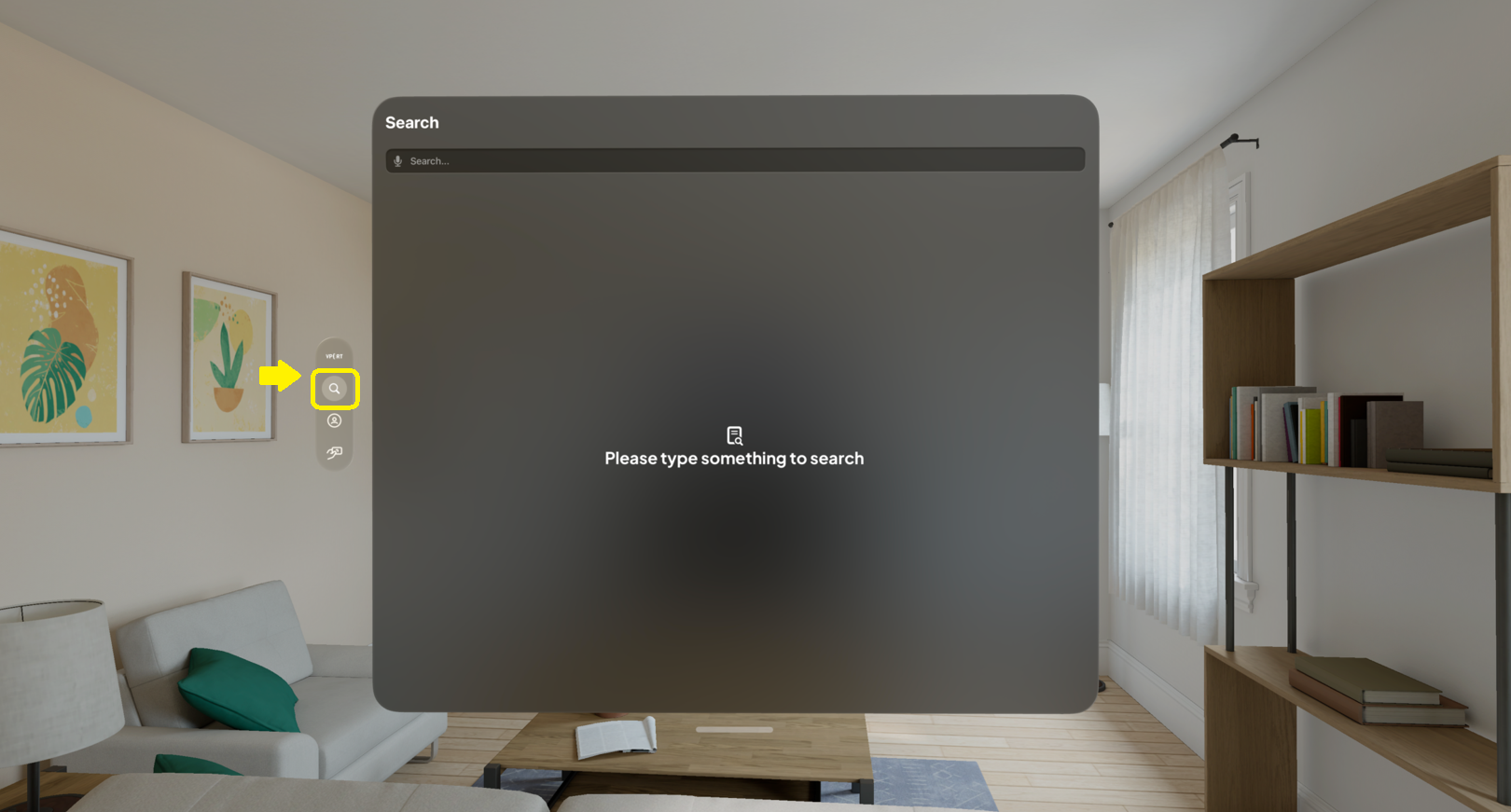
You’ll see a search bar at the top and space for results below.
3.2 Typing a Search Term
- Look at the search bar.
- Pinch to focus it (VisionOS keyboard or dictation appears).
- Type the artist, event, or set name.
Important:
You must type at least 3 characters for results to appear.
- Example:
ar→ no resultsari→ Search executes
3.3 Understanding the Search Results (3 Carousels)
After typing 3+ characters, results appear in up to three carousels:
- Artist Sets
- Events
- Artists
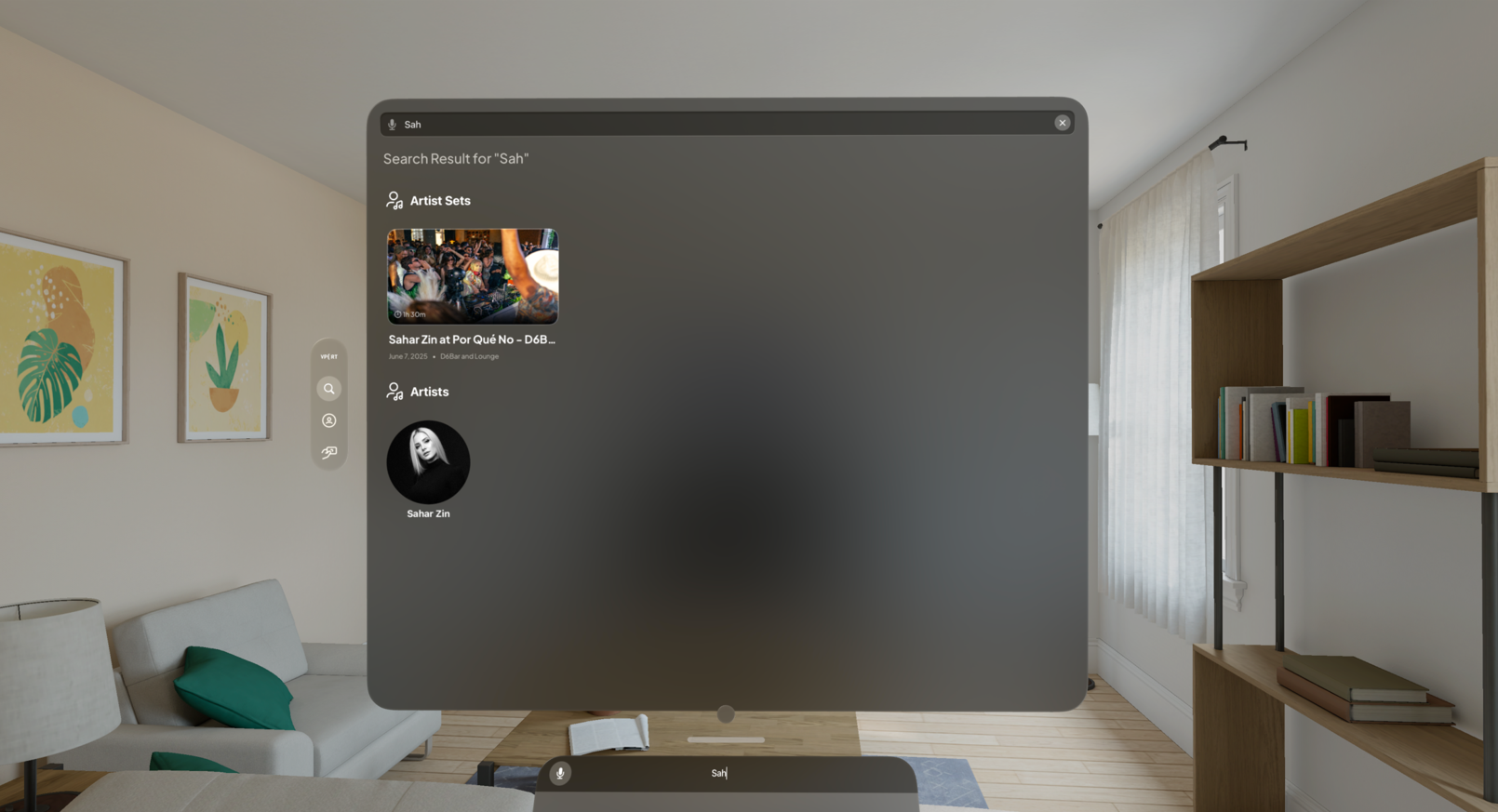
Each carousel:
- Displays relevant cards
- Scrolls horizontally using gaze + pinch
- May hide itself or show an empty state when no matches exist
3.4 Interacting with Search Results
To open something:
- Look at a card under one of the categories:
- Artist Sets
- Events
- Artists
- Pinch to select.
What happens next:
- Artist Set: Opens the set page or media player
- Event: Opens the event detail page
- Artist: Opens the artist profile page
You can return to the Search page anytime to refine your search.
3.5 Search State Persistence (Results Don’t Reset)
One key behavior:
Your search results remain intact even if you leave Search and come back.
Example:
- Search for “Ari”.
- Open an event.
- Return to Search → your query and results are still there.
Note:
Results persist within your current app session.
Clearing the search bar or closing the app will reset them.
Key Features
Feature 1: Search from Left Side Panel
Accessible from anywhere in the app via the always-visible left side panel.
Feature 2: Three-Category Search Results
Separate results for:
- Artist Sets
- Events
- Artists
Helps avoid confusion when names overlap.
Feature 3: Live Results After Typing 3 Characters
No need for a “Search” button—results appear automatically.
Feature 4: Persistent Search Results
Your query and results remain even after navigating elsewhere.
Feature 5: VisionOS-native Interaction
Optimized for Vision Pro:
- Gaze + pinch selection
- Comfortable spatial UI with carousels
Common Issues & Troubleshooting
Issue 1: I Typed Something but No Results Are Showing
Possible causes:
- Fewer than 3 characters typed
- No matching content
- Temporary internet issue
Try:
- Type 3+ characters
- Use a shorter keyword
- Check your internet connection
If the content exists but doesn’t show, contact Support.
Issue 2: I Only See Results in One Carousel
This is normal.
Example:
- Searching an artist may only show “Artists”
- Searching an event title may only show “Events”
If you expected more:
- Try a broader search term
- Try partial words instead of full names
Issue 3: My Previous Search Disappeared
Possible reasons:
- You cleared the search bar
- The Vport app was closed or restarted
- Some navigation paths reset the page state (version-dependent)
Fix:
Reopen Search via the left panel and type your query again.
Issue 4: Results Don’t Match What I Expected
Possible causes:
- Spelling variations
- Missing characters or special characters
- Content not available in your region
Try:
- Type simpler or partial words (e.g., “sham” for “Shambhala”)
- Confirm availability of the event/artist
If still missing, contact Support with:
- Artist/event/set name
- Your exact search term
Related Articles / Links
- Getting Started with Vport on Apple Vision Pro
- Browsing the Portal & Carousels (VisionOS)
- Using the Media Player on Apple Vision Pro
- Managing Your Account & Profile on VisionOS
[Actual URLs will be added once published.]