
Overview
The Credit & Billing Hub is your Vport wallet and billing center.
Here you can:
- Check your current balance (real currency)
- Add funds using preset bundles
- Complete web purchases through Stripe Checkout
- Complete Apple Vision Pro purchases through Apple's StoreKit in-app purchase flow
- Review purchase history and usage history, including detailed event-level charges
This hub appears as a full Wallet page on both web and Apple Vision Pro. The Apple Vision Pro purchase summary appears in a confirmation sheet over the Wallet page.
Purpose (User Value)
The Credit & Billing Hub is designed to:
- Make top-ups fast using packages from the current platform catalog
- Provide a clear summary before payment
- Show the package summary before the Apple purchase confirmation
- Offer transparent records for:
- How much you paid (purchase history)
- How your balance was used (usage history)
If you ever question a charge, open the hub, view the details, and reference the relevant masked session or order identifier when contacting Support.
How to Use (Step-by-step Guide)
3.1 Opening the Credit & Billing Hub
From your account (Web or Vision Pro):
- Log into your Vport account.
- Open Your Balance from the global tab bar or use the balance button shown on Home.
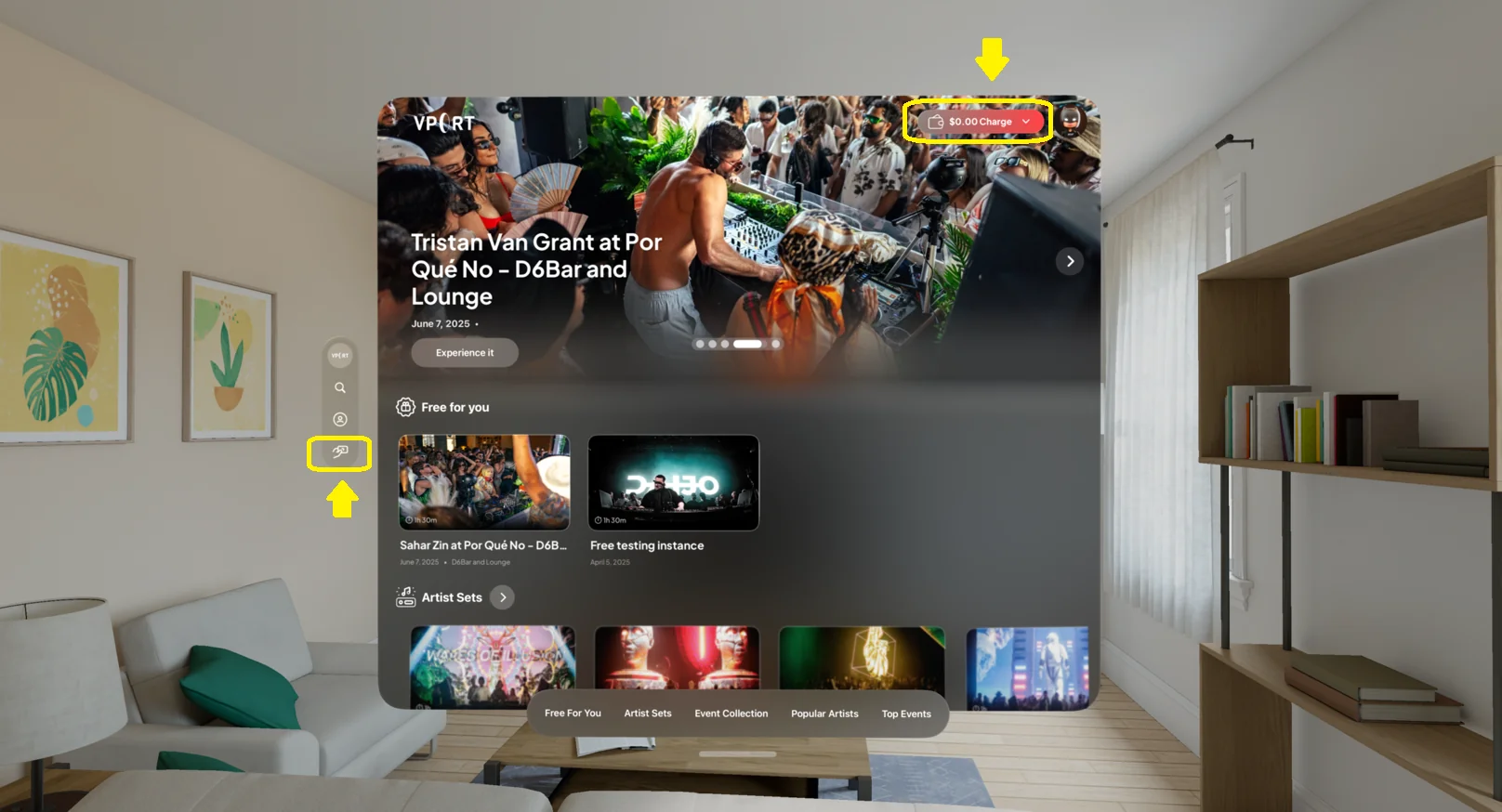
From a purchase flow:
- Start an event or experience requiring payment.
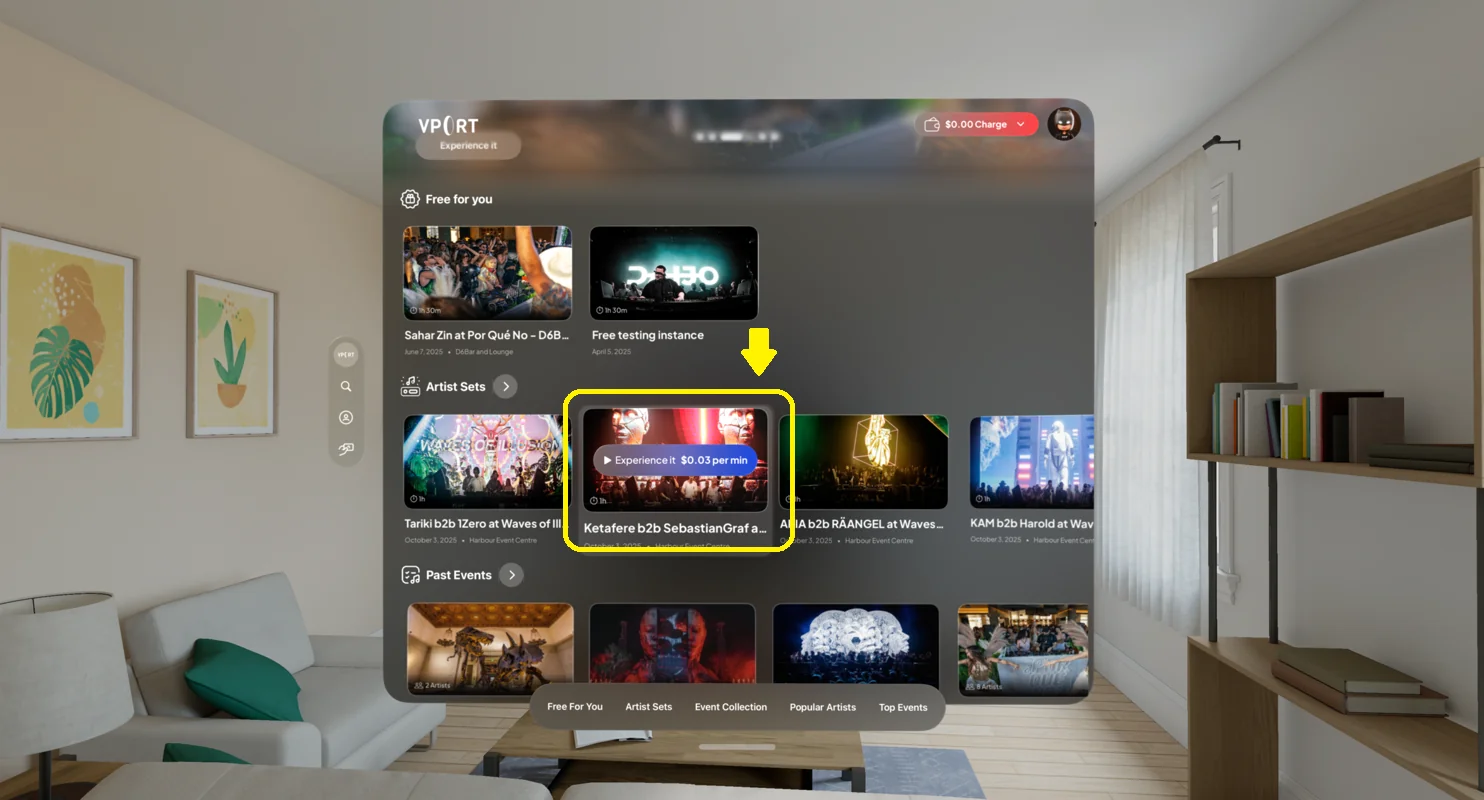
This retained screenshot also shows the gaze-hover price preview that can appear before the event-access confirmation.
- If balance is low, the event-access sheet can show Charge Wallet and Watch free events shortcuts.
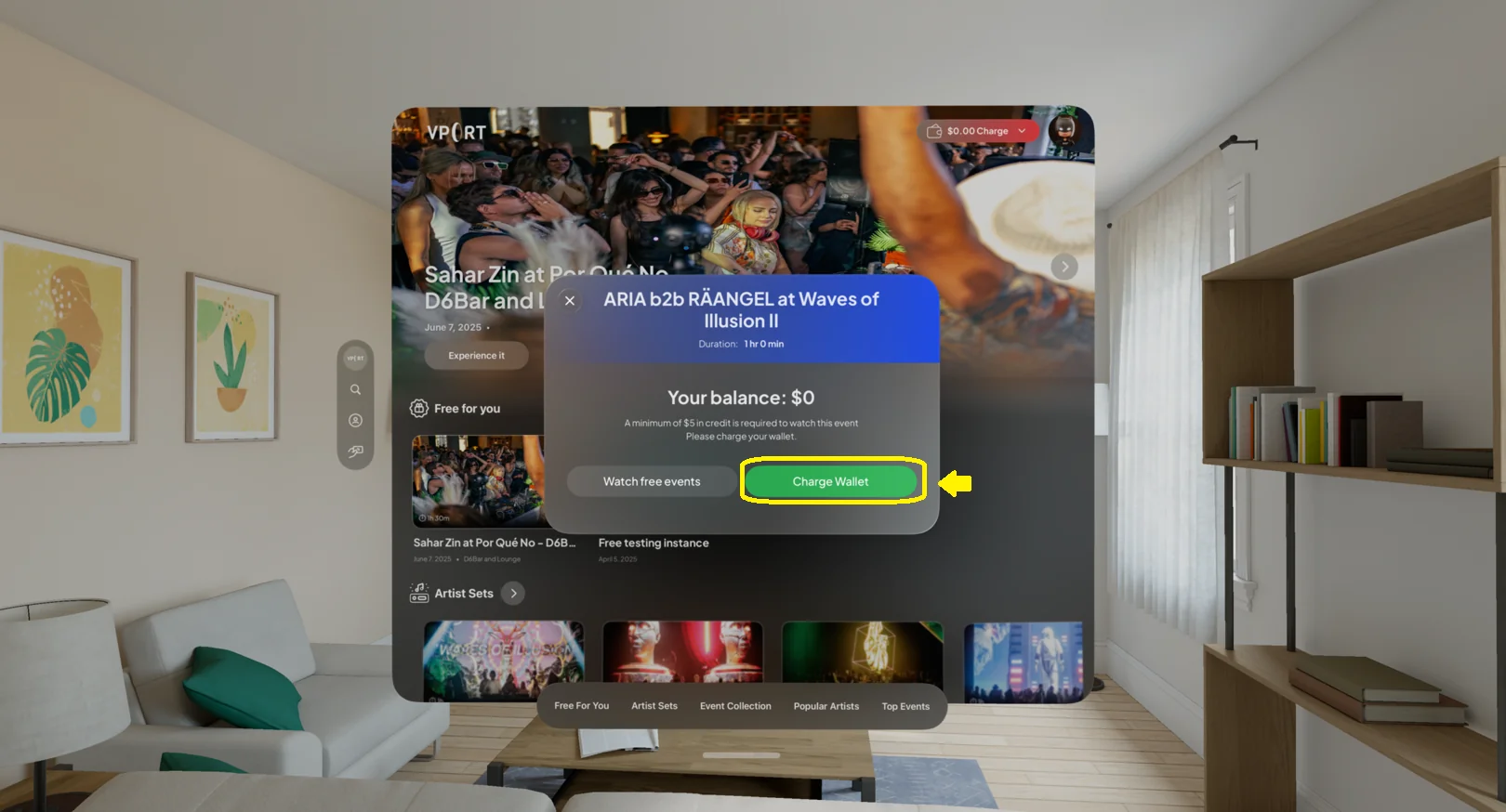
In the approved build, those event-sheet shortcuts are present but are not yet wired to navigate. Close the sheet and open Your Balance from the global tab bar to add funds, or use Free For You on Home to find free content.
3.2 Choosing a Credit Package
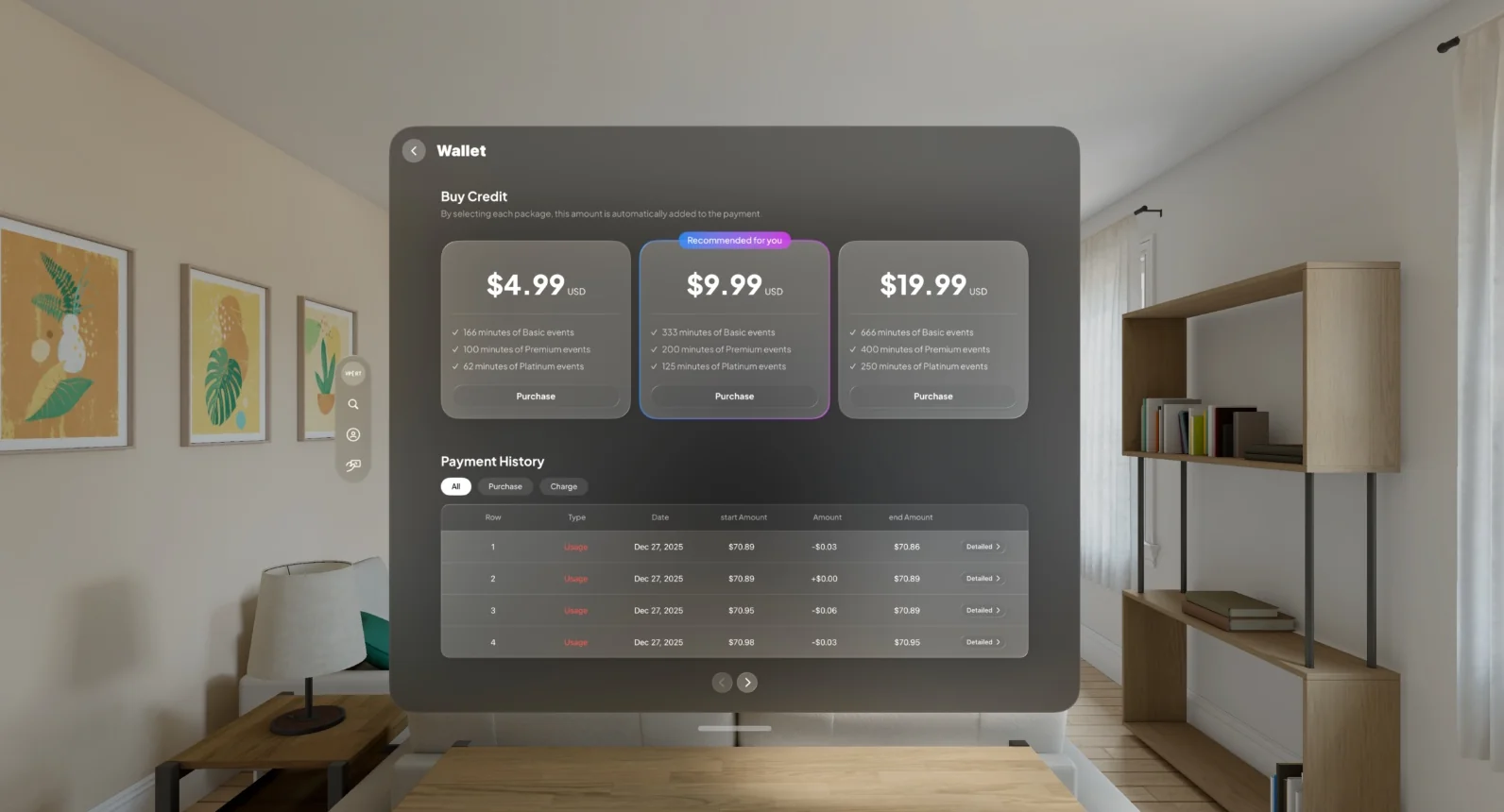
Package amounts, benefit copy, and availability come from the active web or StoreKit catalog. The current web page can display $5, $10, and $20 packages, while Apple storefront prices can differ.
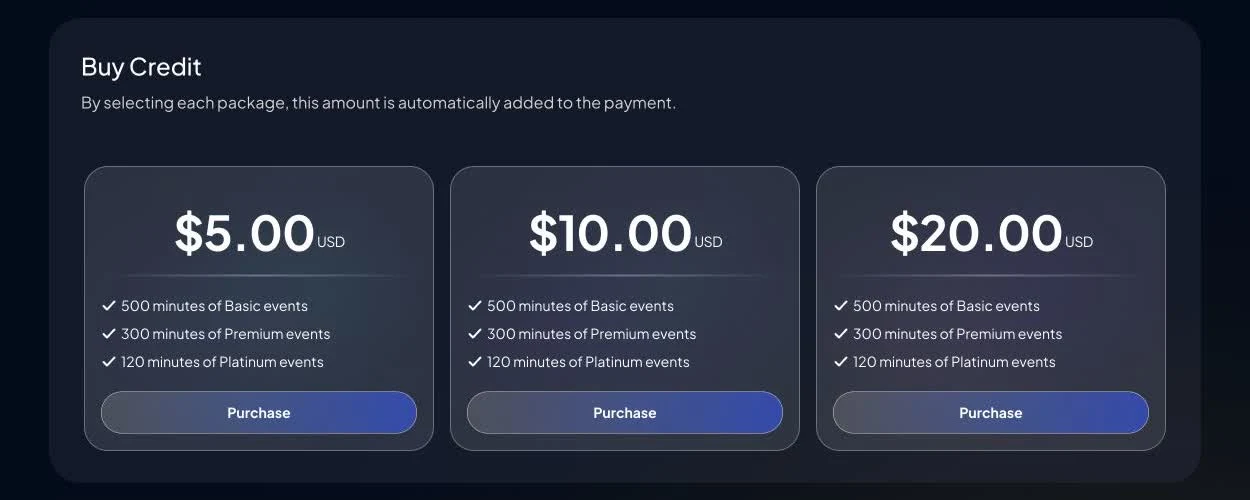
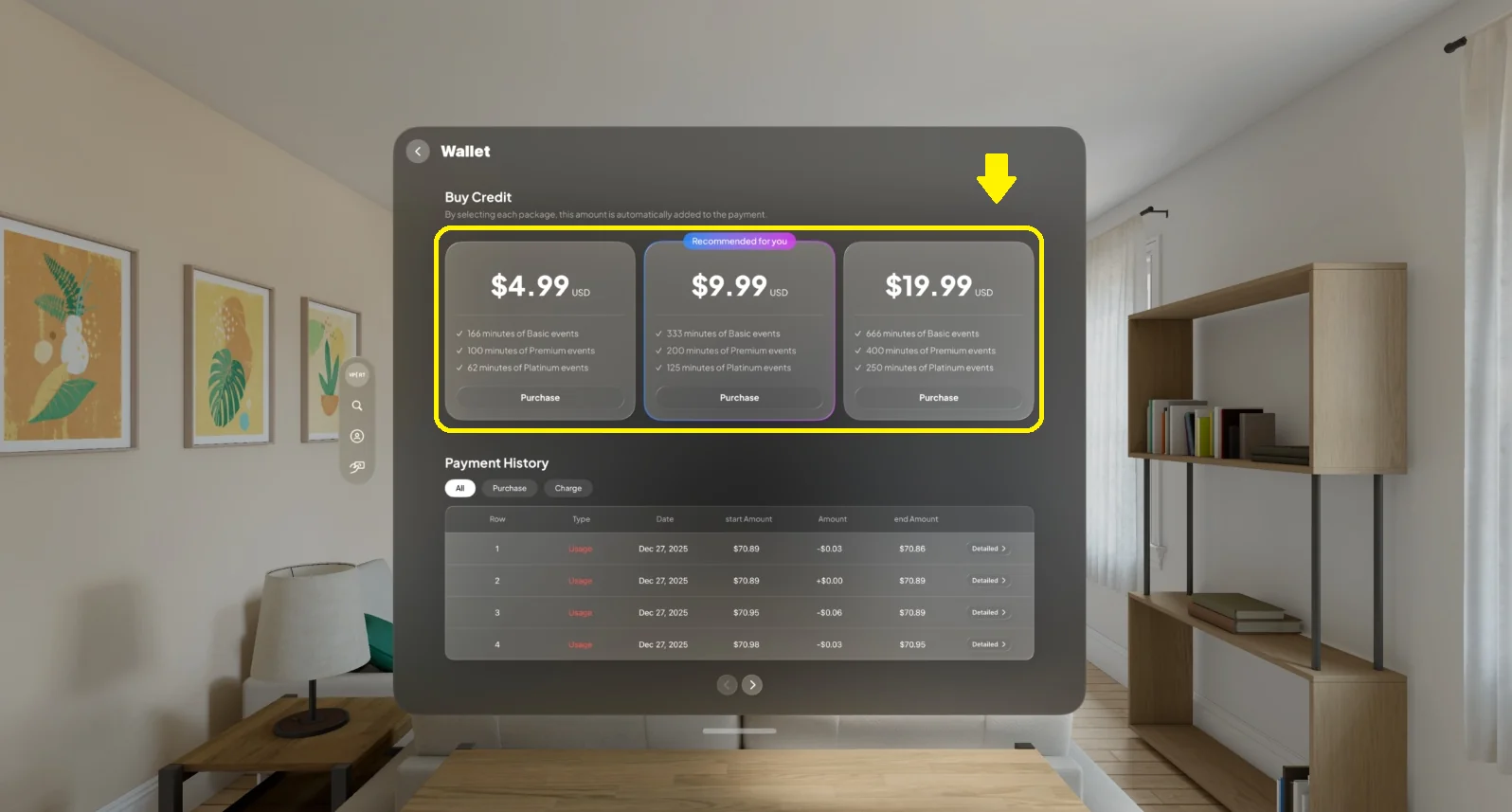
To add funds:
- Select the desired bundle.
- Select Purchase to open the package confirmation.
3.3 Reviewing the Package Confirmation
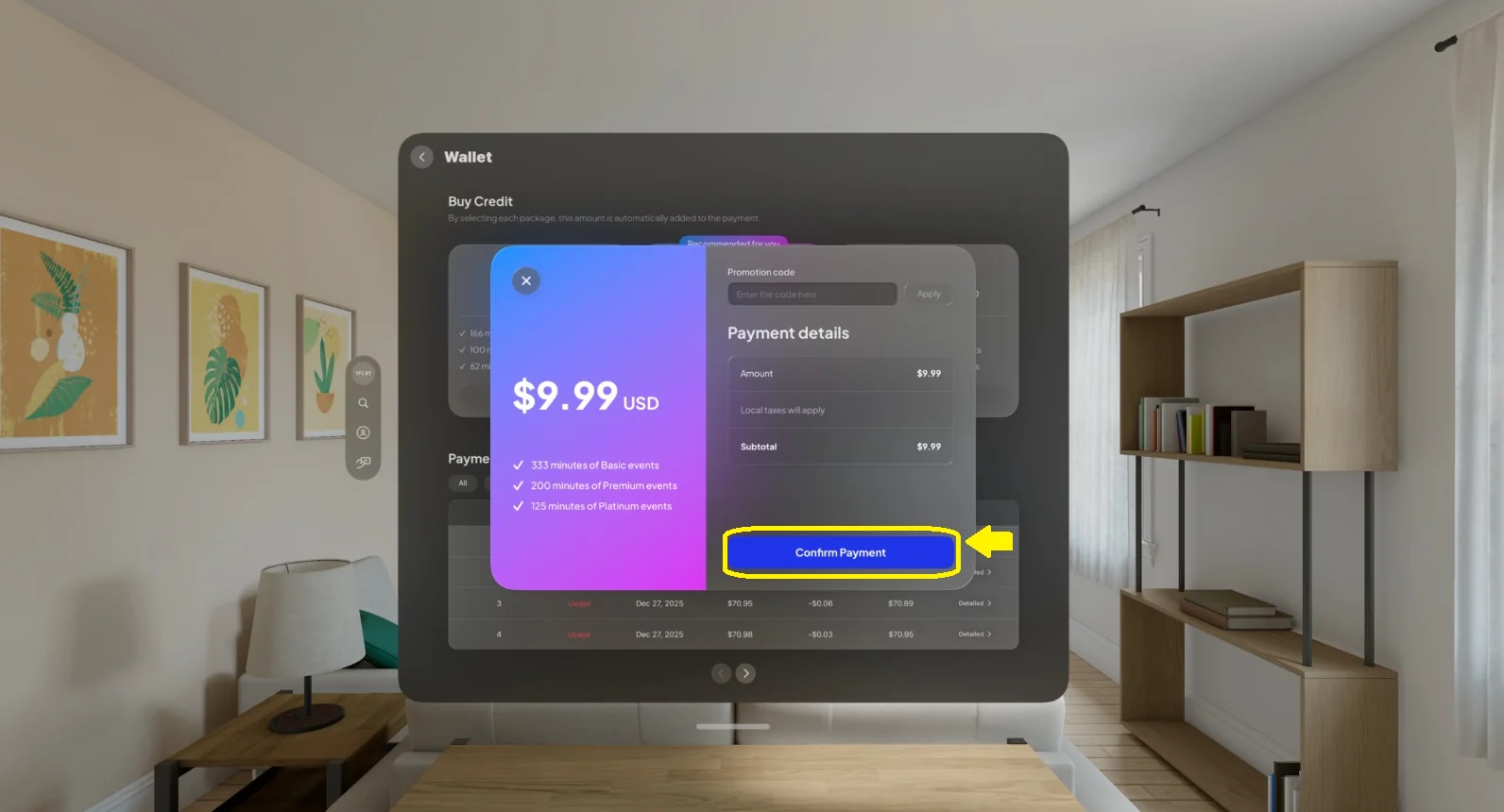
The Apple Vision Pro confirmation sheet shows:
- Selected package and amount
- A promotion-code field
- Amount, any locally displayed discount, local-tax label, and subtotal
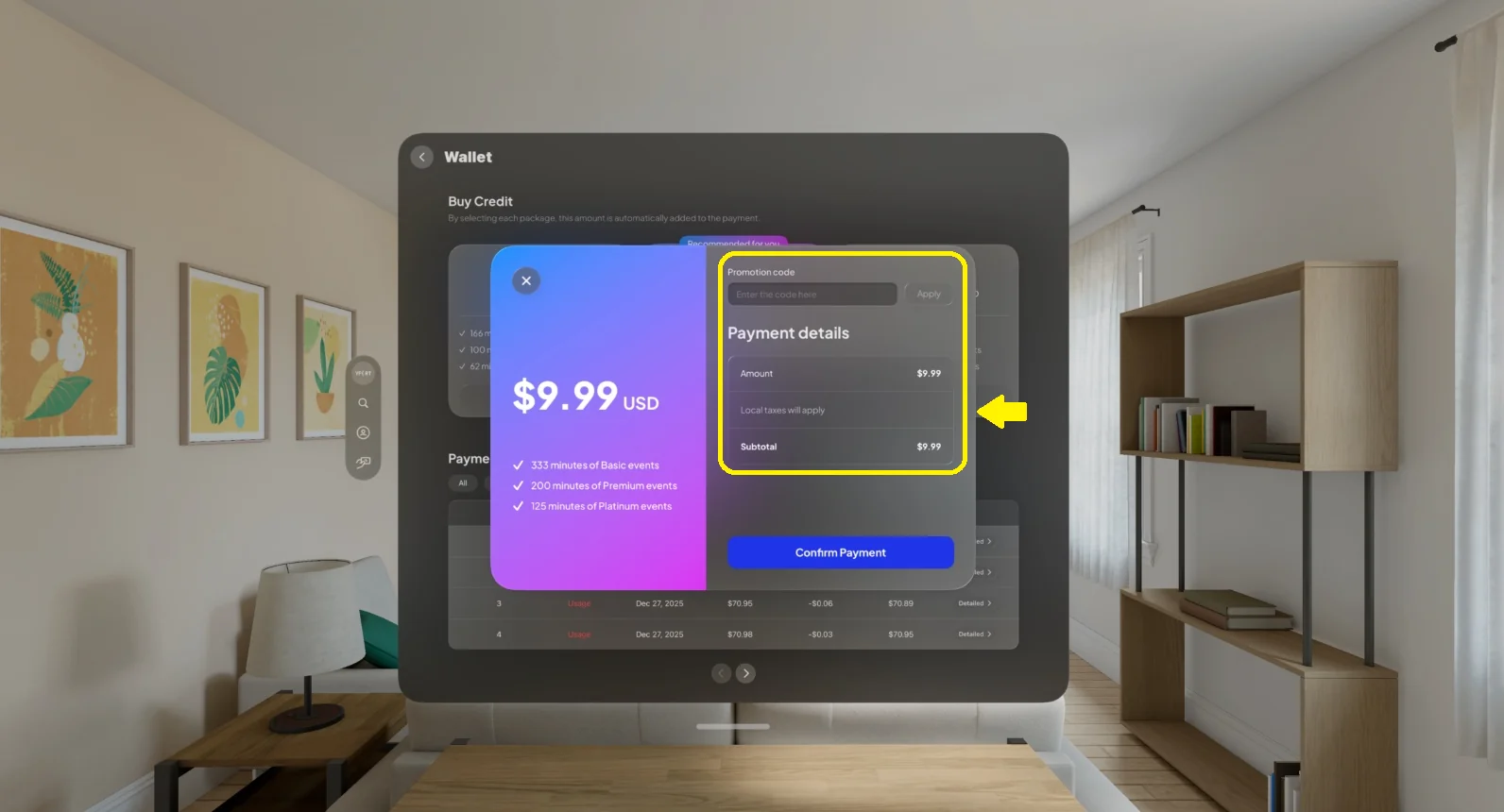
The current Apple Vision Pro field performs only an on-screen validation and subtotal calculation in the VPORT confirmation sheet. It is not sent to the VPORT backend or StoreKit purchase request. Do not treat that field as proof that Apple will charge a discounted amount. The Apple purchase sheet is authoritative for the product and final price.
On web, current promotions are applied through a signed VPORT promotion link rather than a general manual-code field. Stripe or Apple determines the final payment method, tax, confirmation, and receipt.
3.4 Completing Payment (StoreKit / Stripe)
On Apple Vision Pro (StoreKit)
- Review the VPORT package confirmation as a package summary.
- Select Confirm Payment.
- Review the product and final price in the Apple purchase sheet, then complete or cancel the purchase there.
- Return to Wallet and verify the balance and purchase row.
This is a StoreKit in-app purchase, not a VPORT-managed Apple Pay form.
On Web (Stripe)
- Confirm amount
- Stripe Checkout appears.
- Complete payment using a method offered for that checkout.
- Return to Credit and verify the balance and purchase row.
VPORT does not manage saved cards on a separate web page.
3.5 Viewing Purchase History
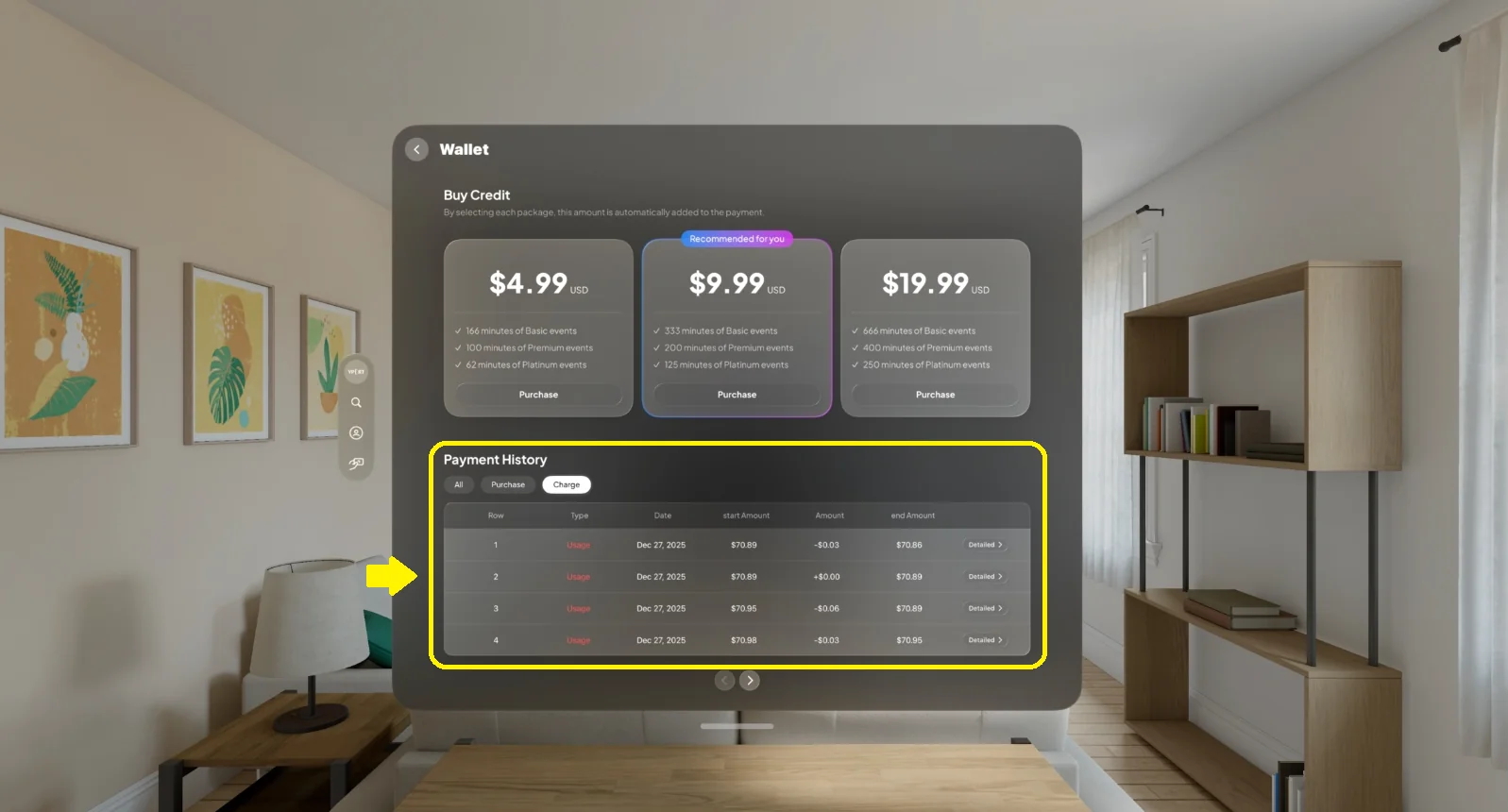
On web, Payment History provides All, Purchase, Usage, and Adjustment filters. On Apple Vision Pro, Wallet provides All, Purchase, and Charge filters. Charge is the label used for usage deductions.
Purchase History includes:
- Date & time
- Amount charged (e.g., $10.00 + tax)
- Type (purchase or usage)
- Starting and ending balance
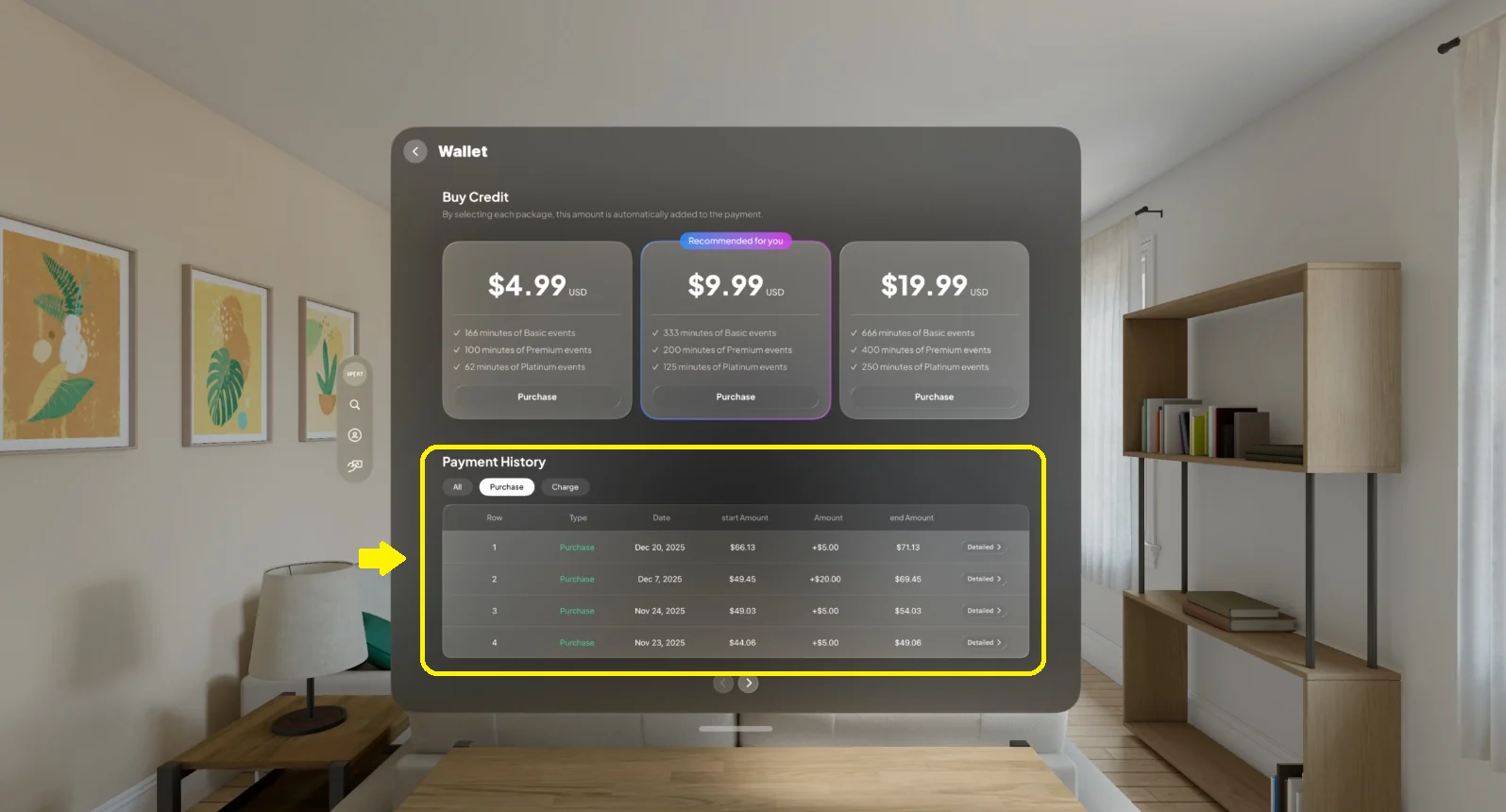
Use it to confirm:
- Payment was successful
- Amount matches the Apple purchase confirmation and receipt
3.6 Viewing Usage History & Details
Usage History shows where funds were spent.
Each entry includes:
- Date & time
- Amount deducted
- Event/session attribution
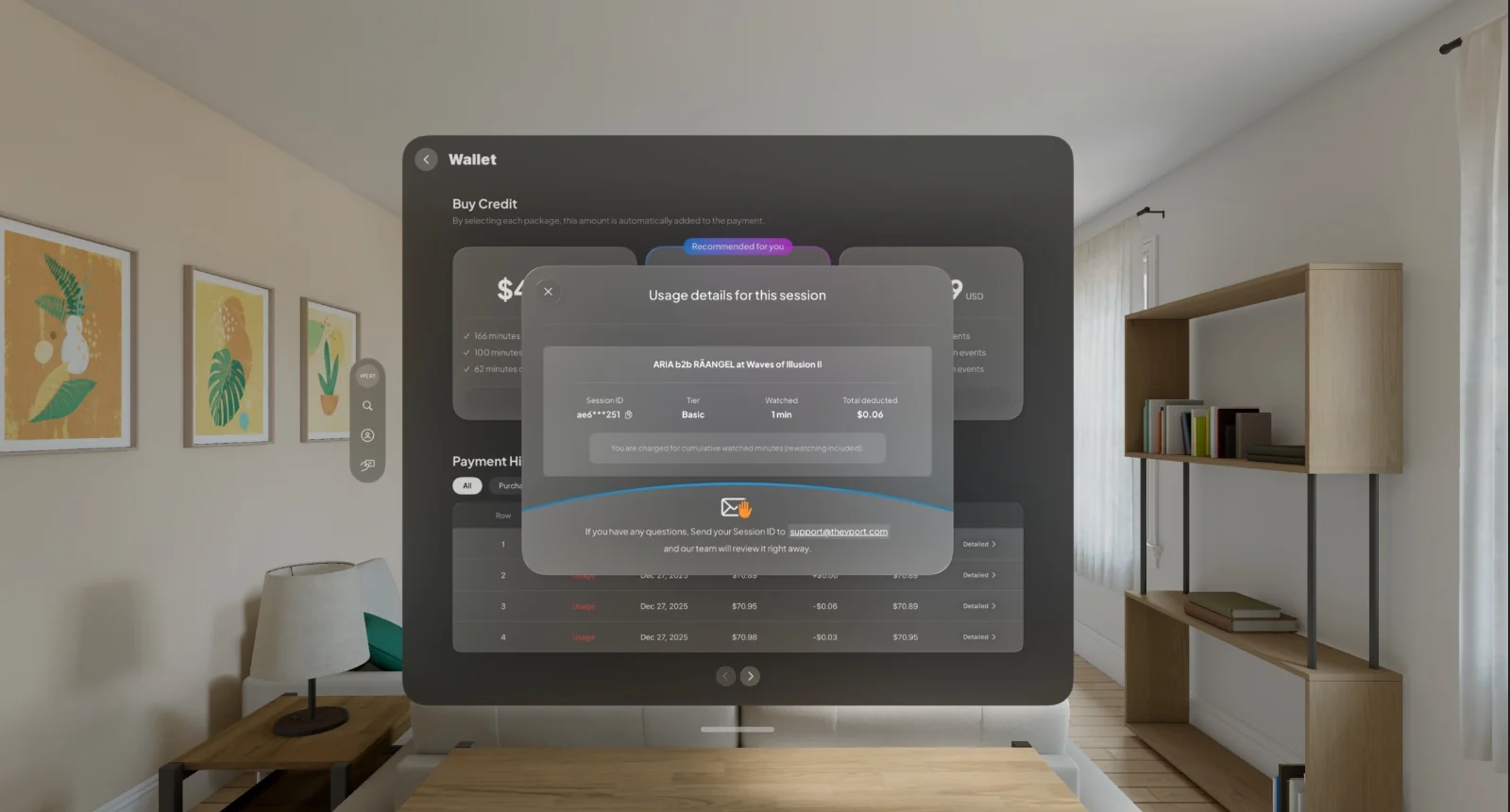
Selecting Details shows:
- Event instance
- Watched time
- Pricing tier
- Total deducted
- Masked session identifier
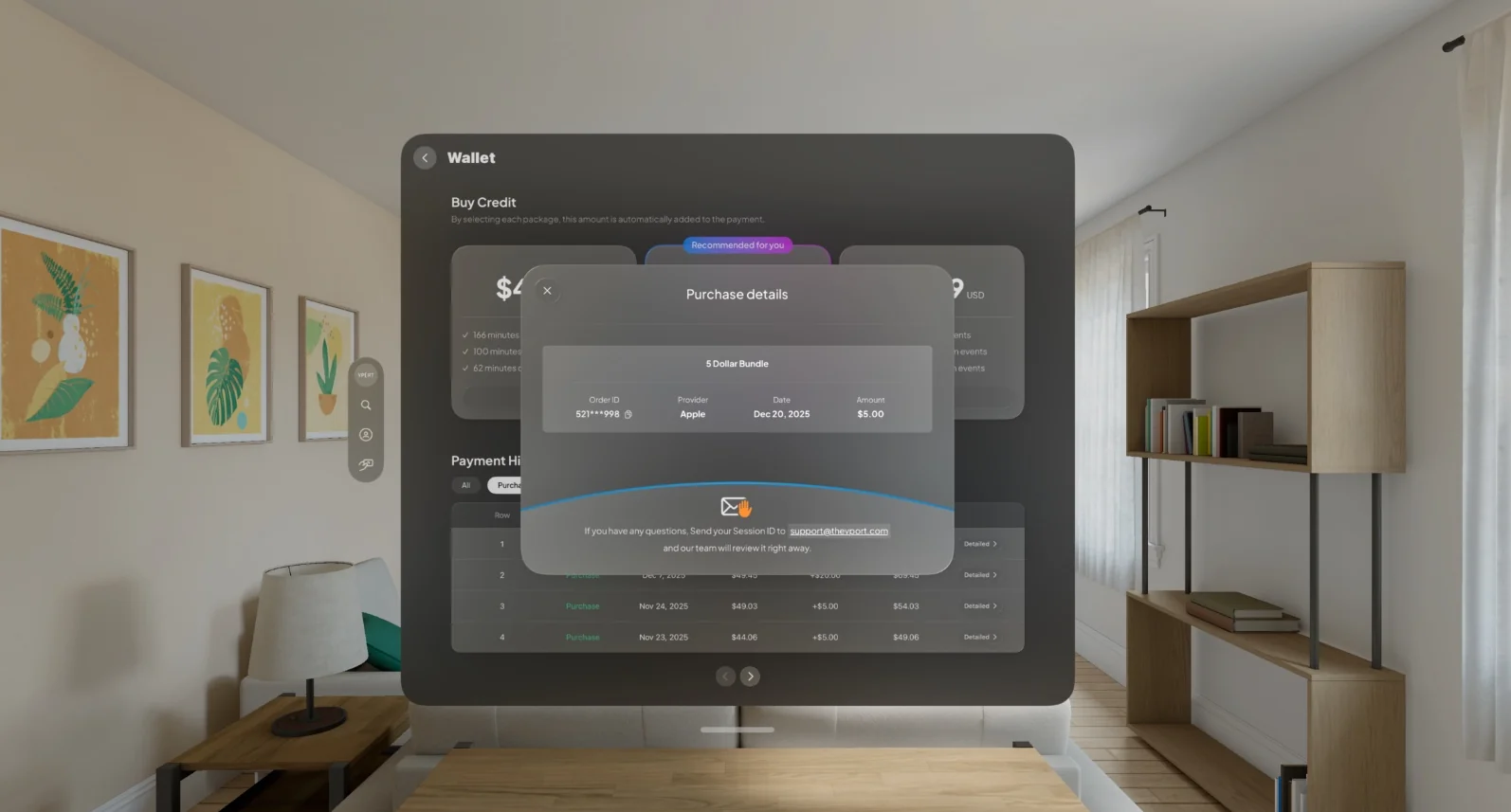
Purchase rows can show the package, masked order identifier, Apple provider, date, and amount.
If you dispute a charge:
- Open Usage History
- Tap Details
- Copy the available session or order identifier
- Contact Support with:
- Session or order identifier
- Account email
- Explanation
Key Features
Feature 1: Preset Top-Up Bundles
Fast top-ups through packages currently supplied by the web or StoreKit catalog.
Feature 2: Package Confirmation
Shows:
- Selected amount
- A local promotion-code UI and calculated subtotal
- A local-tax label
StoreKit, not the VPORT sheet, determines the final Apple price and receipt.
Feature 3: Native Payments
- StoreKit on Apple Vision Pro
- Stripe on Web
Feature 4: Purchase & Usage Histories
Separate logs for:
- When you added money
- Where your balance was used
Feature 5: Usage Details with Session Identifier
View:
- Event instance
- Watched time
- Pricing tier
- Session identifier for support
Common Issues & Troubleshooting
Issue 1: Promotion Field Does Not Change the Apple Price
The current Apple Vision Pro field is not connected to the StoreKit purchase request. Rely on the price Apple presents. If an official offer promised a different price, cancel the Apple sheet and contact VPORT Support before purchasing.
Issue 2: Final Amount Higher Than Bundle Price
Cause: Regional taxes applied by Apple/Stripe.
Solution: If tax seems incorrect, screenshot the summary and contact Support.
Issue 3: StoreKit / Stripe Payment Fails
Possible causes:
- Card declined
- Weak internet
- Provider outage
Try:
- Check internet
- Follow the exact Apple or Stripe provider message
- Confirm the payment method with the provider
- Check history and the provider receipt before trying again
Issue 4: Balance Didn’t Update After Payment
Possible causes:
- Delay in sync
- UI not refreshed
Try:
- Reopen the Hub
- Check Purchase History
- If mismatch: send Support
- Purchase screenshot
- Bank confirmation
Issue 5: Not Understanding a Usage Charge
Steps:
- Open Usage History
- Tap Details
- Review event + play time + pricing tier
- If unclear:
- Copy the session identifier
- Contact Support