
Audio Sync in 360° Video: Why Soundstage Matters More Than Camera Resolution
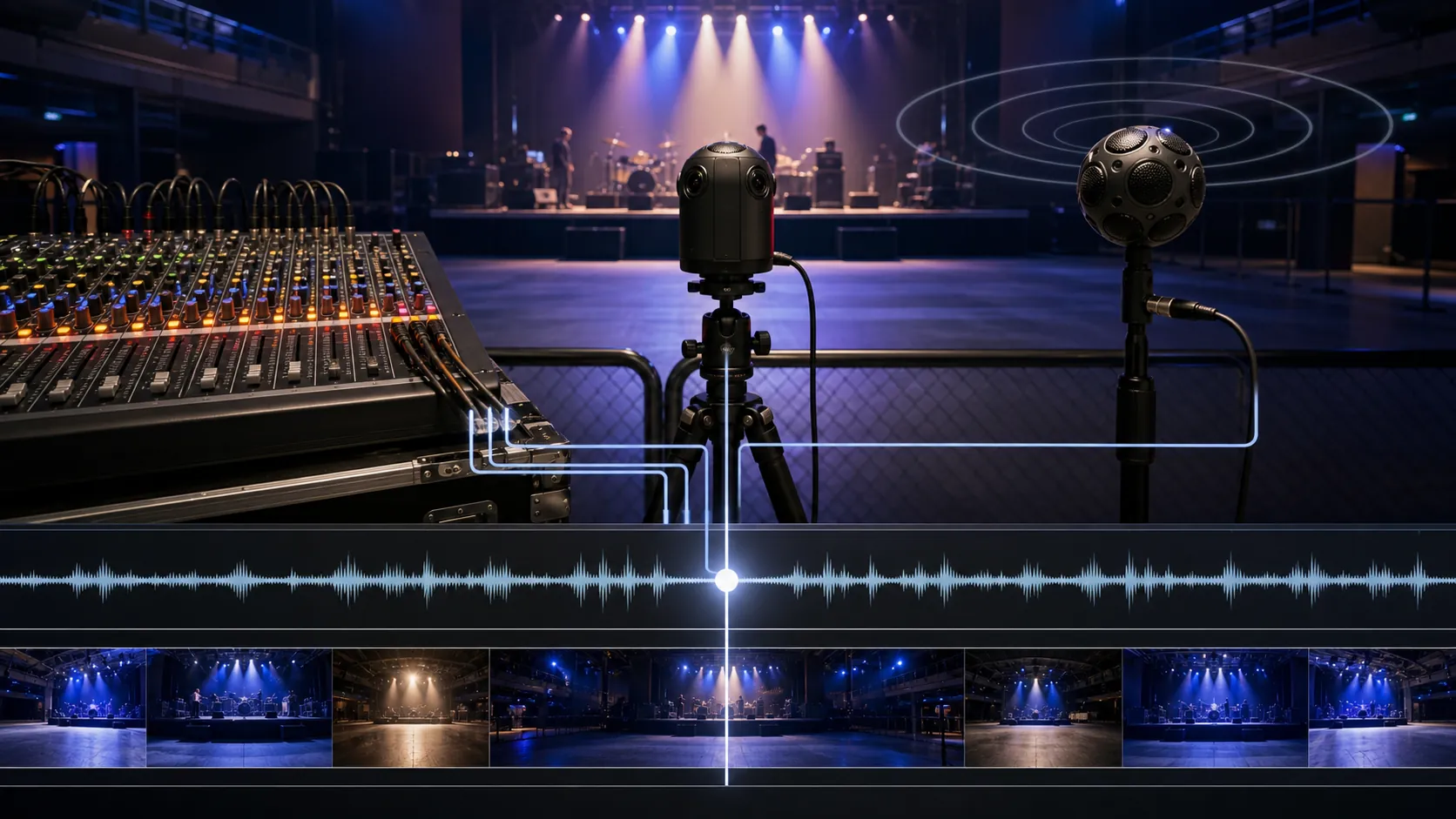
Here is something nobody talks about at trade shows or in camera review videos: the reason most 360-degree concert footage falls apart has nothing to do with the camera. Not the resolution. Not the stitching. Not the codec. It is the audio. Always the audio.
You can shoot 8K stereoscopic 360 with a rig that costs more than a used car, stitch it perfectly, encode it flawlessly, and deliver it to Apple Vision Pro through VPORT's pipeline at maximum fidelity - and if the audio is a tinny, phase-smeared recording from a mic sitting on top of the camera, the entire experience collapses. The viewer's brain trusts sound before it trusts vision. Always has. When the visual says "you are standing in a warehouse club at 2 AM" but the audio says "you are listening to a phone recording in a parking lot," the brain sides with the audio. Every time.
We have reviewed hundreds of creator submissions on VPORT. The pattern is consistent. The visual quality has skyrocketed over the past eighteen months - affordable 360 cameras got dramatically better, the iPhone spatial pipeline opened up a whole new tier of capture, and professional rigs from Canon, Blackmagic, and RED pushed the ceiling even higher. But the audio quality of submissions has barely moved. Creators invest in lenses and rigs and post-production color work, then plug a $40 lavalier into the camera body and call it done.
This post is about fixing that. Not with expensive gear - though we will talk about gear. With understanding. With workflow. With the five decisions that separate spatial audio that transports you from spatial audio that reminds you it is a recording.
Why Soundstage Beats Resolution
Soundstage is a term borrowed from audiophile culture. It describes the three-dimensional space that audio creates around a listener - the perceived width, depth, and height of the sound field. In stereo headphones, a good soundstage makes you feel like instruments are arranged in a room around you rather than happening inside your skull. In spatial audio on Vision Pro, soundstage is everything. It is the acoustic equivalent of the visual depth that makes Immersive mode feel like teleportation.
Camera resolution matters, obviously. But here is the hierarchy of what actually creates presence in immersive concert content:
- Soundstage accuracy. Does the audio match the geometry of the visual space? When the viewer turns their head, do the sound sources stay fixed in the room?
- Audio fidelity. Is the music clean? Is the dynamic range preserved? Can you hear the room - the reverb, the reflections, the crowd?
- Sync precision. Does the audio line up with the video at the sample level? A 33-millisecond offset - one frame at 30 fps - is enough to create subliminal unease.
- Visual resolution. How sharp is the image?
Notice where resolution sits. Fourth. It matters. It is not nothing. But a 4K 360 video with perfectly spatialized, high-fidelity, sample-accurate audio will feel more immersive than an 8K 360 video with flat stereo and a 50-millisecond drift. We have tested this with real viewers. It is not close.
The reason is neuroscience, not opinion. Your auditory system processes spatial cues faster than your visual system. Sound localization happens in the brainstem - it is pre-conscious, automatic, and impossible to override. If the audio says the kick drum is to your left and the video shows it dead center, your brain registers the conflict before you are even aware of it. That conflict becomes fatigue. Fatigue becomes disengagement. Disengagement becomes someone taking the headset off after four minutes.
Get the soundstage right. Everything else follows.
Three Audio Sources, Ranked
For concert capture in 360 or spatial video, you have three basic audio source options. They are not equal.
1. Board Feed (Best)
A board feed - also called a direct out, a stereo bus send, or a matrix send - is a stereo or multi-channel signal taken directly from the mixing console at the front of house (FOH) or monitor position. It is the cleanest signal available at any live event. No room reflections. No crowd bleed. No ambient noise. Just the music, exactly as the sound engineer mixed it.
For VPORT content, a stereo board feed is the single highest-impact audio upgrade you can make. The signal-to-noise ratio is orders of magnitude better than any microphone recording. The dynamic range is preserved. And because it is a direct electrical signal, there is no acoustic propagation delay to worry about - the audio arrives at your recorder at the speed of electricity, not the speed of sound.
How to get one: Talk to the FOH engineer before the show. Ask for a stereo matrix send or a spare aux bus output at line level. Bring an XLR-to-recorder cable. If the venue has a media split or a press patch, even better - it is designed exactly for this. Most engineers are happy to provide a feed if you ask politely and know the vocabulary.
The catch: A board feed has no room ambience. No crowd energy. No spatial cues from the venue. It sounds clinical - which is perfect as a foundation but lifeless as a finished mix. You will almost always want to blend it with an ambient source. More on this in the post-production section.
2. Ambisonic Microphone (Best Spatial, Medium Fidelity)
An ambisonic microphone - like the Rode NT-SF1, Sennheiser AMBEO VR, or Zoom H3-VR - captures audio in a full 360-degree spherical field. Four capsules arranged in a tetrahedral pattern record the sound field from every direction simultaneously. In post-production, this signal can be decoded into a spatial audio format that rotates with the viewer's head orientation.
This is the native audio format for 360 video. When you turn your head in an Immersive VPORT experience and the sound follows the geometry of the room - the PA to your left, crowd noise behind you, the bar to your right - that is ambisonic audio at work.
The strength: Spatial accuracy. An ambisonic recording captures the actual acoustic geometry of the venue. On playback, the sound field feels correct because it is correct. The relationship between the visual scene and the audio scene is one-to-one.
The weakness: Fidelity. Ambisonic microphones are small-diaphragm condensers in a compact housing. They are good, not great, at handling the extreme SPL and dynamic range of a live concert. Low-end frequency response is limited. Distortion at high volumes is real. And because they capture everything - including room reflections, HVAC noise, and the person next to you yelling - the raw signal requires careful processing to sound polished.
Best use case: Combine an ambisonic mic with a board feed. Use the board feed for the music. Use the ambisonic recording for the spatial room tone, crowd energy, and environmental cues. Layer them together in post. This is the professional workflow, and it is what we recommend for all VPORT creator-tier content.
3. On-Camera Stereo Mics (Worst)
This is what most people use by default, and it is the reason most 360 concert audio sounds terrible.
The stereo microphones built into 360 cameras - or the stereo pair on your iPhone - are designed for general-purpose recording in moderate acoustic environments. Conversation. Outdoor ambience. Quiet indoor spaces. They are not designed for 110 dB SPL concert environments with sub-bass that rattles the camera housing and transients that clip the preamp.
The result: distorted low end, crushed dynamics, and a narrow stereo image that contradicts the 360-degree visual. The viewer is surrounded by a venue, but the audio sounds like it is coming from a single point. The mismatch is immediate and devastating to the sense of presence.
When on-camera audio is acceptable: Acoustic performances below 85 dB SPL. Outdoor sets with natural distance attenuation. Behind-the-scenes and ambient content where music fidelity is not the focus. In these scenarios, on-camera mics can actually sound quite natural - the problem is specifically with loud, full-range live music.
When it is not acceptable: Any amplified performance in an enclosed venue. Any content intended for the main VPORT catalog. Any experience where you want the viewer to feel like they are at the show rather than watching a recording of it.
Getting Phase and Timing Right
You have your audio sources. Now the hard part: making them line up.
The Clap Sync Method
Oldest trick in production. At the start of your recording - before the performance begins - stand in front of the camera with your hands together and deliver a single, sharp clap. One clap. Hard. Clean.
That clap appears in three places simultaneously: on the video as a visual frame of your hands meeting, on the board feed as a transient spike (if the clap is loud enough to hit the live mics), and on the ambisonic recording as a clear impulse. In post, you align all three to the clap frame. Done.
Simple. Effective. Free. It also has real limitations.
The clap gives you a sync point at the beginning of the recording. Over time, your sources will drift. A 48 kHz audio recorder and a 47.999 kHz camera clock - a difference too small to show up in specs - will accumulate 33 milliseconds of drift per hour. That is one full video frame at 30 fps. After a two-hour set, you are two frames out. The viewer might not consciously notice, but their brain does. Lip sync feels "off." Transients land late. The immersion frays at the edges.
LTC Timecode
For professional capture, use LTC (Linear Timecode) to jam-sync all your devices. A timecode generator - the Tentacle Sync E is the industry standard for small crews - outputs a continuous timecode signal to every recorder and camera in your rig. Each device stamps every frame and every audio sample with the same clock. In post-production, your NLE reads the timecode and aligns everything to the sample.
No drift. No clap. No guesswork.
If you are shooting more than two shows a month, timecode is not optional. It is infrastructure. A pair of Tentacle Syncs costs less than a mid-range lens and will save you more hours in post than any other piece of gear you own.
The 33-Millisecond Rule
Here is the number to keep in your head: 33 milliseconds. That is the threshold where audio-video sync stops being subliminal and starts being perceptible. Below 33 ms, most viewers cannot detect the offset. Above it, something feels wrong - even if they cannot articulate what.
At 30 fps, one frame equals 33.3 ms. At 60 fps, one frame equals 16.7 ms. If you are delivering content at 30 fps - which most spatial and 360 content still is - your sync needs to be accurate to within one frame. At 60 fps, you need sub-frame accuracy.
The practical takeaway: after aligning your sources in your NLE, zoom in on a transient - a snare hit, a kick drum, a handclap - and verify that the audio spike lines up with the visual impact within one frame. If it does not, nudge it. If you are using timecode, it should be automatic. If you are using clap sync, check at the beginning, middle, and end of the recording and re-adjust if drift has accumulated.
Post-Production: Spatializer Plugins and Head-Locked vs. Scene-Locked
Your audio is recorded and synced. Now you need to spatialize it - to place it correctly in the 360-degree sound field so that it tracks with the viewer's head movements on Vision Pro.
Head-Locked Audio
Head-locked audio stays fixed relative to the viewer. Turn your head left, the audio turns with you. It is always "in front" of you, like wearing headphones playing a stereo mix. This is the default behavior for a stereo board feed or a standard stereo recording.
When to use it: For the music itself - the board feed - head-locked is often the right choice. The mix was designed as a stereo presentation. The engineer balanced it for a center-facing listener. Locking it to the viewer's head preserves that balance regardless of where they look.
When it breaks: When the viewer turns to look at the crowd behind them and the music still sounds like it is coming from directly in front of their face. The visual says "you turned away from the stage." The audio says "the stage followed you." Conflict. Broken presence.
Scene-Locked Audio
Scene-locked audio stays fixed in the virtual environment. Turn your head left, and the PA speaker that was to your right moves further to your right. The audio is anchored to the room, not to your skull. This is what ambisonic audio does natively - and it is what creates the sensation of being inside a real acoustic space.
When to use it: For environmental audio. Crowd noise. Room tone. The sense of the venue. Anything that should feel like it belongs to the space rather than to the viewer.
The Blend
The professional approach - and the one we recommend for VPORT content - is to layer both.
- Board feed: Head-locked. Clean. Full dynamic range. This carries the music.
- Ambisonic recording: Scene-locked. Spatial. This carries the room.
Blend the ambisonic track underneath the board feed at roughly -12 to -18 dB relative to the music. Enough to feel the room. Not so much that the ambient noise competes with the mix. The viewer should not consciously hear the ambient layer - they should feel it. The moment they take off the headset, they should feel like a room went away.
Spatializer Plugins
For ambisonic-to-binaural rendering in your DAW, these tools handle the spatial decoding:
- Facebook 360 Spatial Workstation (free, works with Pro Tools and Reaper). Encodes first-order ambisonics into head-tracked binaural.
- IEM Plug-in Suite (free, open-source). Full ambisonics processing chain. More control, steeper learning curve.
- DearVR Pro (paid). Supports up to third-order ambisonics with real-time head tracking preview. The most polished option for music-focused spatial work.
- Apple Spatial Audio tools in Logic Pro. Native support for Dolby Atmos rendering, which Vision Pro plays back natively. If you are already in the Apple ecosystem, this is the path of least resistance.
The output format depends on your delivery target. For VPORT, export your final mix as a first-order ambisonic file (4-channel AmbiX format) or a Dolby Atmos ADM BWF file. The VPORT encoding pipeline handles the final binaural rendering for Vision Pro playback.
What the VPORT Audio Sync Tool Does
We built the audio sync problem into the platform because we got tired of watching great visual content die on bad audio.
The VPORT Creator Portal includes an audio sync tool that handles the most common alignment tasks:
- Auto-detect offset. Upload your video with on-camera audio and your separate board feed or ambisonic recording. The tool cross-correlates the waveforms and calculates the offset automatically. In testing, it nails the alignment within 5 ms on the first pass for 90% of submissions.
- Manual nudge. If auto-detect misses - usually because the on-camera audio is too distorted for reliable correlation - you can manually nudge the external audio track in 1-ms increments while previewing playback.
- Drift correction. For long recordings without timecode, the tool can detect and compensate for linear clock drift. It analyzes sync at the beginning and end of the recording, calculates the drift rate, and applies a time-stretch correction. Not perfect for every case, but it solves the 80% problem.
- Ambient blend. A simple wet/dry mixer that lets you blend on-camera audio underneath your external feed. Adjustable from 0% (external only) to 100% (on-camera only). For most concert content, 15-25% ambient blend sounds right.
This is not a replacement for a proper DAW-based spatial audio workflow. It is a fast path for creators who want to upload good content without a degree in audio engineering. Shoot it. Record a separate audio source. Upload both. Let the tool do the alignment. Review. Publish.
For creators working with ambisonic recordings and Dolby Atmos exports, the full DAW workflow is still the right approach. The VPORT tool is designed for the board-feed-plus-ambient-blend use case that covers the majority of creator submissions.
Troubleshooting: Why Your Audio Still Sounds Flat
You followed the workflow. You recorded a board feed. You synced it. You uploaded it. And it still sounds... flat. Two-dimensional. Like headphones instead of a room.
Here are the five most common reasons - and how to fix each one.
1. No Ambient Layer
A raw board feed with zero ambient blending sounds clinical. It sounds like a studio recording playing over a visual of a live show. The mismatch is subtle but persistent. Your brain expects to hear the room - the reverb, the crowd murmur, the way the low end bounces off the walls. Without it, the audio floats detached from the visual space.
Fix: Add an ambient layer. Even a low-fidelity ambisonic recording or a simple stereo room recording blended at -15 dB makes a meaningful difference. If you did not record ambient audio, try adding a subtle convolution reverb matched to the venue size. It is a cheat, but it works.
2. Mono Board Feed
Some FOH engineers will hand you a mono output instead of a stereo bus. A mono board feed collapsed to spatial audio has zero width. It sounds like the entire band is standing in a single point in space. Devastating for presence.
Fix: Always request a stereo feed. Left-right bus out, or a stereo matrix send. If you are stuck with mono, you can artificially widen it in post using a Haas delay (duplicate the mono track, delay one side by 10-20 ms, pan hard left and right). Not ideal. But better than mono.
3. Phase Issues from Multiple Mics
If you are blending a board feed with an ambient recording, the same sound source (the PA) appears in both recordings - but at different times (speed of light vs. speed of sound) and with different frequency responses. When you layer them, certain frequencies cancel and others amplify. The result: thin, hollow, or "swimmy" audio.
Fix: High-pass the ambient recording at 200-300 Hz before blending. This removes the frequency range where phase cancellation is most audible (low mids) while preserving the spatial room cues that live in the upper frequencies. Also check polarity - flip the phase of the ambient track and see if it sounds better. Sometimes it does.
4. Clipping on the Ambient Track
If your on-camera or ambient microphone recording clipped during the performance - and it probably did at some point - those clipped sections will sound harsh, distorted, and fatiguing when blended with a clean board feed. The distortion draws attention to the ambient layer, which is exactly the opposite of what you want.
Fix: Edit around the clipped sections. Automate the ambient blend to duck during clipped passages and return during clean sections. Or replace the ambient layer entirely with a room impulse response (RIR) convolution reverb applied to the board feed. Many venues have published RIR measurements. Google the venue name plus "impulse response."
5. Wrong Spatial Format on Export
You did everything right in the DAW but exported as a standard stereo file instead of an ambisonic or Atmos deliverable. The spatial metadata is gone. The audio plays back as flat stereo on Vision Pro. Head tracking does nothing.
Fix: Re-export. For VPORT, your final audio deliverable should be either a 4-channel AmbiX WAV (first-order ambisonics) or a Dolby Atmos ADM BWF. Check the VPORT Creator Portal upload specs for current format requirements. If you are unsure, AmbiX is the safest bet - it is universally supported and the VPORT pipeline handles the binaural rendering from there.
Audio is the half of VR that most people forget. The cameras get the press. The headsets get the keynotes. The codecs get the spec sheets. But when someone puts on a Vision Pro and feels like they are standing in a room that does not exist - that feeling is built on sound as much as light.
Get the board feed. Record the room. Sync to the frame. Spatialize the blend. And test it on a headset before you publish, because no amount of waveform staring will tell you what your ears already know.
The viewer is going to close their eyes during the best part of the set. When they do, the audio is all that is left. Make it hold up. Don't let it be the half you forgot.