
Artists, Venues & Music Brands
Artist profiles, venue records, and music brands are reusable building blocks in Creator Studio. Prepare the records required by an event before creating its event instances and uploading footage.
My Artists
Open My Artists. Search filters the creator account's artists by name, and Add Artist opens the creation form.
Artist cards show an avatar, name, and genre information when available. Select a card to edit that artist. The page is the signed-in creator's roster, not VPORT's complete public artist directory.
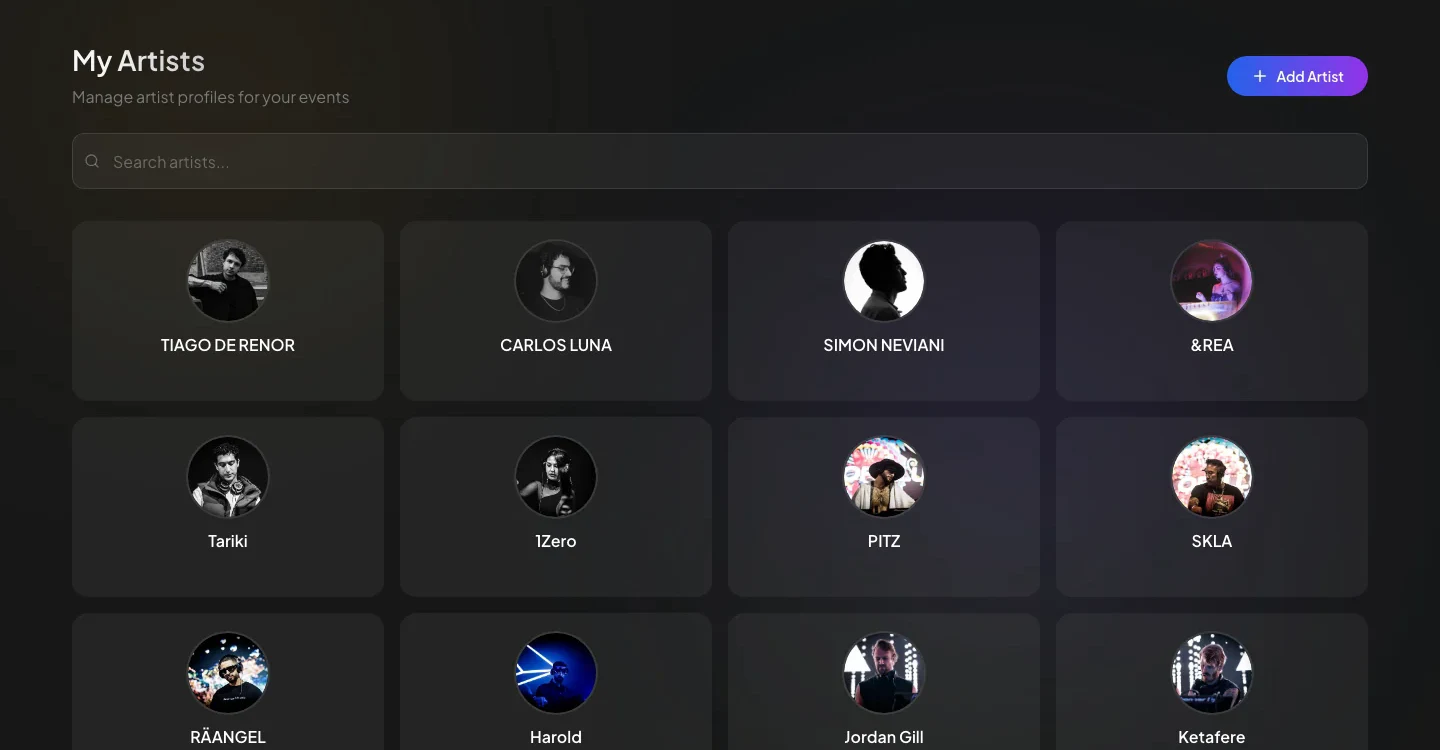
Adding an Artist
Artist creation now uses one form. Enter the required Artist Name, then add any available information:
- Artist Avatar: square JPEG, PNG, or WebP; the form currently accepts files up to 100 MB.
- Artist Banner: optional wide 2.4:1 JPEG, PNG, or WebP; up to 10 MB.
- Bio / Description and Public artist profile visibility.
- Music platforms: Spotify, Apple Music, and SoundCloud.
- Video platform: YouTube.
- Social profiles: Instagram, TikTok, Facebook, and X.
- Website.
Select Add Artist to save. Open an existing artist card to update or delete it. Review the delete confirmation carefully; deletion cannot be undone.
My Venues
Open My Venues. Search filters the signed-in creator's venues, and Add Venue opens the creation form.
Venue cards show a banner or placeholder, name, city, and country. Select a card to edit the venue. For a saved venue, Build layout opens its venue-schema editor.
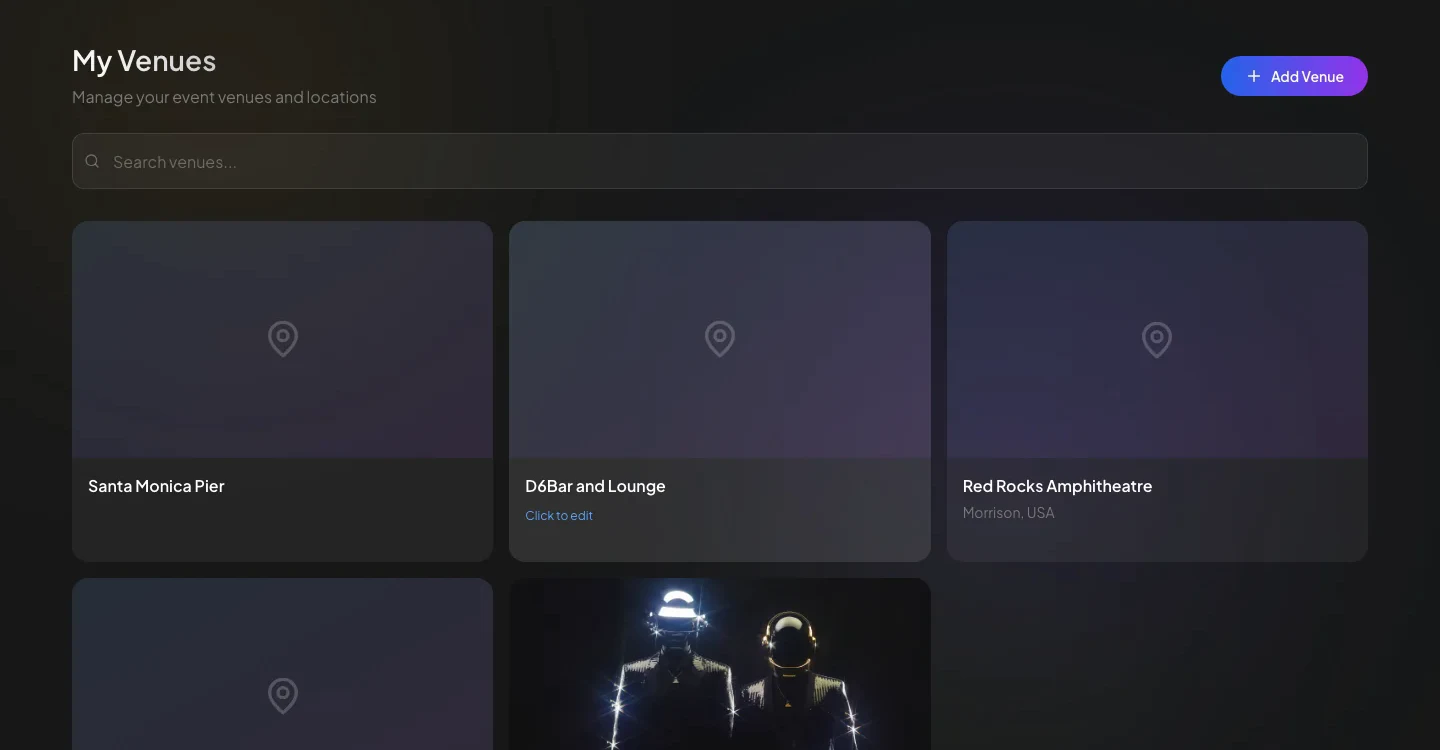
Adding a Venue
Select Add Venue and enter the available venue information:
- Name -- The venue's official name.
- Address -- The street address of the venue.
- City -- The city where the venue is located.
- Country -- The country where the venue is located.
- Capacity -- The maximum audience capacity.
- Working Hours -- The venue's standard operating hours.
- Internet Bandwidth (Mbps) -- Record the available bandwidth for stream planning.
- Description -- A written overview of the venue, covering its history, character, or any details relevant to event planning.
- Status -- Open, Closed, Coming Soon, or Under Renovation.
- Working Hours and Working Days.
- Social Media & Website -- Instagram, Facebook, X, and website links.
- Public venue visibility.
- Venue Banner Image -- optional image for the venue.
- Stages -- add a stage name, optional description, and capacity. Saved stages become available when configuring event instances.
Select Add Venue to save. An existing venue can only be deleted when it has no associated events.
Build a Venue Layout
For a saved venue, select Build layout from the venue card or edit form. The venue-schema builder can place, rename, rotate, duplicate, and remove layout components such as stages, bars, bathrooms, tents, walls, entrances and exits, trees, and cameras. Use the preview action to review the saved layout in 2D or 3D before relying on it during event planning.
My Music Brands
Open My Music Brands. This page provides search, Add Music Brand, and editable brand cards for the signed-in creator's brands.
The creation form includes:
- Brand Logo: square JPEG, PNG, or WebP.
- Brand Banner: optional wide 2.4:1 image.
- Required Brand Name, optional description, and Public brand profile visibility.
- Spotify, SoundCloud, YouTube, Instagram, TikTok, Facebook, X, and website links.
Select Add Brand to save. Open an existing card to edit or delete the brand. The event form can also create or select a music brand while you configure an event.