
Event Footage Uploads
Video footage is uploaded from an event's Video Upload tab and belongs to a specific event instance. It is not uploaded as an unrelated standalone video.
Before uploading
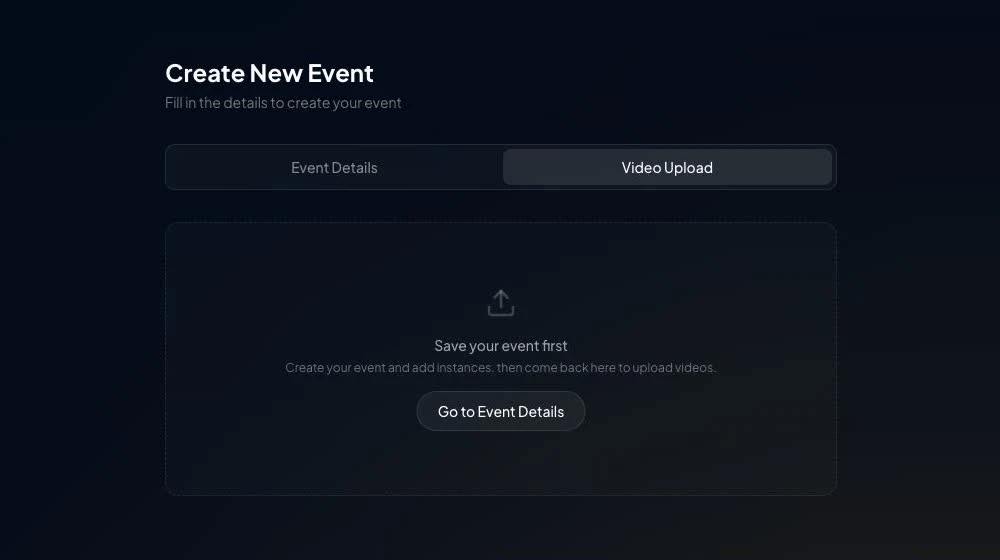
Confirm that the parent event and event instance already exist. If the Video Upload tab says to add event instances first, return to Event Details, create the instance, and save it before continuing.
Play the source locally and confirm that it is complete. Keep the original camera metadata and multi-file sets together.
Choose the correct source type
Creator Studio currently offers these source workflows:
- iPhone Video: standard 2D video from an iPhone or other camera
- iPhone Spatial: MV-HEVC spatial video from a supported iPhone
- Insta360 X Series: pre-stitched monoscopic 360-degree footage
- Insta360 Pro 2: raw six-lens capture plus metadata
- Pre-stitched Stereoscopic: a stereo file with its Side by Side, Top/Bottom, or MV-HEVC layout and Flat, 180-degree, or 360-degree projection
Select the option that describes the actual source. Choosing a different label can send the footage through the wrong pipeline.
Upload footage
- Open My Events and edit the event.
- Select Video Upload.
- Find the intended event instance.
- Select Add Video or Add Another Angle.
- Choose the source type and, when requested, the stereo layout and projection.
- Select the requested file or multi-file set.
- Keep the page open until the upload transfer completes.
VPORT does not publish one maximum file size or a guaranteed processing time for every source. Transfer and processing time depend on the source, file size, required pipeline, connection, and workload.
Track processing
After upload, Creator Studio can report stages such as queued, stitching, encoding, HLS conversion, CDN upload, ready for VOD, live, or failed. The exact stages depend on the source category.
Do not delete a processing item simply because it takes longer than another format. If a failed item offers a retry action, use it once and monitor the new status.
Delete uploaded footage
You can remove a video or camera angle that you already uploaded to an event instance.
- Open the event's Video Upload tab.
- Find the footage you want to remove.
- Select the delete icon on that footage.
- Confirm the action in the dialog by selecting Delete, or select Cancel to keep the footage.

The delete icon is not available while the footage is live streaming or still moving through the processing pipeline.
- Deleting a published video removes viewer access immediately and queues durable storage cleanup.
- Deleting an unpublished upload removes it from Creator Studio and starts source-file cleanup.
Neither action can be undone.
Report a failed upload
Open a conversation in VPORT Support with:
- Event and instance
- Selected source type, stereo layout, and projection
- File name, size, and number of files
- Time of upload
- Last completed stage and exact error
- Screenshot of the footage status
Keep the failed entry available until Support has the information needed to investigate it.