
Managing Events
An event is the public container for one or more performances or broadcasts. Creator Studio manages its event details, instances, thumbnail, visibility, and footage in one edit flow.
Create an event
- Open My Events.
- Select Create Event.
- Enter the event name and description.
- Select or create the venue and music-brand records needed for the event.
- Set the event start and end times.
- Add an event thumbnail.
- Choose whether the event is visible.
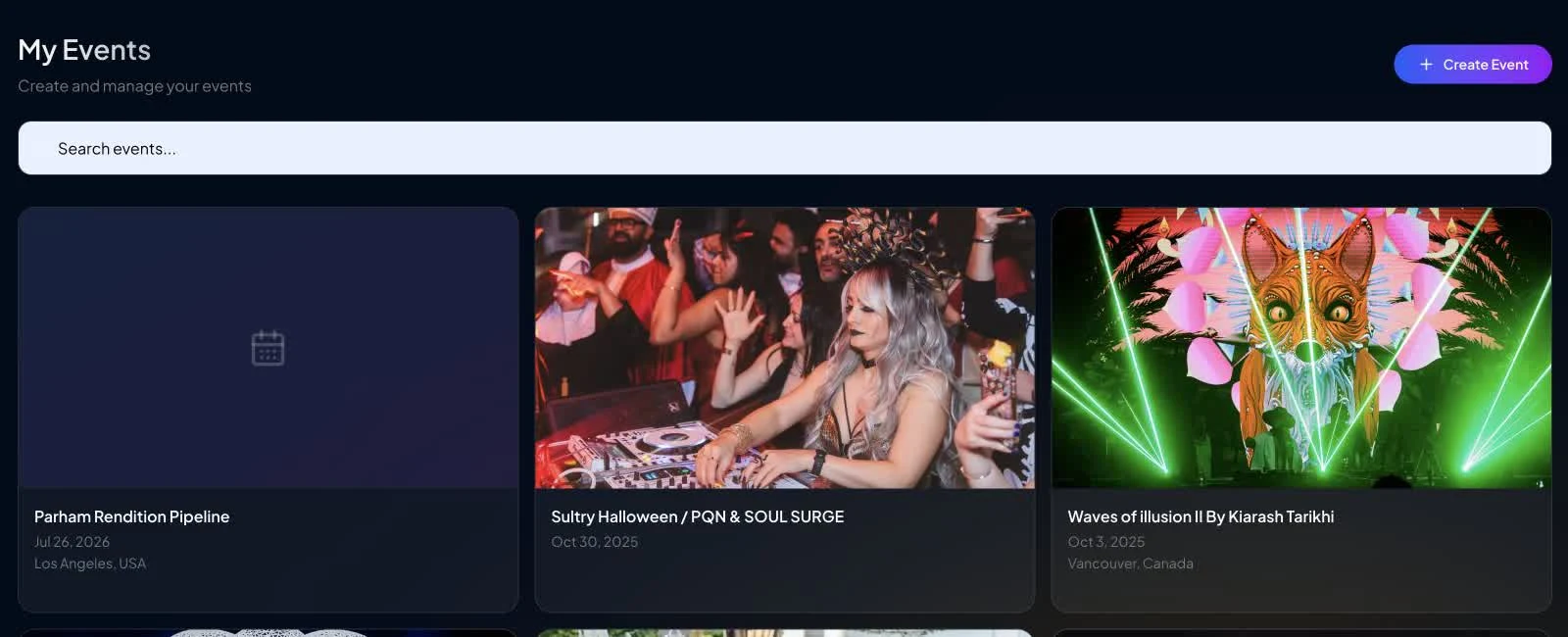
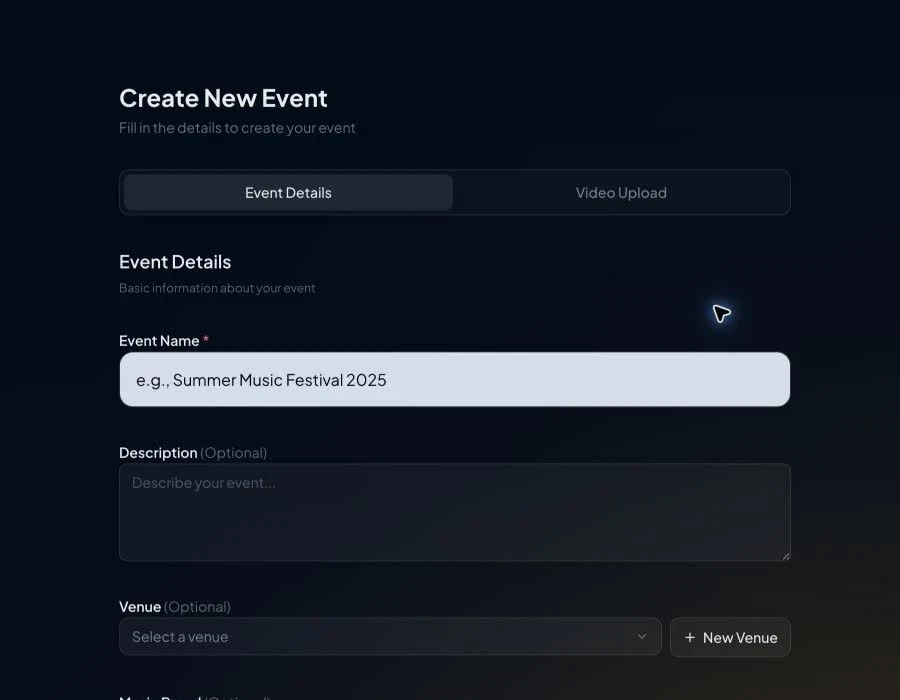
The form can also expose a Mark as Big Event control. Use it only when the event has the appropriate promotion plan and account permissions.
Add event instances
In Event Details, select Add Instance for each individual performance or segment. An instance can include:
- Name and description
- Stage from the selected venue
- Pricing tier
- One or more artists
- Start and end times
- Headliner designation
- Visibility
- Instance thumbnail
Save the event and instances before opening Video Upload. Footage is attached to an instance, not to an unstructured event-level file area.
Edit an event
Open an event from My Events to update its details, add or update instances, change media, or manage visibility. Review public names, dates, prices, artists, venue, and thumbnail before making the event visible.
Delete carefully
Creator Studio provides deletion actions for events and instances. Treat deletion as destructive. Confirm that the event, instance, footage, and any live or published use are no longer needed before proceeding.
Continue with Event Instances and Event Footage Uploads.
If saving, visibility, or deletion behaves unexpectedly, open a conversation in VPORT Support with the creator account, event, time, action, and screenshot.