
Overview
The Vport Portal on Apple Vision Pro is the main hub of the Vport app.
From the Portal, you can:
- View your wallet balance and top up
- Switch to Profile, Search, Following, or Wallet from the global tab bar
- Discover featured events via banners
- Browse multiple carousels including:
- Now Playing
- Free For You
- Artist sets
- Past events
- Upcoming events
- Most popular artists
- Top events
- Venues
- Keep Watching
- Music Brands
- Preview pricing or “free” labels just by looking at cards
The exact cards and some rows are catalog-driven. A row can be absent when no eligible content is currently available.
Purpose (User Value)
The Portal is designed to:
- Give you one central location to discover all content
- Make it easy to find free and paid events
- Help you return to unfinished content with Keep Watching
- Allow very fast access to wallet and profile tools
- Show the current per-minute price at a glance using gaze-hover where that overlay is supported
- Help you explore Vport without needing to guess where things live
When in doubt about where to go, the Portal is home base.
How to Use (Step-by-step Guide)
3.1 Opening the Portal
- Put on your Apple Vision Pro and open Vport.
- If you’re somewhere else, look at the global tab bar.
- Gaze at the Home tab.
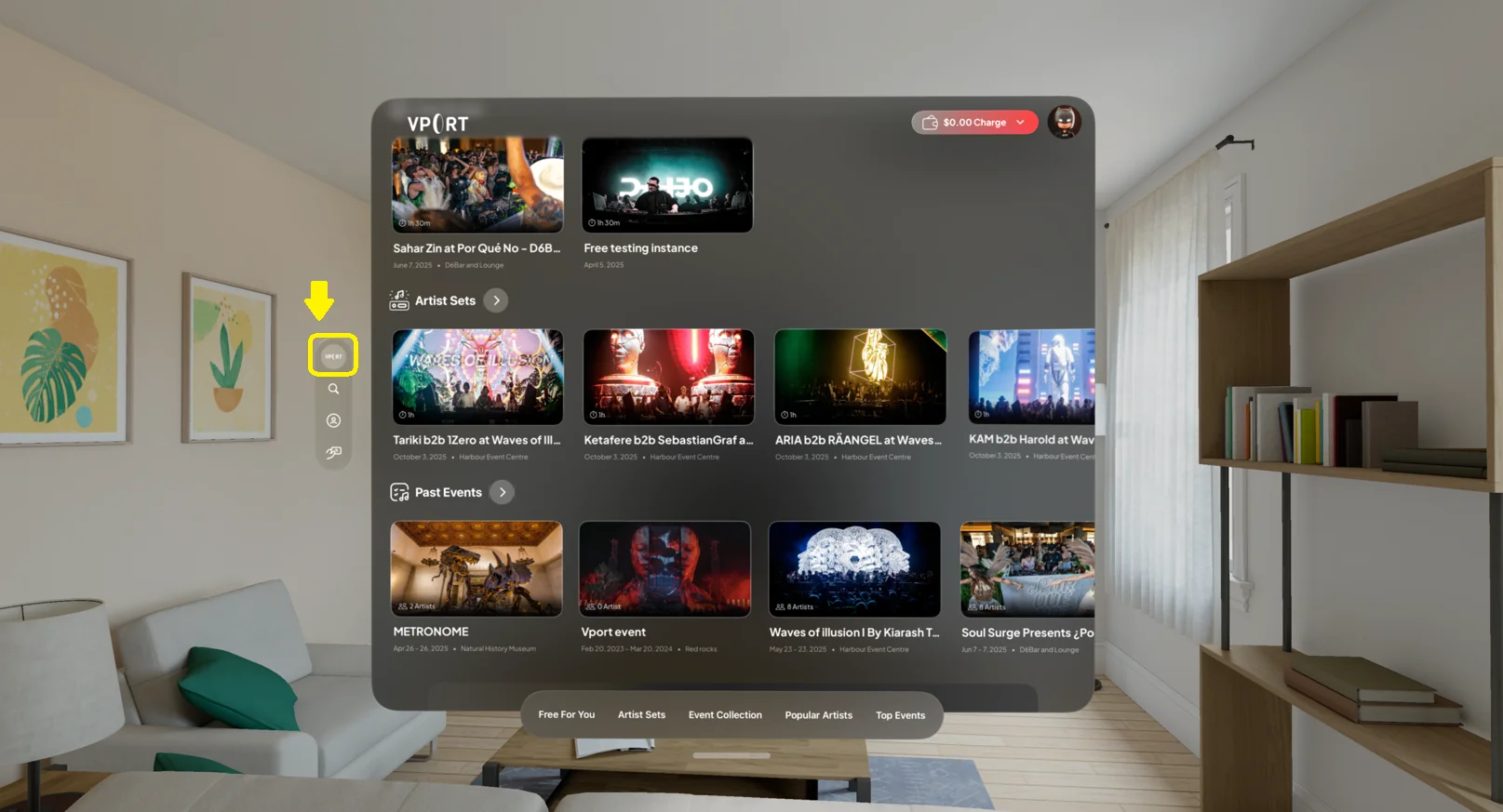
- Pinch to return to the main Portal view.
3.2 Using the Home Header and Wallet
At the top of Home you’ll see:
- The VPORT brand mark
- Your Wallet / Balance button
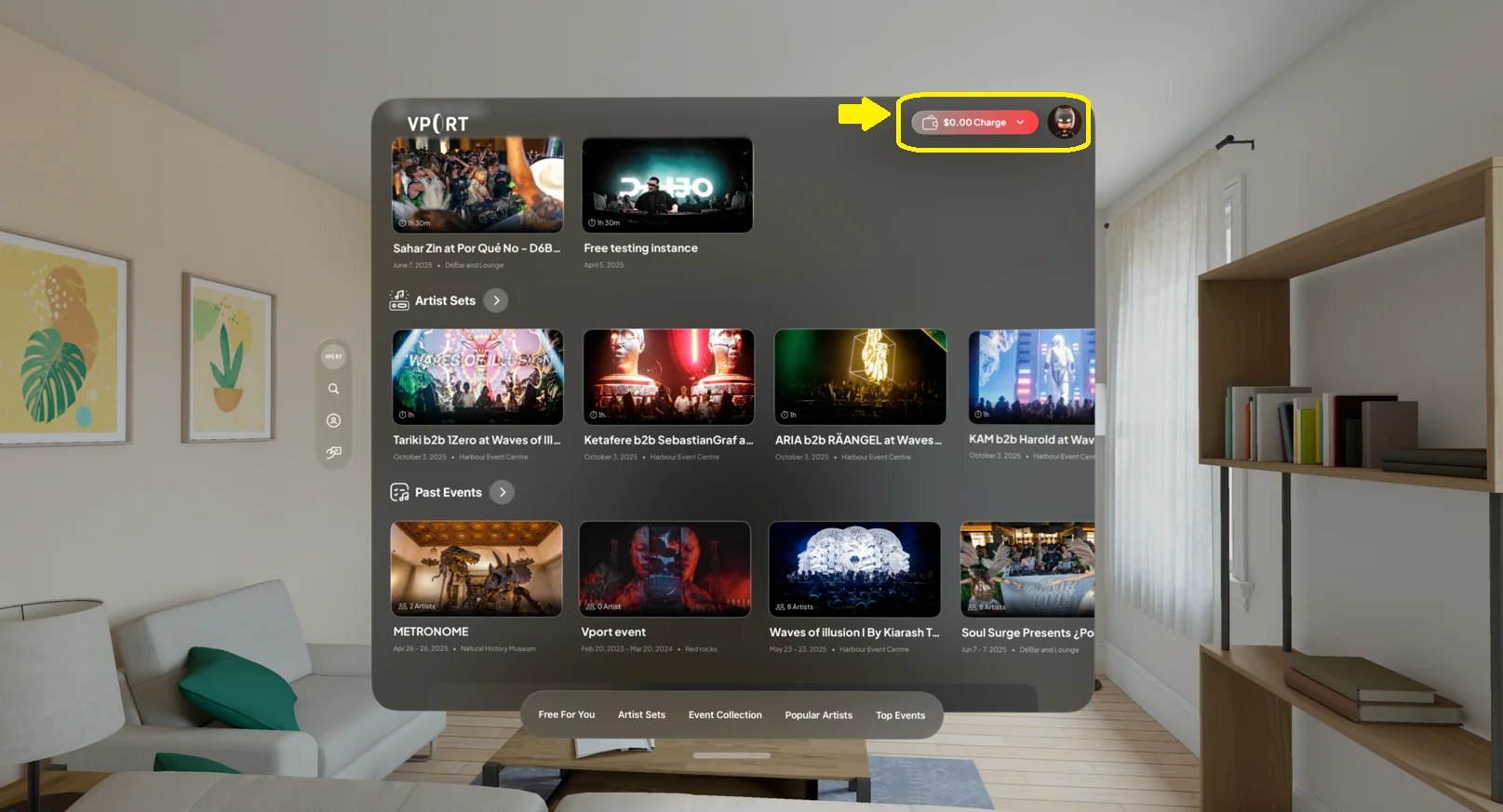
Wallet
- Look at the wallet/balance icon.
- Pinch to open the Credit & Billing Hub, where you can:
- View balance
- Add funds
- View purchase and usage history
Apple Vision Pro credit packages use Apple's StoreKit in-app purchase flow. The current VPORT promotion field changes only the local confirmation calculation; it is not sent to StoreKit. Always verify the final product and price in Apple's purchase sheet.
Use the global Profile tab for account details and settings.
3.3 Interacting with the Main Banners
Below the top menu, you’ll see large featured banners for:
- Highlighted events
- Special shows
- Curated experiences
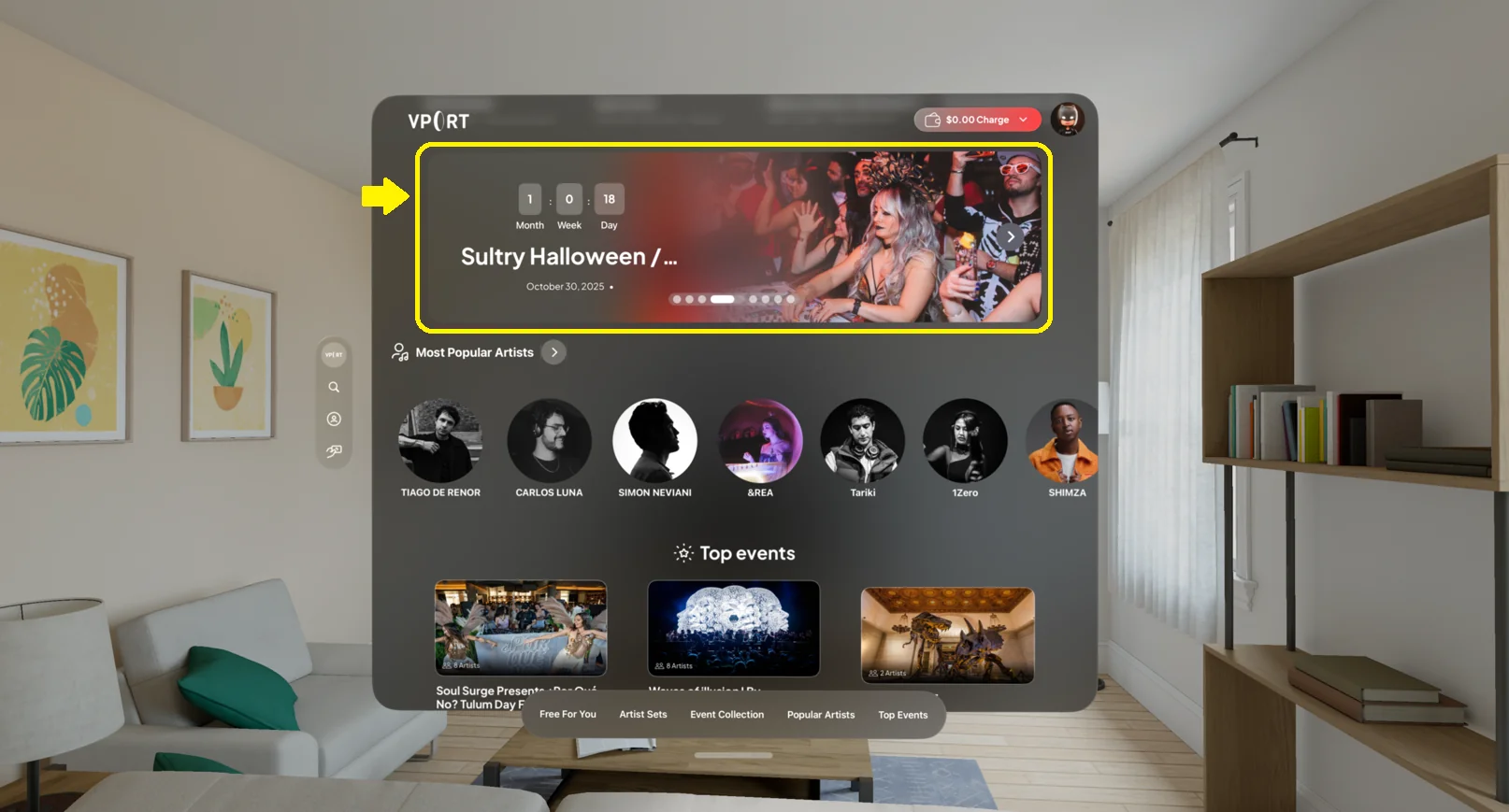
To use them:
- Look at a banner.
- Pinch to open the event detail page.
From there you can learn more or start watching.
3.4 Browsing the Carousels (Top to Bottom)
As you scroll downward, the current app defines these sections in this order. Only populated, eligible rows are useful; catalog and feature availability can leave a row empty.
- Now Playing
- Free For You
- Artist Sets
- Past Events
- Upcoming Events
- Upcoming Event Banners
- Most Popular Artists
- Top Events
- Venues
- Keep Watching
- Music Brands
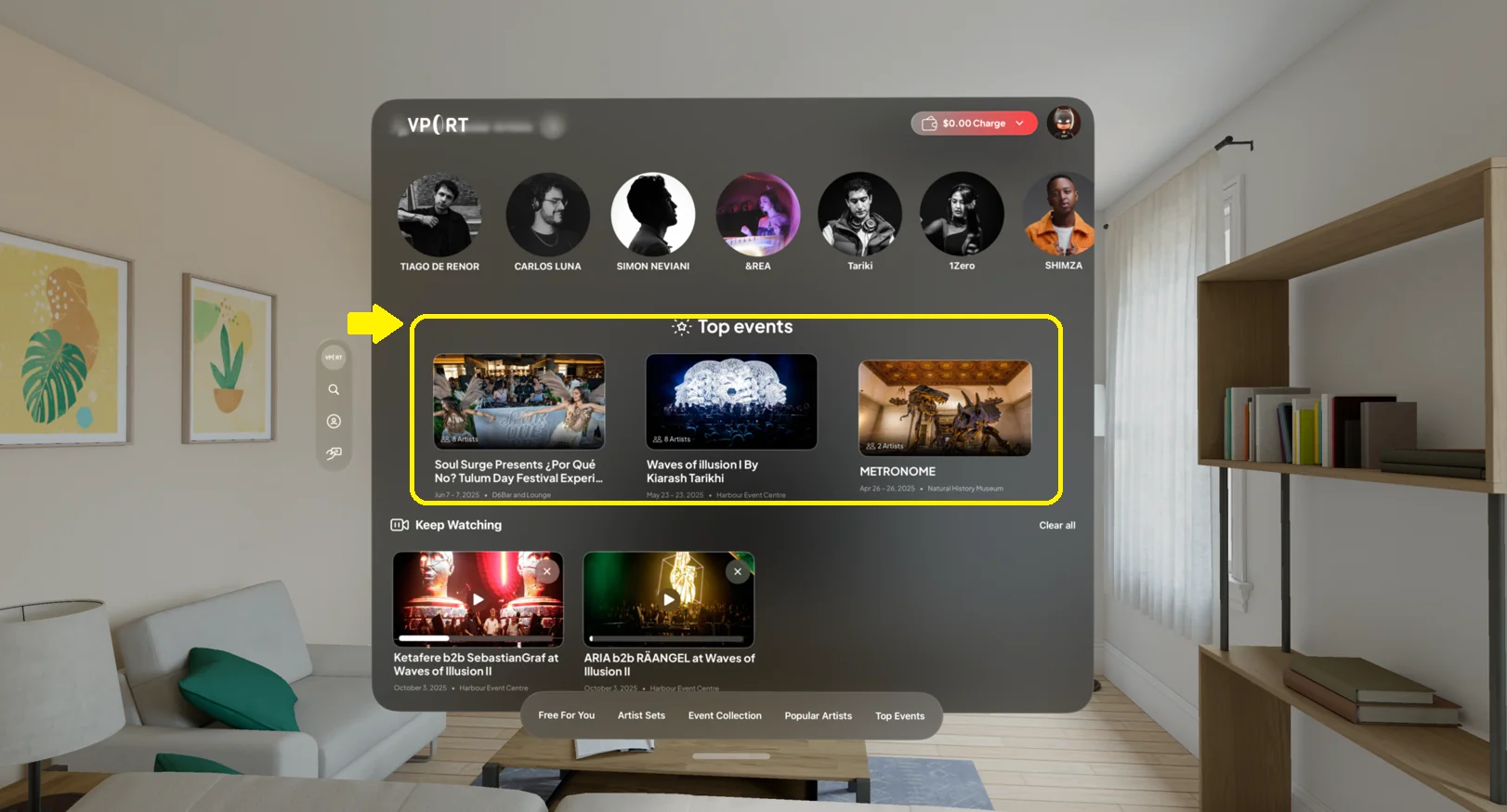
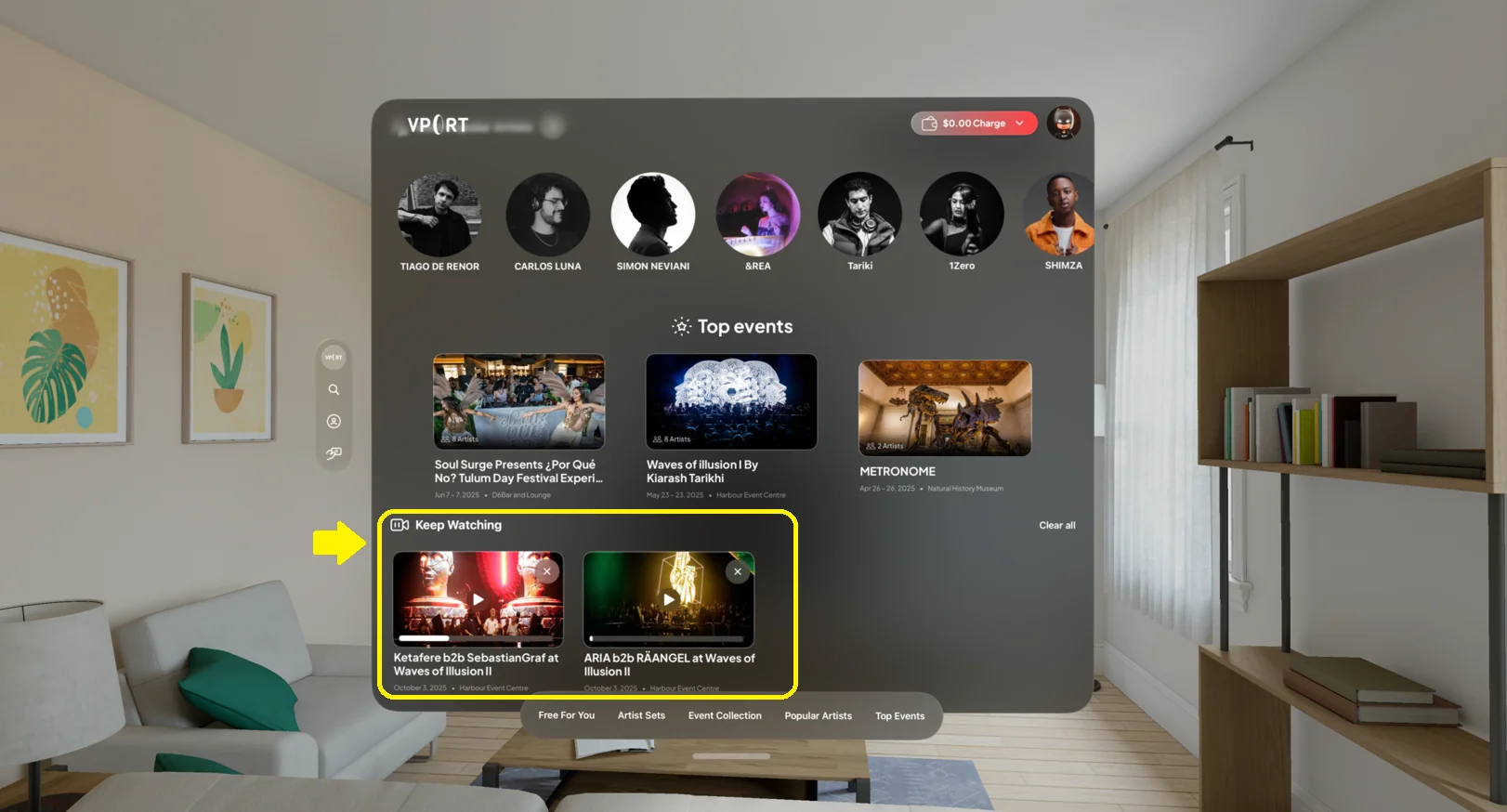
Each populated carousel is interactive using gaze + pinch. The screenshots remain examples; row contents and ordering within a row come from the current catalog.
3.4.0 Previewing Pricing / “Free” with Gaze Highlight
To preview pricing:
- Look at a supported event-instance card for approximately half a second.
- The card highlights.
- A label appears:
Examples:
- “Experience it · $0.03 per min”
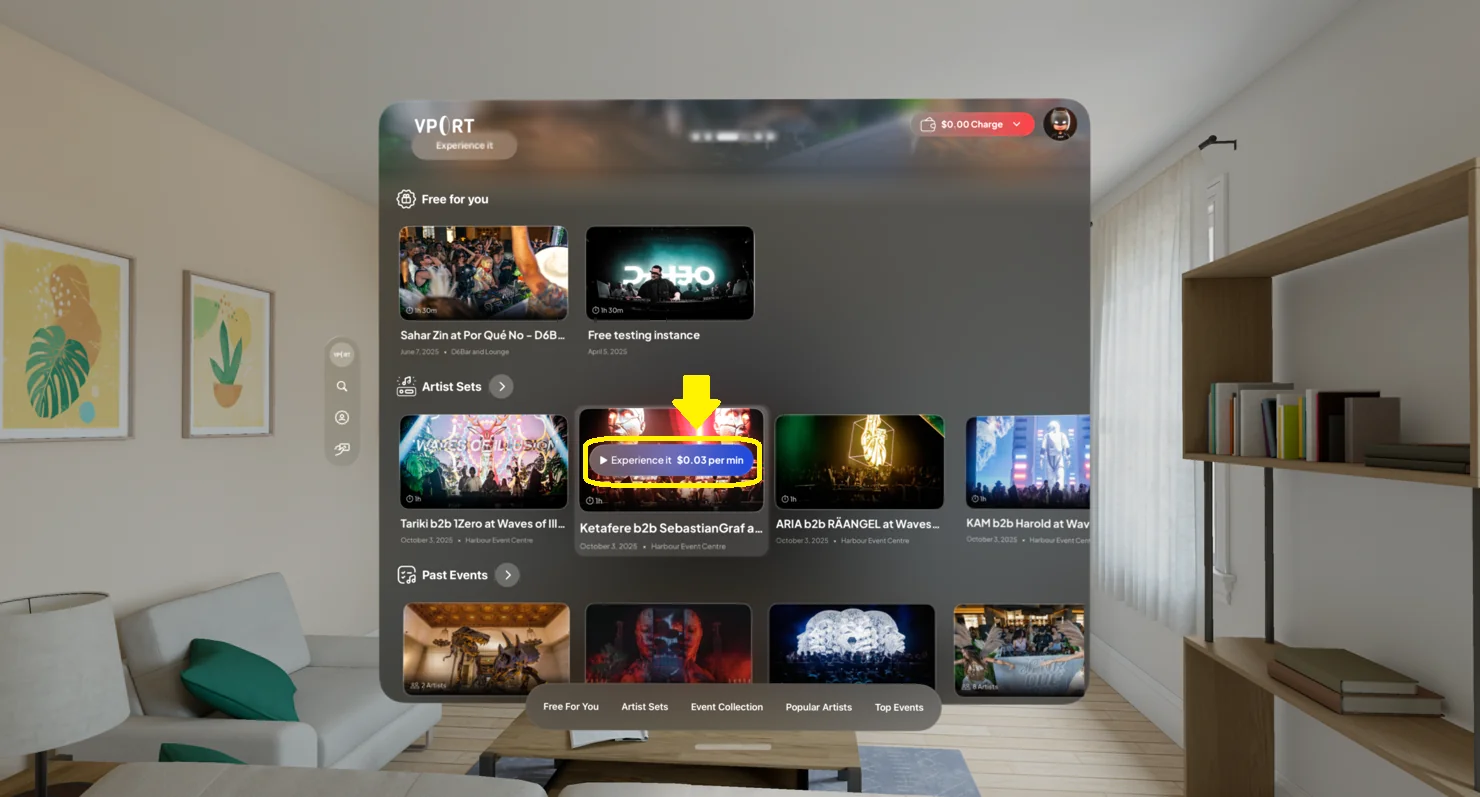
This lets you compare costs across items before opening them.
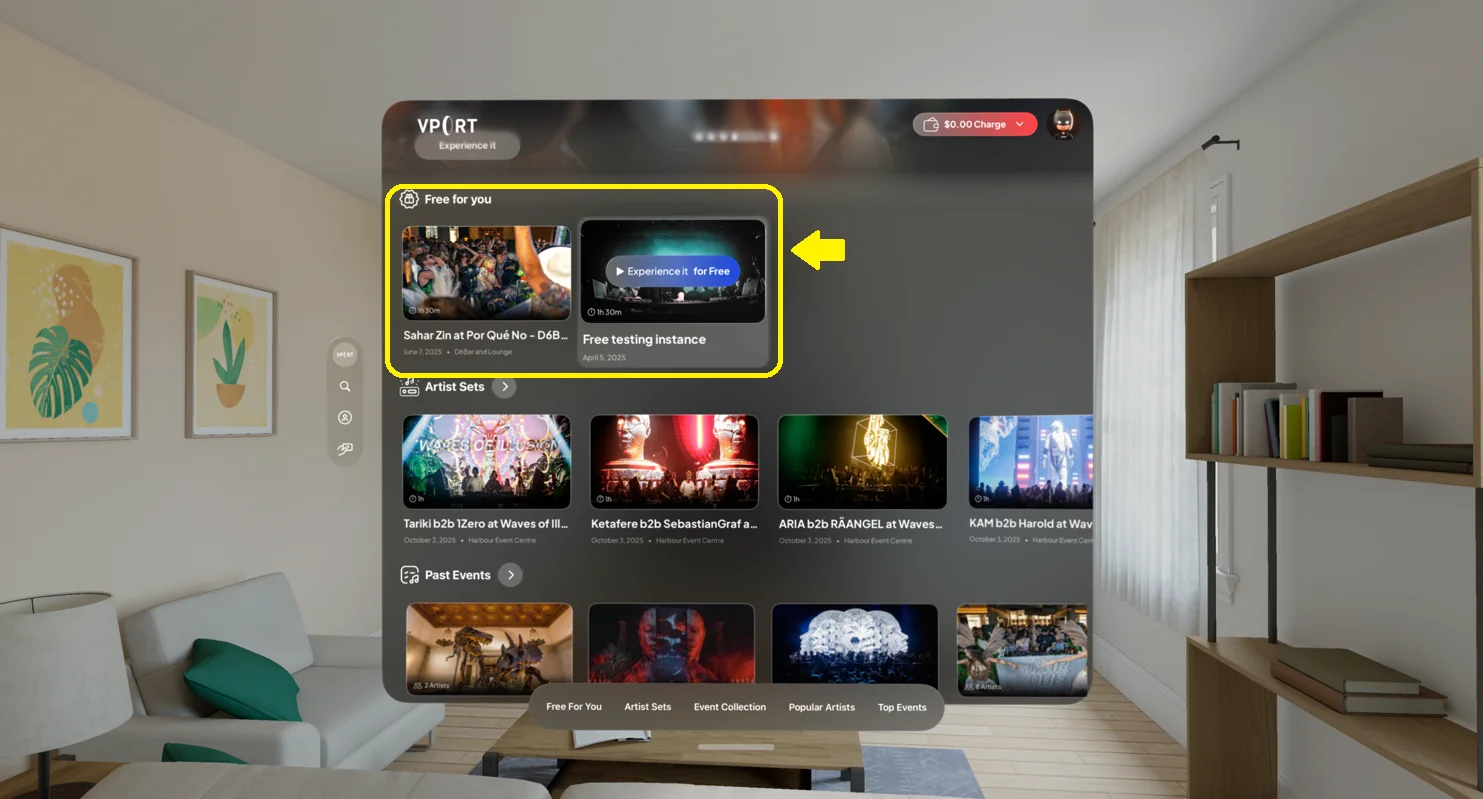
3.4.1 Free For You
Shows content currently priced as free. Open the card to confirm its access state before playback.
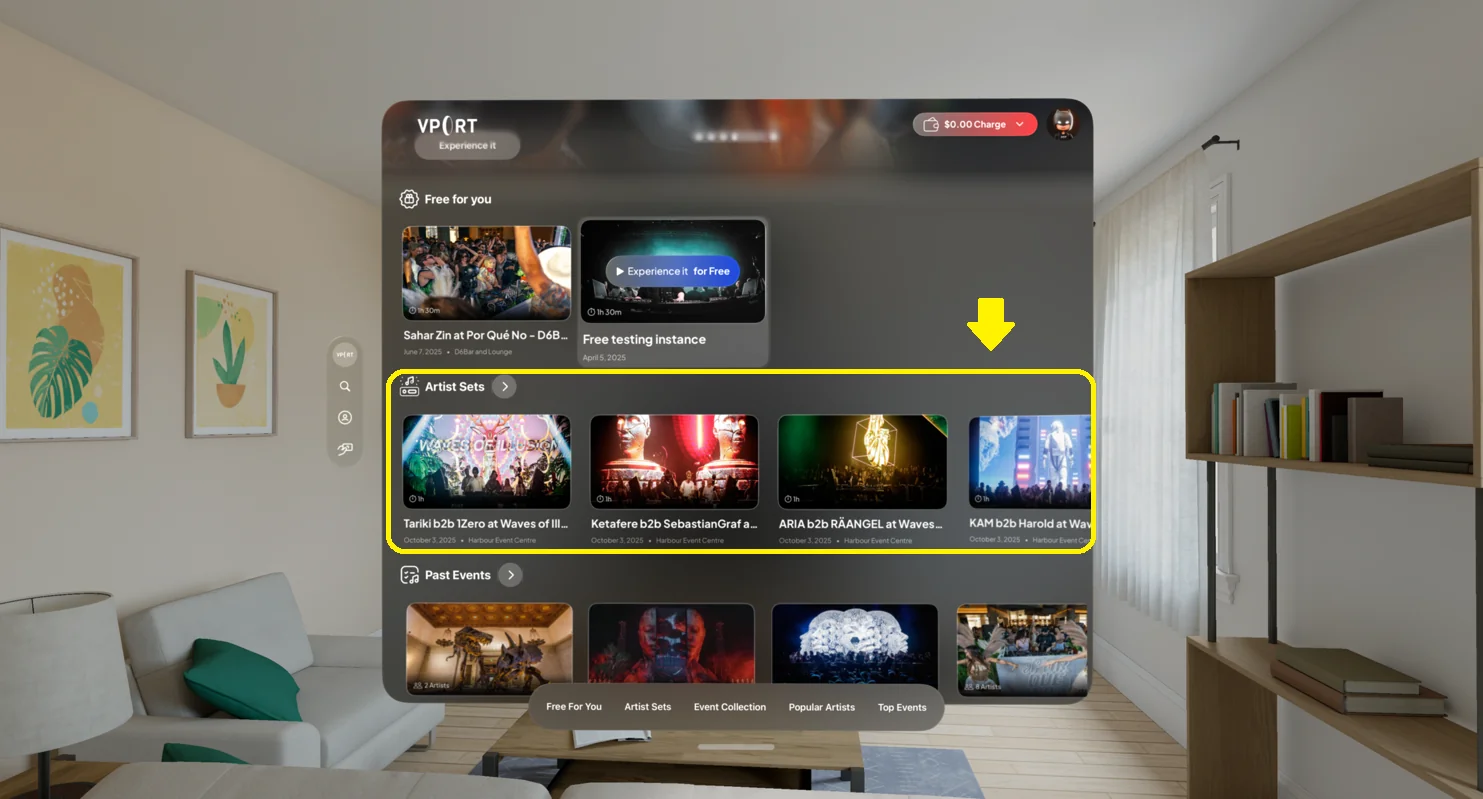
3.4.2 Artist Sets
Displays individual artist performances. Gaze-hover shows pricing such as “$0.03/min”.
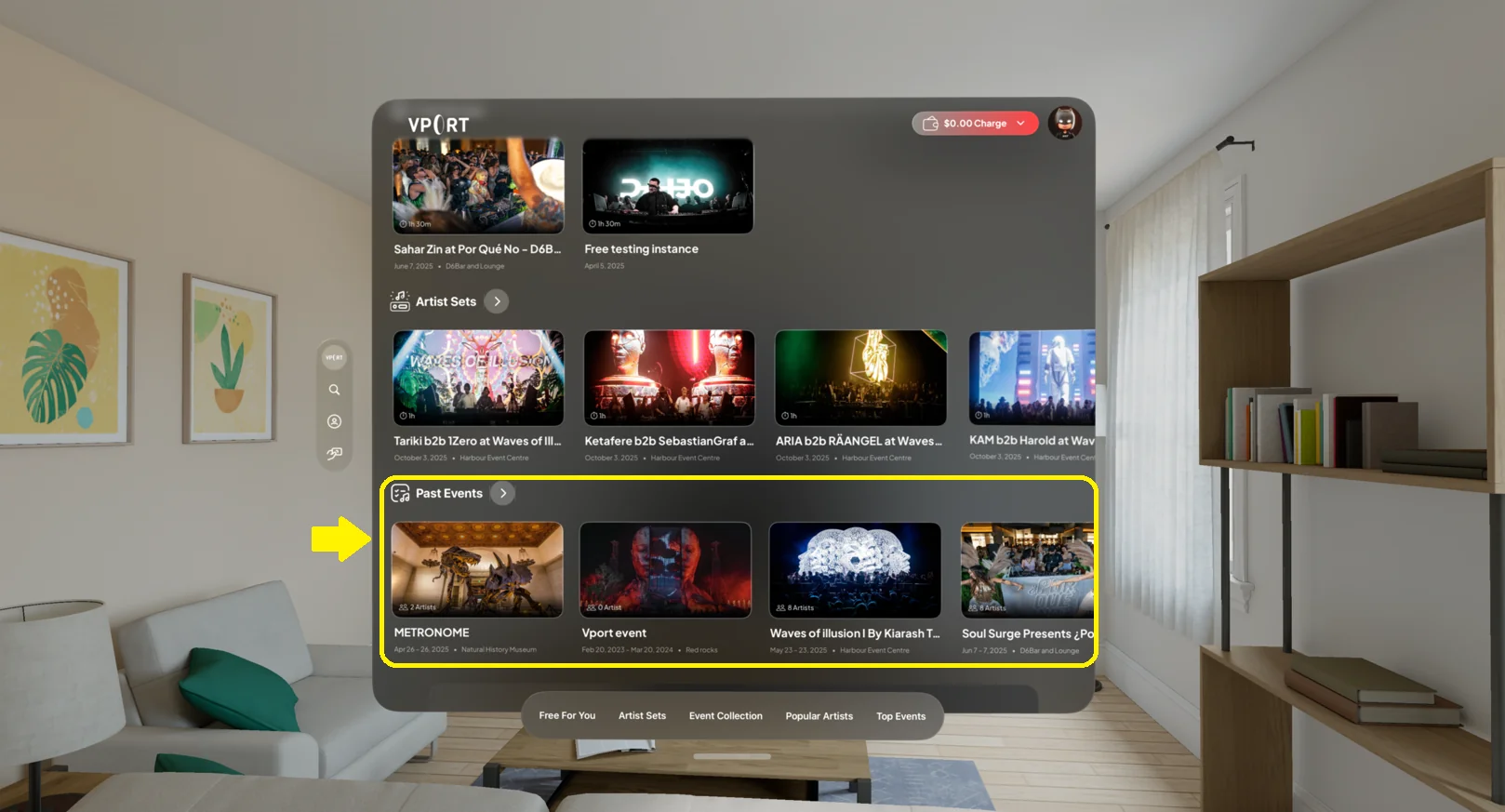
3.4.3 Past Events
Shows replays/on-demand events. Gaze-hover reveals pricing or free status.
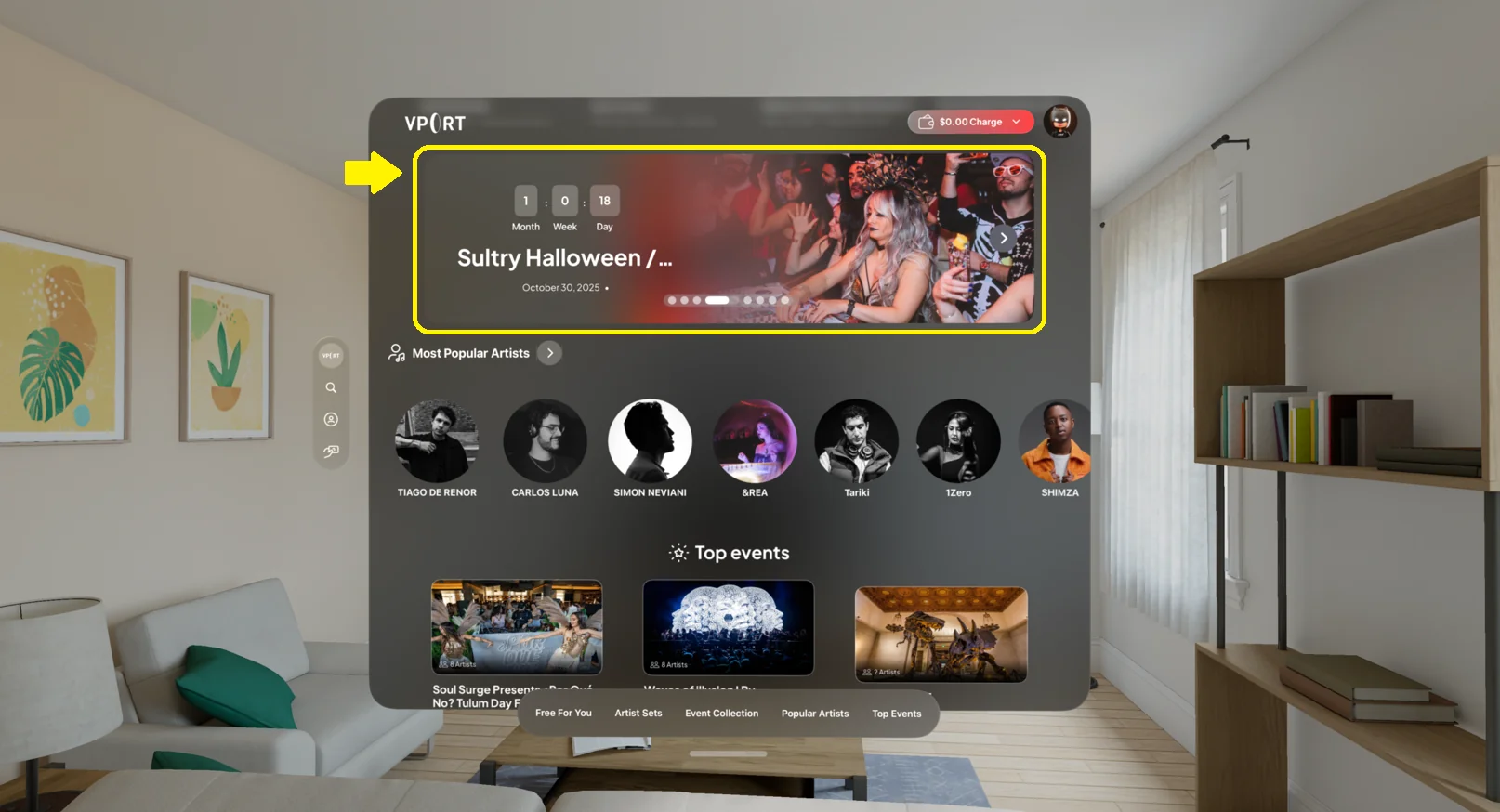
3.4.4 Upcoming Event Banners
Highlighted future shows. Some may show price or access type depending on UI version.
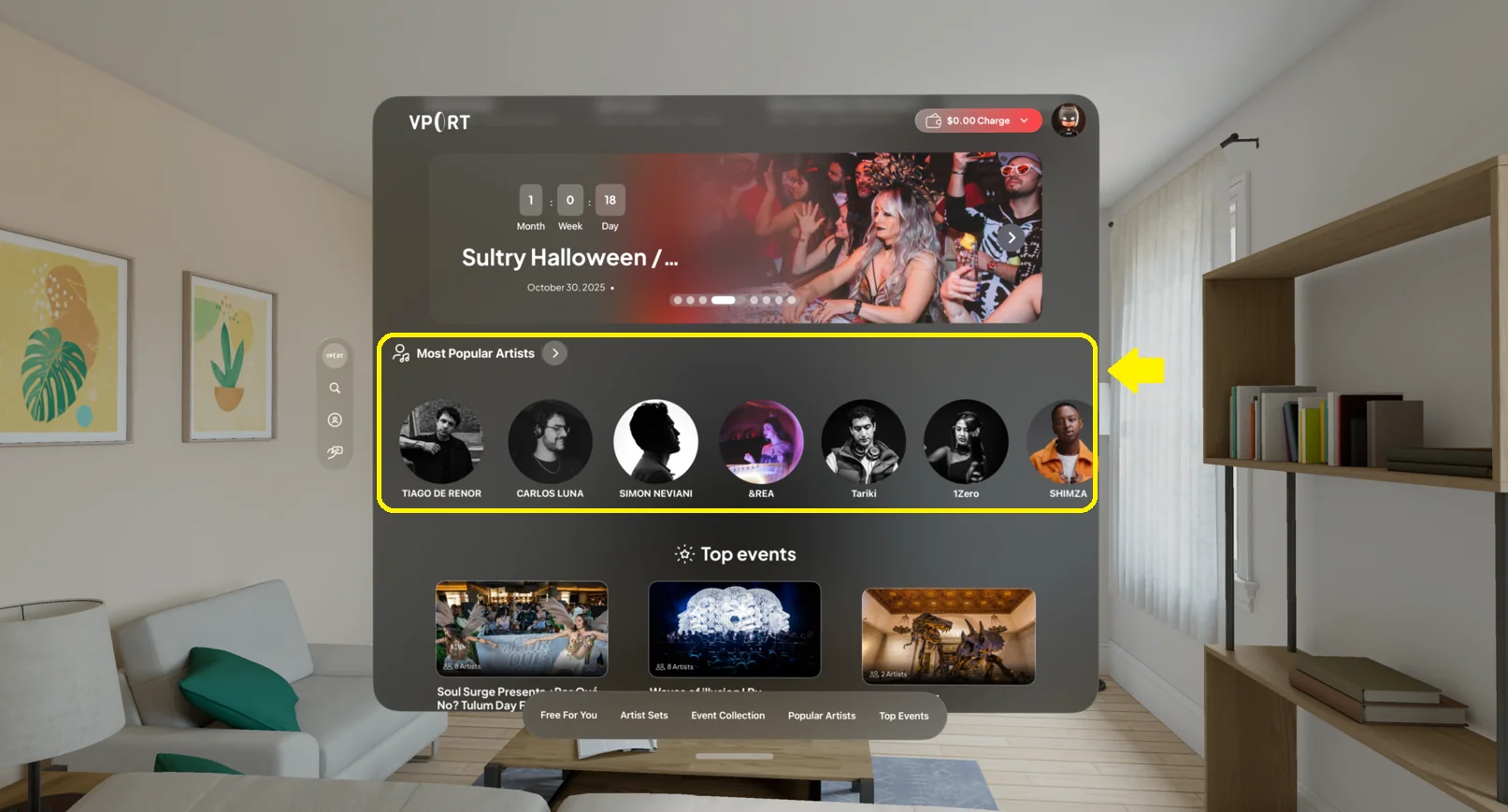
3.4.5 Most Popular Artists
Trending/high-engagement artists. Selecting an artist opens their profile.
3.4.6 Top Events (3-event list)
A compact list of top-performing shows. Gaze-hover shows pricing/free labels where applicable.
3.4.7 Keep Watching
Shows partially-watched events. Pinch to resume. Gaze-hover can show pricing as well.
3.4.8 Music Brands
Displays a curated carousel of music brands and labels featured on Vport. Selecting a music brand opens its dedicated page where you can explore associated artists and events.
3.4.9 Now Playing
Shows live events that are happening right now on Vport.
Each card displays a Live badge over the thumbnail so you can tell at a glance what is currently streaming. The subtitle shows how long the event has been running and the city, for example "Started 23 min ago • Vancouver".
To watch a live event:
- Scroll to the Now Playing rail.
- Look at a card to highlight it.
- Pinch to open the event and start watching.
Home refreshes its live content automatically every two minutes and immediately when you bring the app to the foreground.
You can also pull down on the Portal to refresh all carousels at once.
3.5 Jumping to Home Sections
Some accounts expose a Home section-jump panel. This panel is separate from the global tab bar.
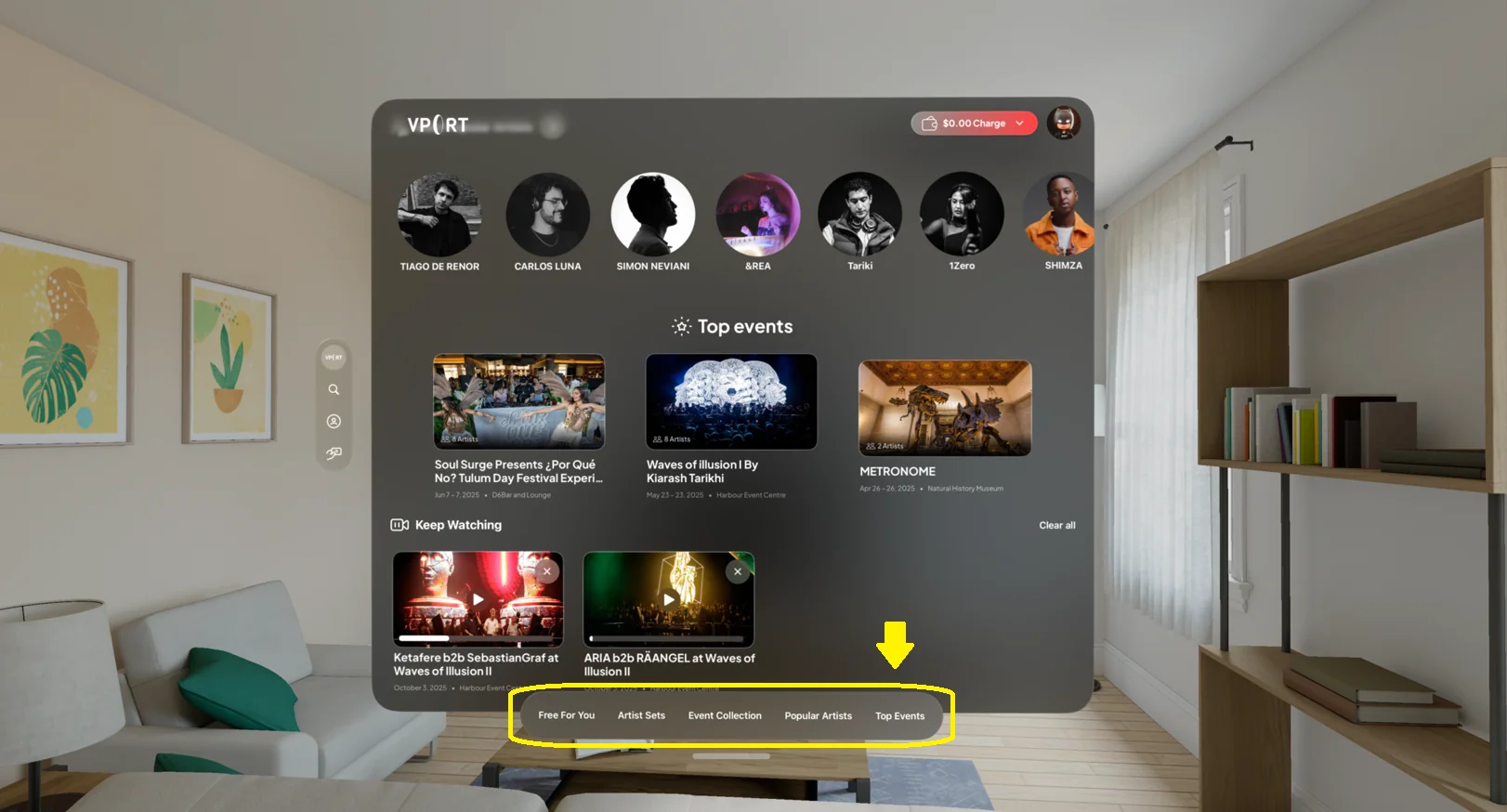
To use it:
- Look at the bottom panel.
- Gaze at a current destination: Free For You, Artist Sets, Event Collection, Popular Artists, or Top Events.
- Pinch to select.
The view scrolls automatically to the selected section. This account-configured panel is not visible to every signed-in user.
3.6 Using the Global Tab Bar
The visionOS tab bar provides global navigation across the main app surfaces.
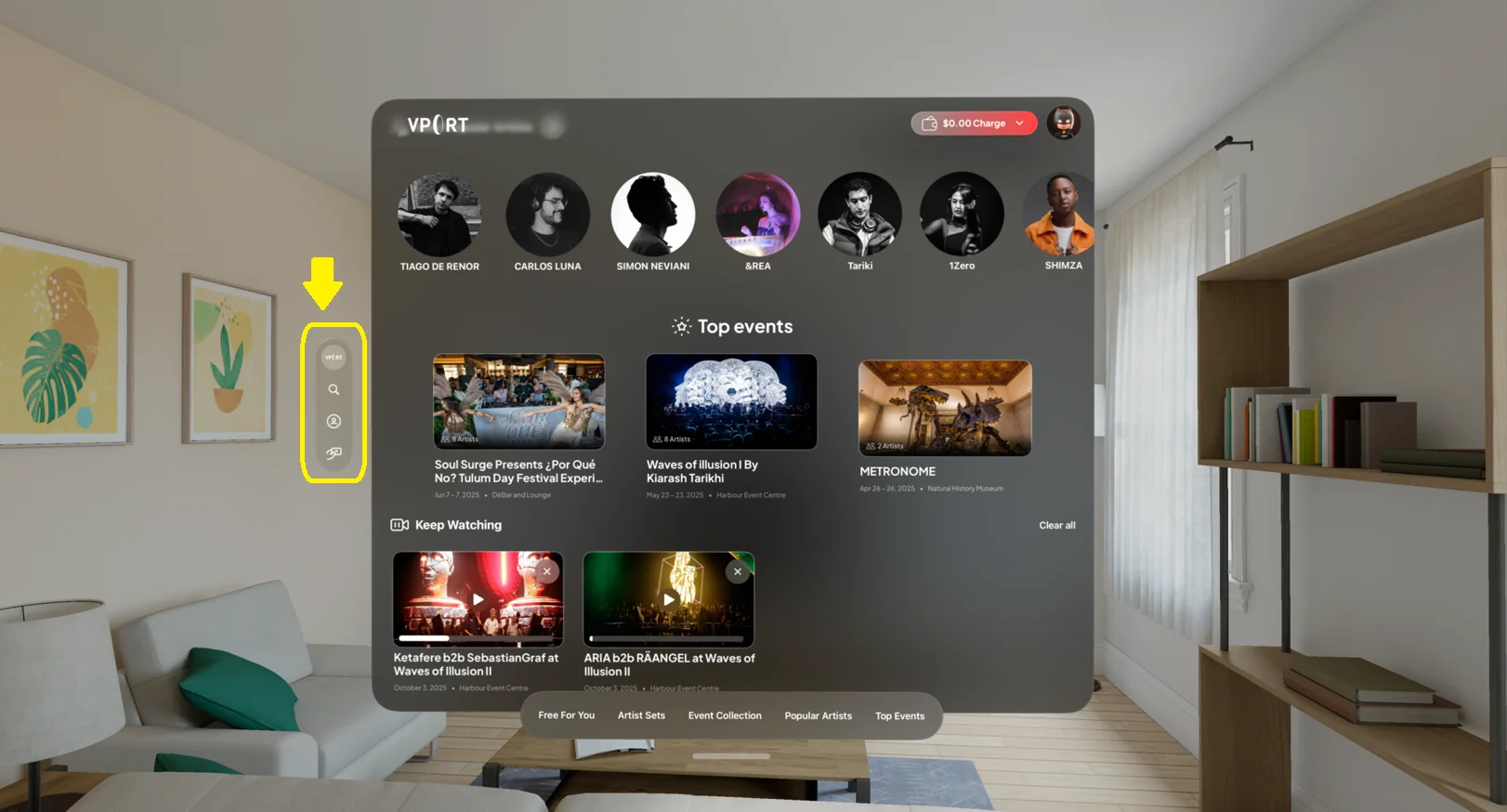
You can jump to:
- Home
- Search
- Following
- Profile
- Your Balance (Wallet)
To use it:
- Look at the tab bar.
- Gaze at an icon (Home / Search / Following / Profile / Your Balance).
- Pinch to switch.
This helps you quickly return to the Portal after exploring other sections.
Key Features
Feature 1: Central Hub for Everything
The Portal is the main entry point for navigation, discovery, wallet, and profile actions.
Feature 2: Top Menu for Wallet & Profile
Quick access to account and billing without leaving the main screen.
Feature 3: Featured Banners
Highlight key events and experiences so you never miss major content.
Feature 4: Structured Carousels
Catalog-driven browsing across:
- Now Playing
- Free For You
- Artist Sets
- Past Events
- Upcoming Events
- Most Popular Artists
- Top Events
- Venues
- Keep Watching
- Music Brands
Feature 5: Gaze-based Pricing Preview
See the current per-minute price by holding your gaze on a supported event-instance card for approximately half a second.
Feature 6: Optional Home Section Jumps
Jump to selected Home sections when that account option is enabled.
Feature 7: Global Tab Bar Navigation
Persistent global navigation lets you switch sections instantly.
Feature 8: Live Content Auto-Refresh
Home refreshes its loaded content every two minutes and when the app returns to the foreground. Pull down on Home to request a manual refresh. Network and catalog delays can still affect what appears.
Common Issues & Troubleshooting
Issue 1: Pricing Label Doesn’t Appear
Causes:
- Gaze not held long enough
- Not centered on the card
- Card type doesn’t support pricing
Try:
- Hold gaze for at least half a second
- Ensure the card highlights visually
- Try another carousel (Artist Sets or Past Events)
Issue 2: A Carousel Is Missing (e.g., Keep Watching)
Causes:
- No content available for that section
- Haven’t watched anything yet
- Loading issue
Try:
- Confirm correct account
- Watch something briefly to populate Keep Watching
- Restart the app or check connection
Issue 3: Home Section Jump Doesn’t Move to the Right Section
Causes:
- Gaze not centered
- UI desync
Try:
- Look directly at the label before pinching
- Try a slower or longer pinch
- Restart the app if the panel feels unresponsive
Issue 4: Main Banners Won’t Open
Causes:
- Gaze not locked onto the banner
- Network loading delay
- Event may no longer be available
Try:
- Ensure highlight appears
- Wait a moment after selecting
- Try accessing the event from Search or another carousel
Issue 5: Wallet or Profile Not Opening
Causes:
- Navigation hiccup
- Logged-out state
Try:
- Open Your Balance or Profile from the global tab bar
- Confirm you're logged in
- Restart the app if needed
Issue 6: Feeling Lost / Don’t Know Where You Are
Use the global tab bar:
- Select Home to return to the Portal
- From there use:
- Home header and Wallet button
- Carousels
- Global tab bar
- Gaze-hover pricing preview
The Portal is always the anchor.