
Getting Started with Creator Studio
Creator Studio is VPORT's web workspace for accounts with creator permissions. It is used to manage artists, venues, music brands, events, event instances, footage, analytics, earnings, and Stripe payouts.
Confirm access
Sign in and open Creator Studio. If the creator workspace is unavailable, your account may not have the required permissions. The public Portal does not provide a self-service creator application with a guaranteed approval time. Contact VPORT Support for onboarding.
Only create or upload content that you own or are authorized to distribute.
Creator Studio workflow
- Prepare artist, venue, and music-brand records. Create or confirm the profiles needed for the event.
- Create the event. Open My Events, select Create Event, and enter the public event information.
- Add event instances. Each performance or broadcast belongs to an instance inside the parent event.
- Upload footage. Open the event's Video Upload tab, choose the correct instance, and select Add Video or Add Another Angle.
- Choose the true source type. The selected camera, layout, and projection determine the processing pipeline.
- Monitor processing. Keep the upload page open during transfer, then track the footage through queued, processing, ready, live, or failed states.
- Review performance and earnings. Use Analytics and Earnings after viewer activity is processed.
Continue with Managing Events, Event Instances, and Event Footage Uploads.
Creator settings
The current Creator Settings page lists Creator Profile, Notifications, Privacy & Permissions, Branding, and General settings.
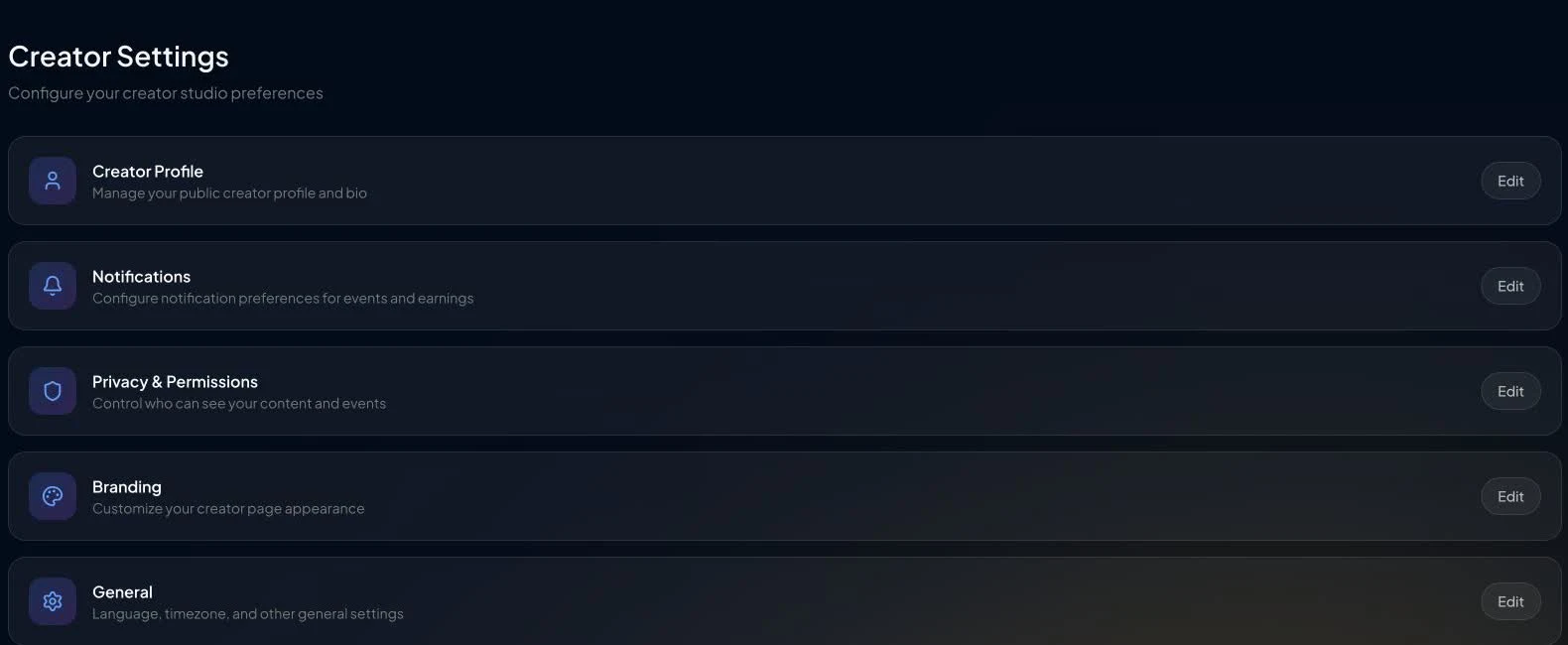
These cards currently describe intended settings areas, but their Edit buttons do not yet expose documented end-to-end controls. Use VPORT Support for a creator-profile, permissions, or branding change that is not available elsewhere in Creator Studio.
When to contact Support
Open a VPORT Support conversation if access, event saving, transfer, or processing fails. Include the creator account, event and instance, time, exact status or error, and a screenshot. For footage issues, also include the selected source type and file details.