
Analytics & Earnings
Creator Studio separates content-performance metrics from earnings and Stripe payout management.
Analytics
Open Creator Analytics.
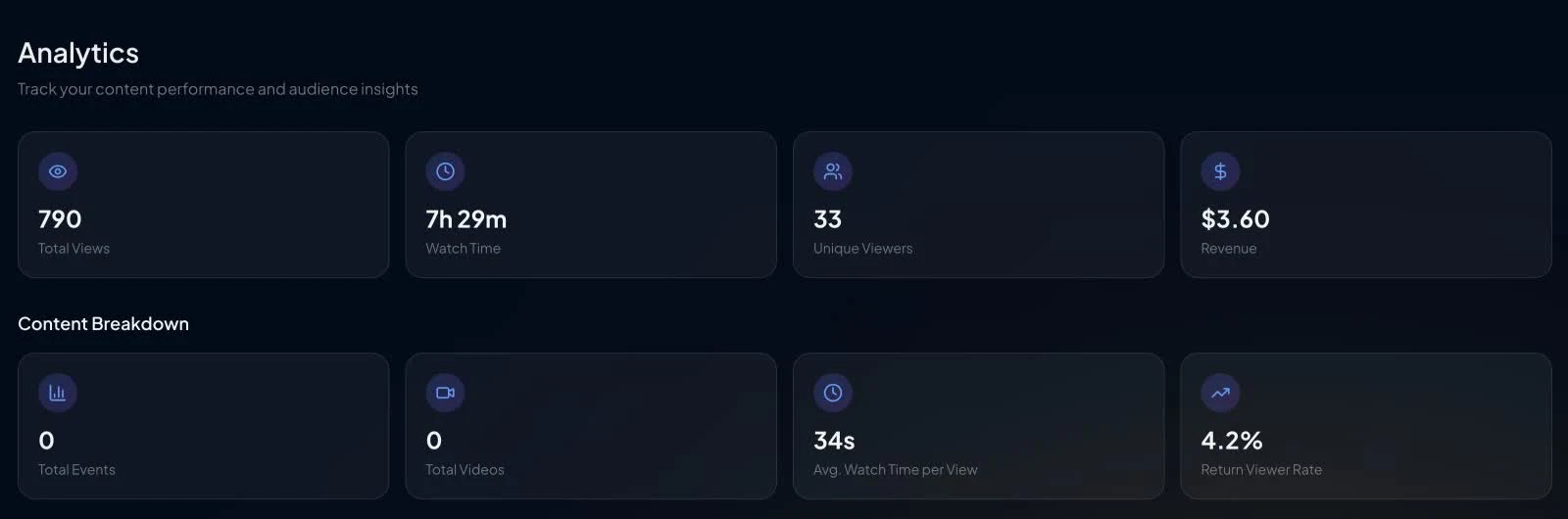
The current dashboard displays:
- Total Views
- Watch Time
- Unique Viewers
- Revenue
- Total Events
- Total Videos
- Avg. Watch Time per View
- Return Viewer Rate
Current calculation details matter when checking a discrepancy:
- Average watch time is total recorded watch time divided by total views.
- The value labelled Return Viewer Rate is currently calculated as unique viewers divided by total views.
- The value labelled Total Videos currently counts event instances attached to the creator's events; it is not a count of every uploaded footage file or camera angle.
Metrics depend on processed creator, event, playback, and revenue records. The page does not currently provide an arbitrary date-range picker or promise that all updates appear within a fixed number of minutes.
If a number appears wrong, record the event or instance, approximate playback time, metric shown, and expected result before contacting Support.
Earnings
Open Creator Earnings to review:
- Total earnings
- Earnings for the current month
- Amount currently available for payout
- Stripe connection and verification state
- Payout transaction history and status
Revenue shown here is calculated by VPORT's current backend records. Any creator revenue share, deductions, or commercial terms are governed by the creator's applicable VPORT agreement; this guide does not promise one universal percentage.
Connect Stripe
The Earnings page asks for a supported country and account type before opening Stripe onboarding.
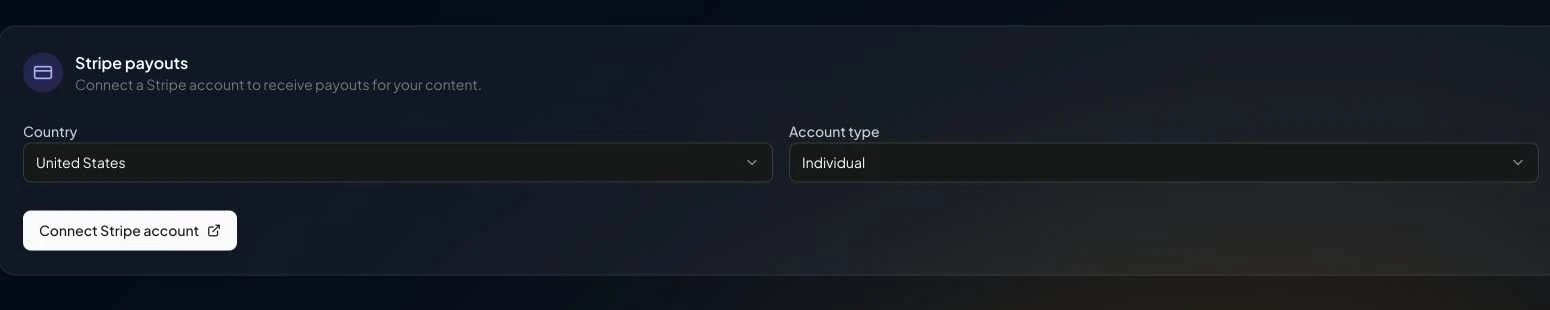
- Select the correct country and Individual or Company account type.
- Select Connect Stripe account.
- Complete Stripe's onboarding and verification.
- Return to Earnings and confirm that charges and payouts are enabled.
Do not enter another person's or business's details merely to bypass a regional or verification requirement.
Request a payout
The current Creator Earnings implementation uses a $10.00 minimum withdrawal. The withdrawal action also depends on the available balance and a connected Stripe account with the required capabilities.
- Confirm the available-for-payout amount is at least $10.00.
- Select Withdraw.
- Enter an amount no greater than the available balance, with no more than two decimal places.
- Confirm the request.
- Track its status in Transaction History.
Payouts are creator-initiated. Stripe verification, currency, available balance, VPORT adjustments, and provider status still apply. Do not promise a processing time that is not shown for the submitted payout.
Report a discrepancy
Open a conversation in VPORT Support and include:
- Creator account
- Event or event instance
- Playback or payout dates
- Affected metric, balance, or payout status
- Expected result and how it was calculated
- Sanitized screenshots from Analytics, Earnings, or Transaction History
Do not send bank credentials, Stripe login details, or complete payment information.