
Overview
The User Account section on Apple Vision Pro is where you manage your profile, security, privacy, and safety controls for Vport.
From this page, you can:
- View your account details (name, username, email)
- Update security settings such as password and login alerts
- Request a copy of your personal data or permanently delete your account
- Read how Vport handles spatial data and privacy
- Manage hidden artists and events
- Review reports you’ve submitted from the media player and track their status
Purpose (User Value)
This section is designed to give you:
- Full control over your account and personal information
- Transparency into what data is collected and how it’s used
- Safety tools to manage hidden content and reported issues
- A clear path to contact the privacy team with questions or concerns
Any time you need to update your password, review your data, or manage hidden content, this is the place to go.
How to Use (Step-by-step Guide)
3.1 Opening the User Account Page
- In Vport on Apple Vision Pro, look at the global tab bar.
- Gaze at the Profile tab.
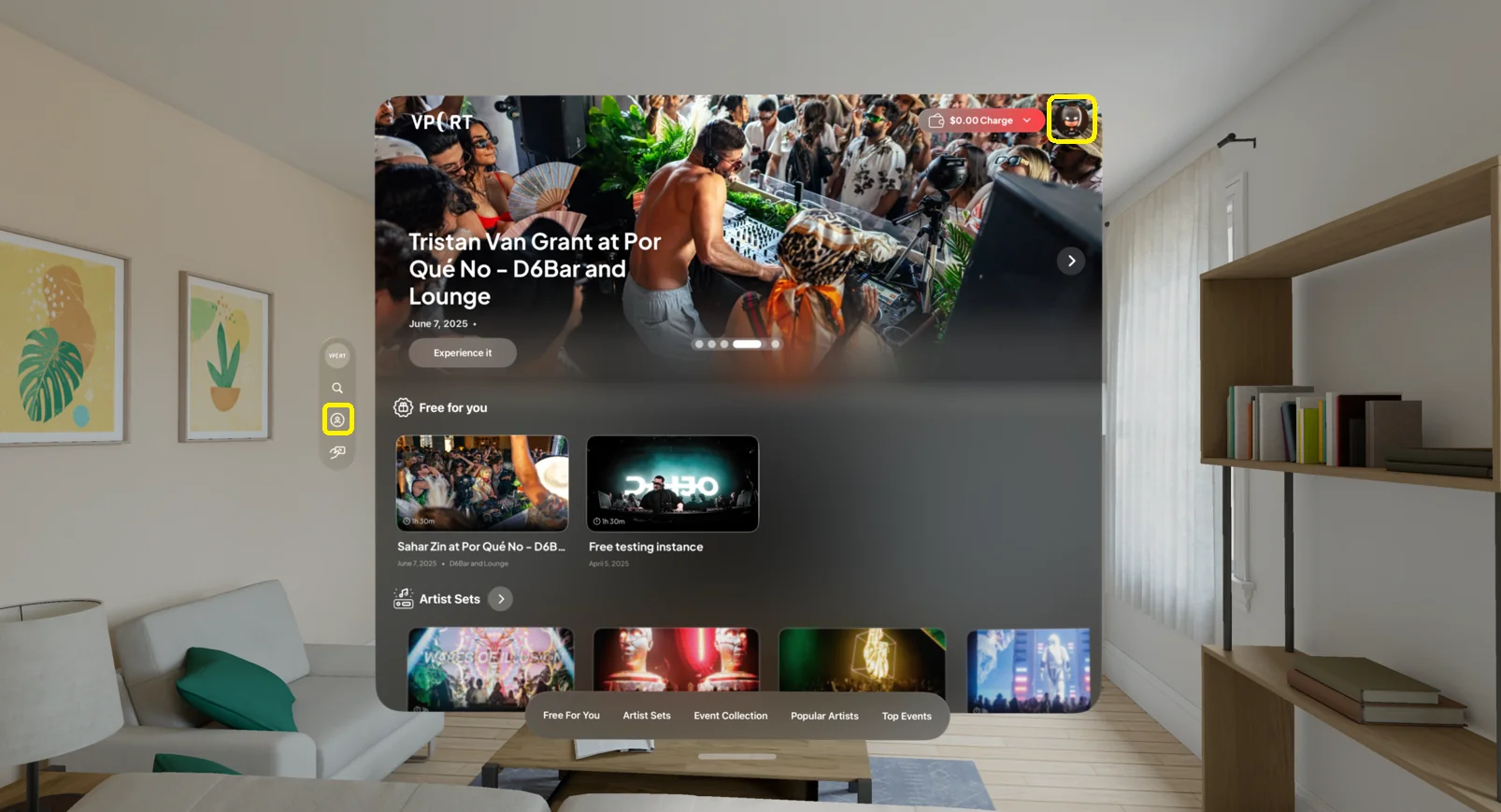
- Pinch to open the User Account page.
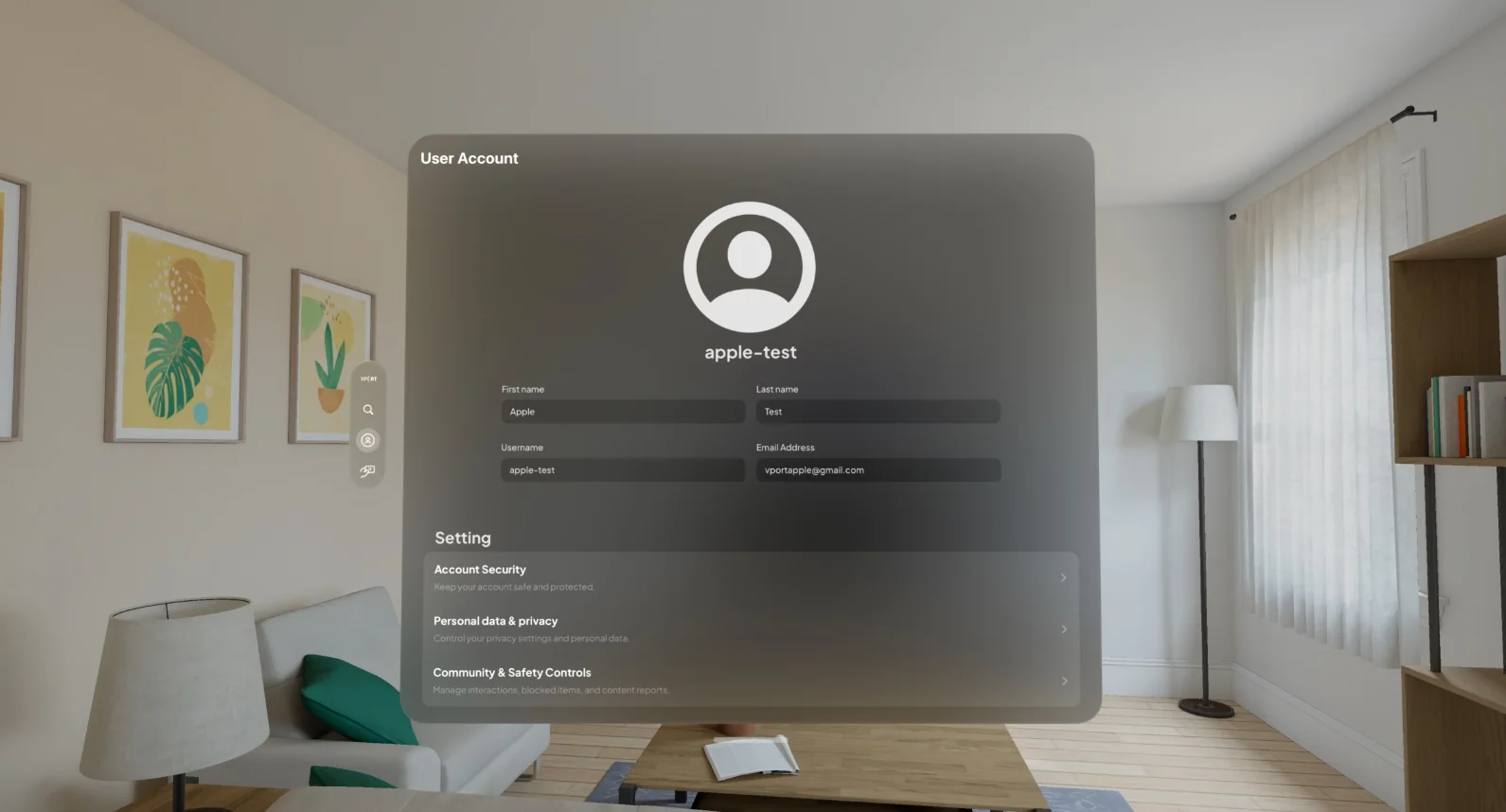
You’ll see:
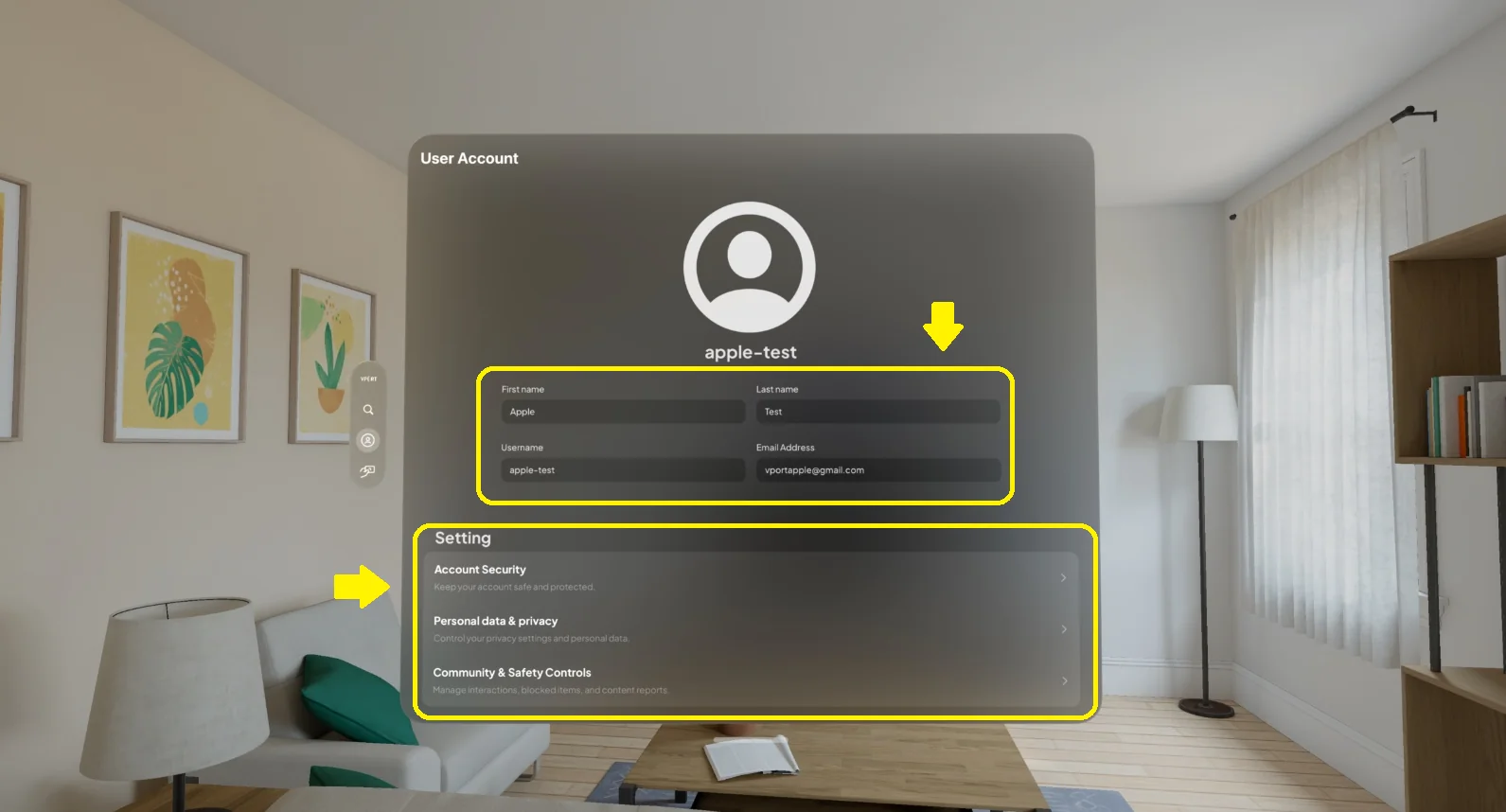
- Your profile information at the top
- A Settings section below with four areas:
- Account Security
- Personal Data & Privacy
- Community & Safety Controls
- Notifications
3.2 Viewing Your Profile Information
At the top of the User Account page, you can see:
- First name
- Last name
- Username
- Email address
This information is read-only (or editable only where supported) and helps you confirm which account you’re using.
3.2.1 Update Your Profile Photo
You can set or change the picture that appears on your profile. If you have not added one yet, a default avatar is shown.
- On the User Account page, gaze at your profile photo at the top.
- Pinch to open the photo picker and choose an image from your photo library.
- The photo uploads and becomes your new profile picture across Vport.
If the upload does not finish, you’ll see a Failed to upload profile photo message. Check your internet connection and try again.
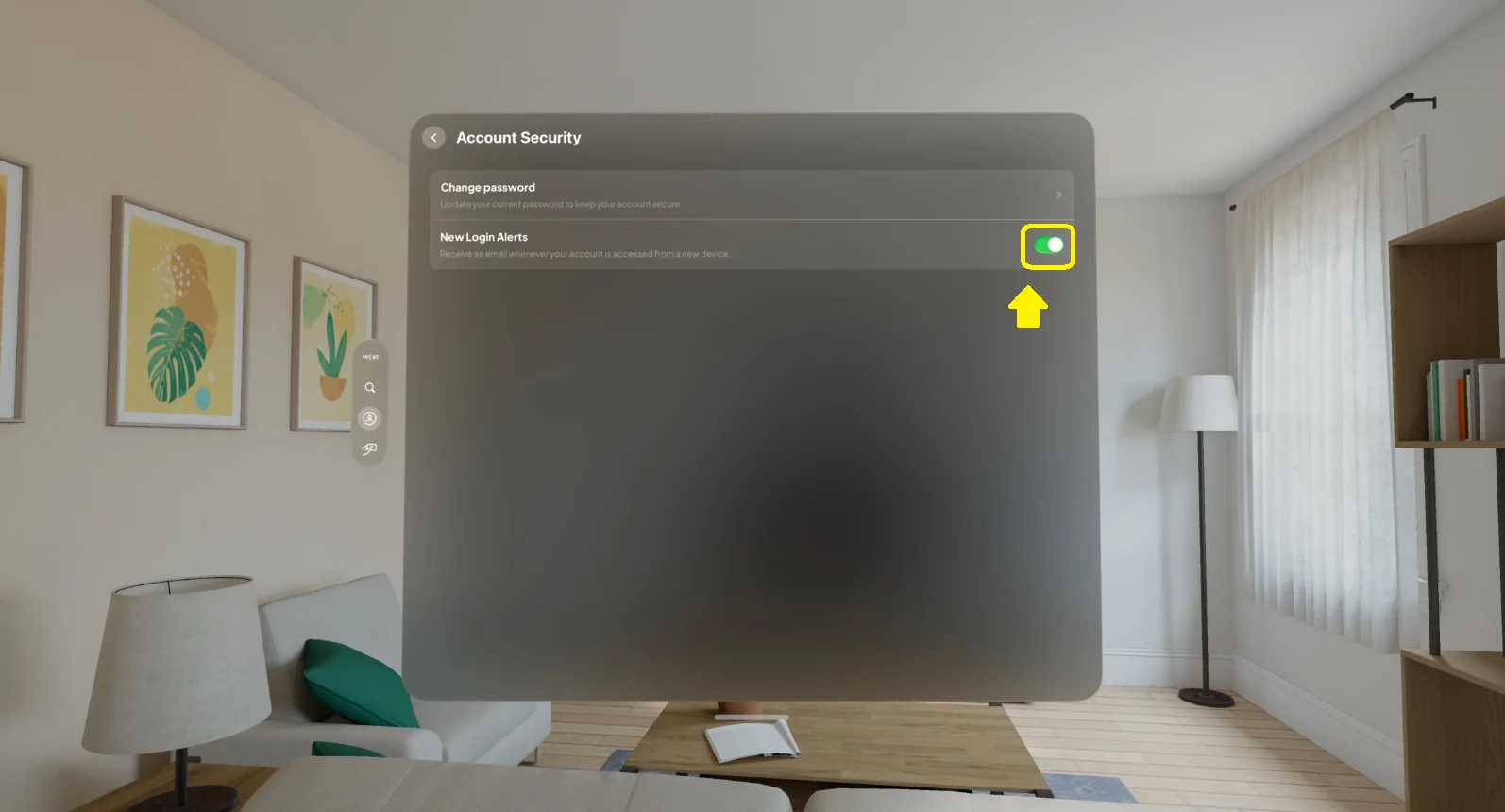
3.3 Account Security
Under Settings → Account Security, you can:
- Change your password
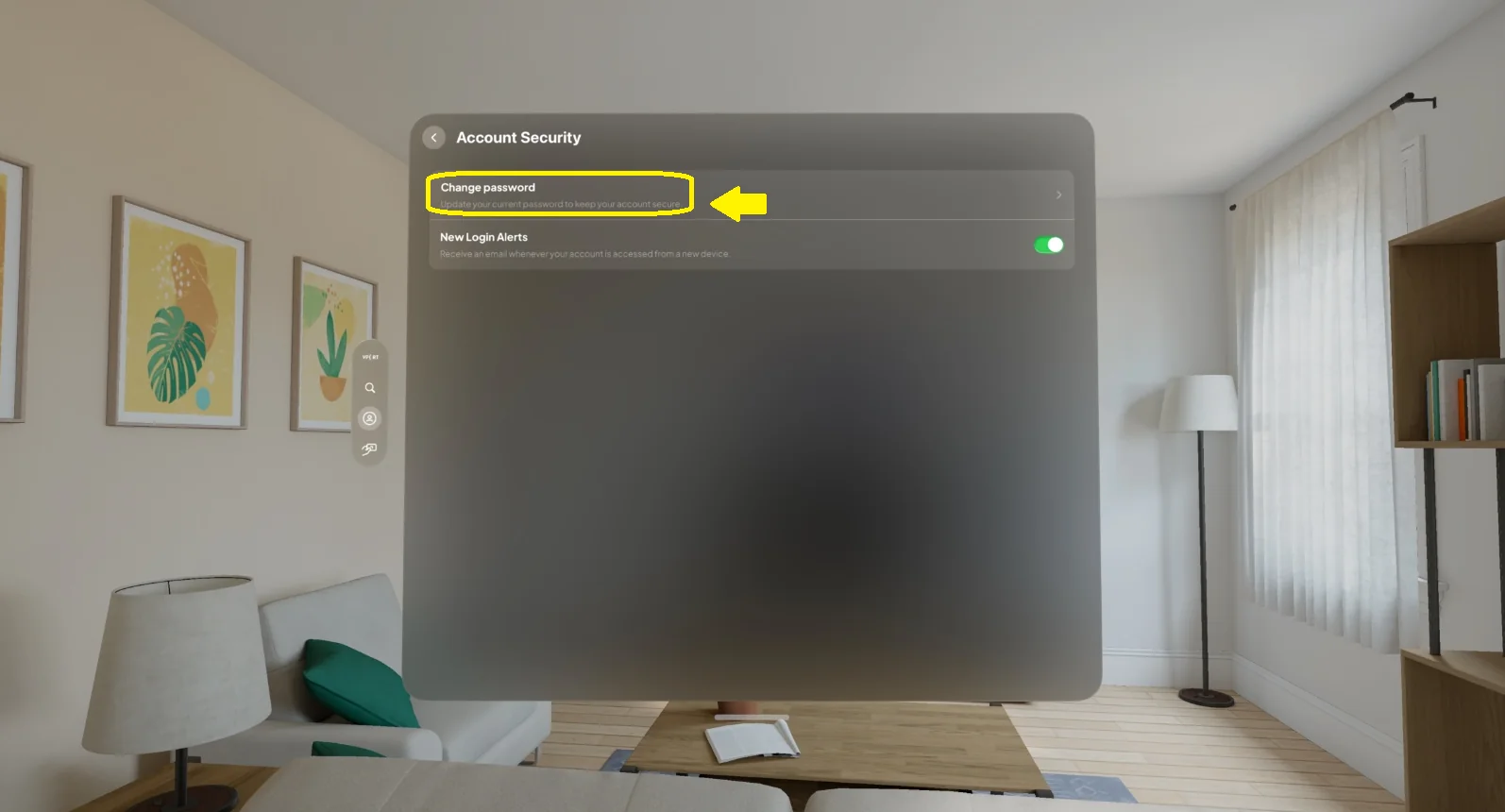
- Toggle New Login Alerts on or off
3.3.1 Change Password
- In Account Security, select Change password.
- The Set New Password screen opens.
- Enter:
- Old password
- New password
- Confirm new password
- Select Change Password to save.
Your new password must be different from previously used passwords (as indicated in the UI).
If you’ve forgotten your password, use the Reset Password link on this screen to follow the standard email reset flow.
3.3.2 New Login Alerts
New Login Alerts send an email whenever your account is accessed from a new device.
To toggle:
- In Account Security, find New Login Alerts.
- Use the switch to turn it ON or OFF.
Keeping this enabled is recommended to help detect suspicious activity.
3.4 Personal Data & Privacy
Under Settings → Personal Data & Privacy,
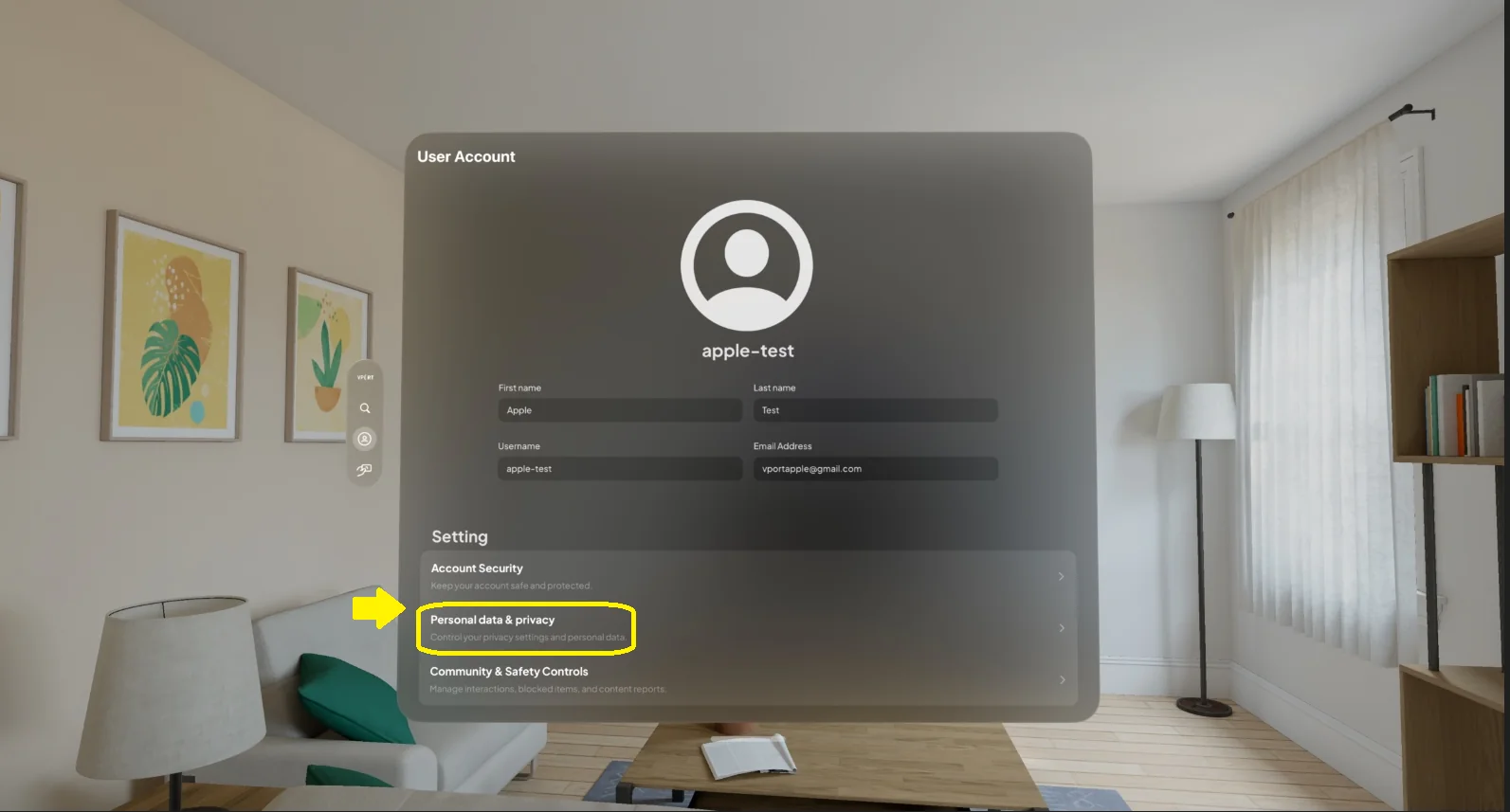
you’ll find:
- Data controls
- Download My Data
- Delete My Account
- Spatial Data Notice
- Legal & Support options
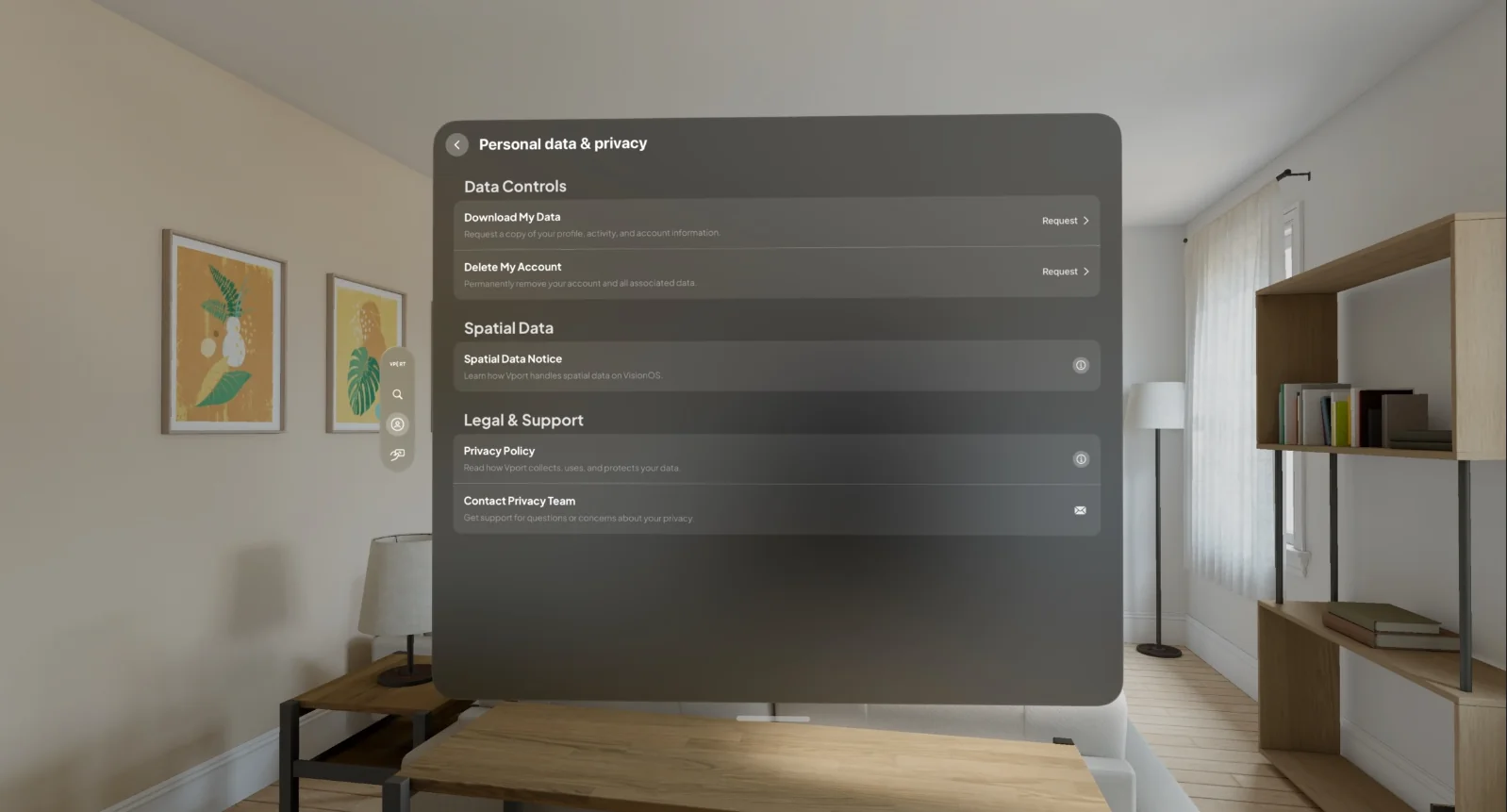
3.4.1 Data Controls
Download My Data
- Select Download My Data.
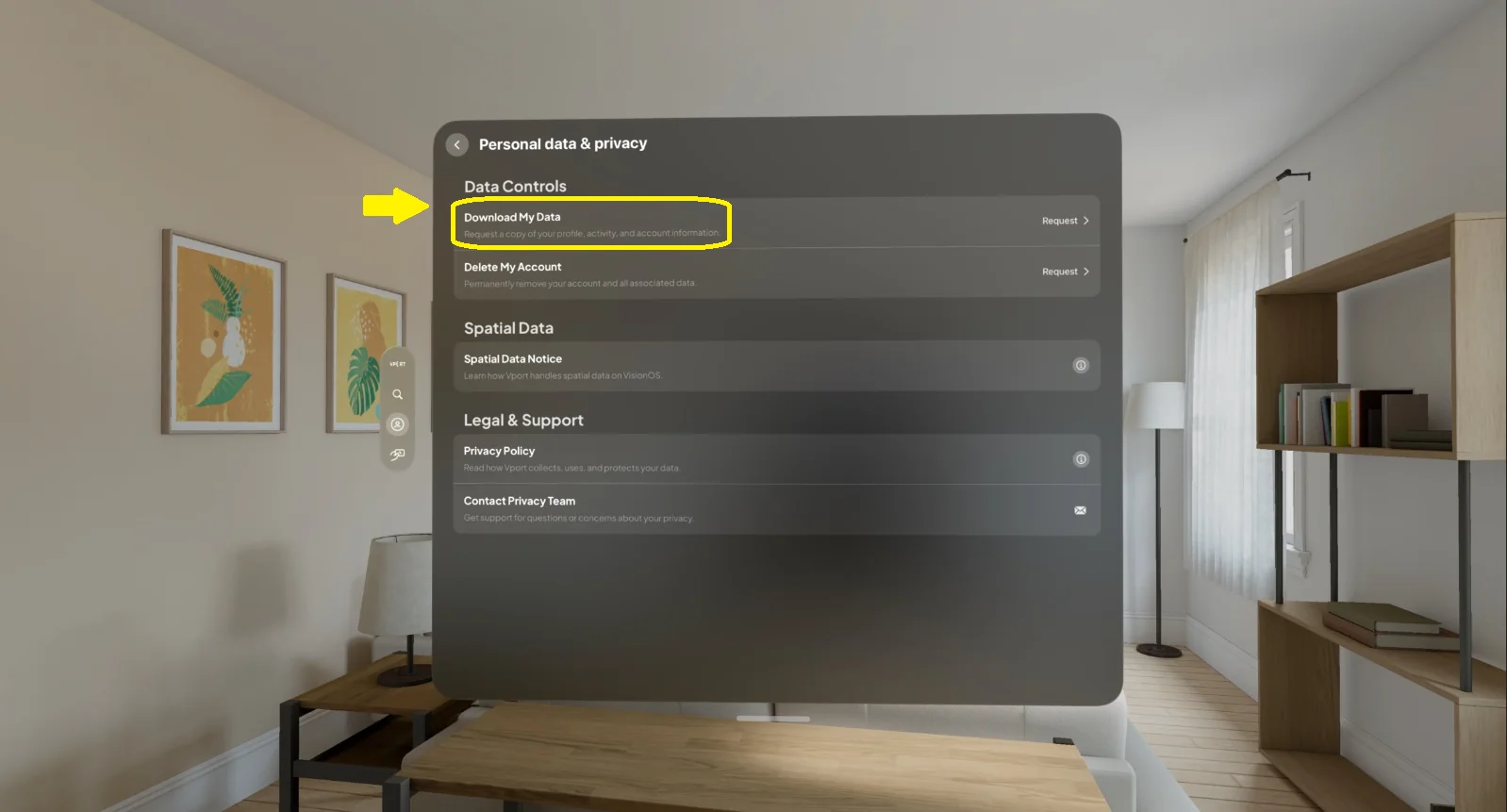
- A confirmation dialog explains what data will be included.
- Choose Request Data.
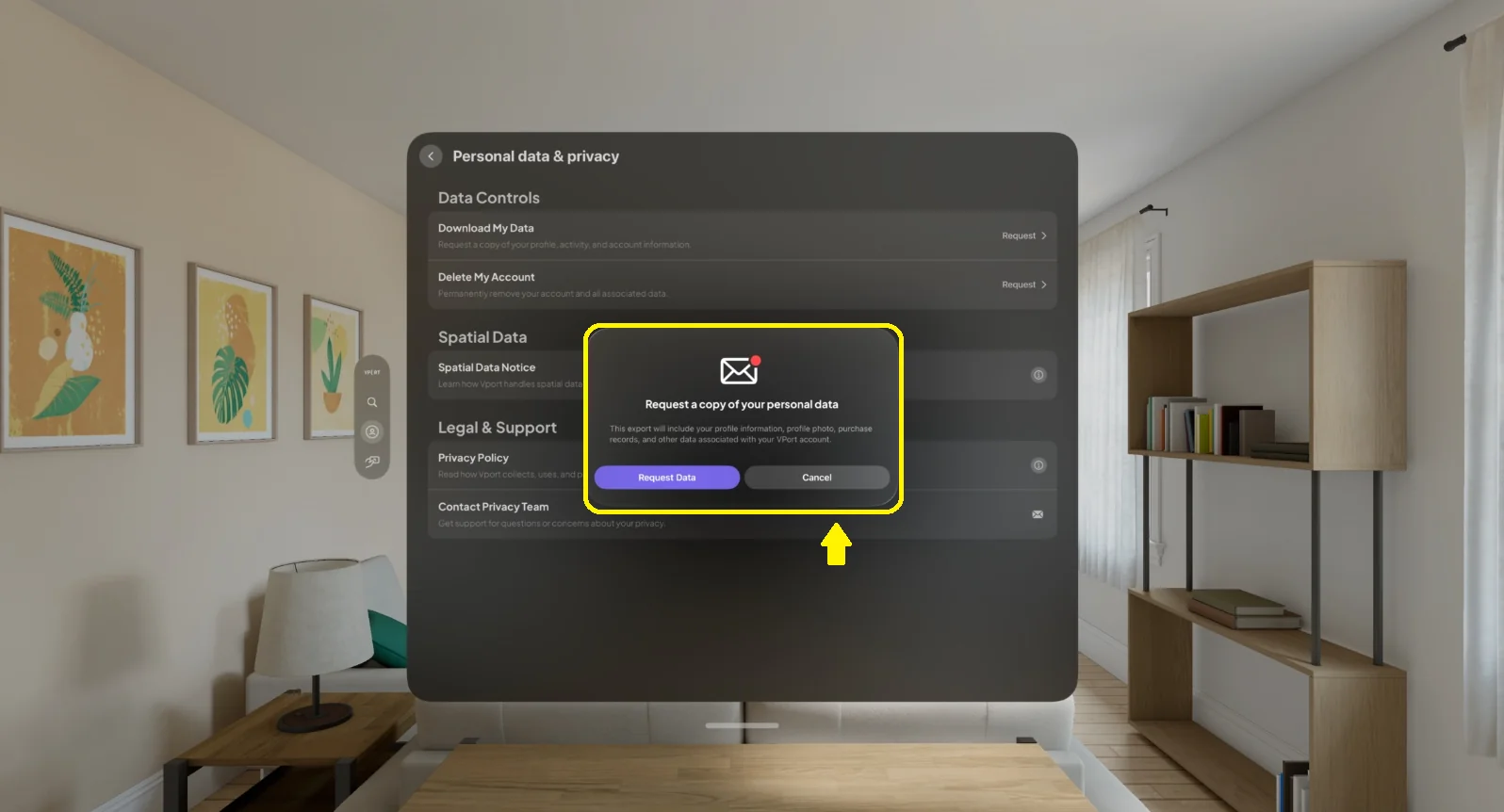
You’ll see a confirmation that your request was submitted.
When ready, you’ll receive an email with a download link.
Delete My Account
⚠️ This is a permanent and irreversible action.
- Select Delete My Account.
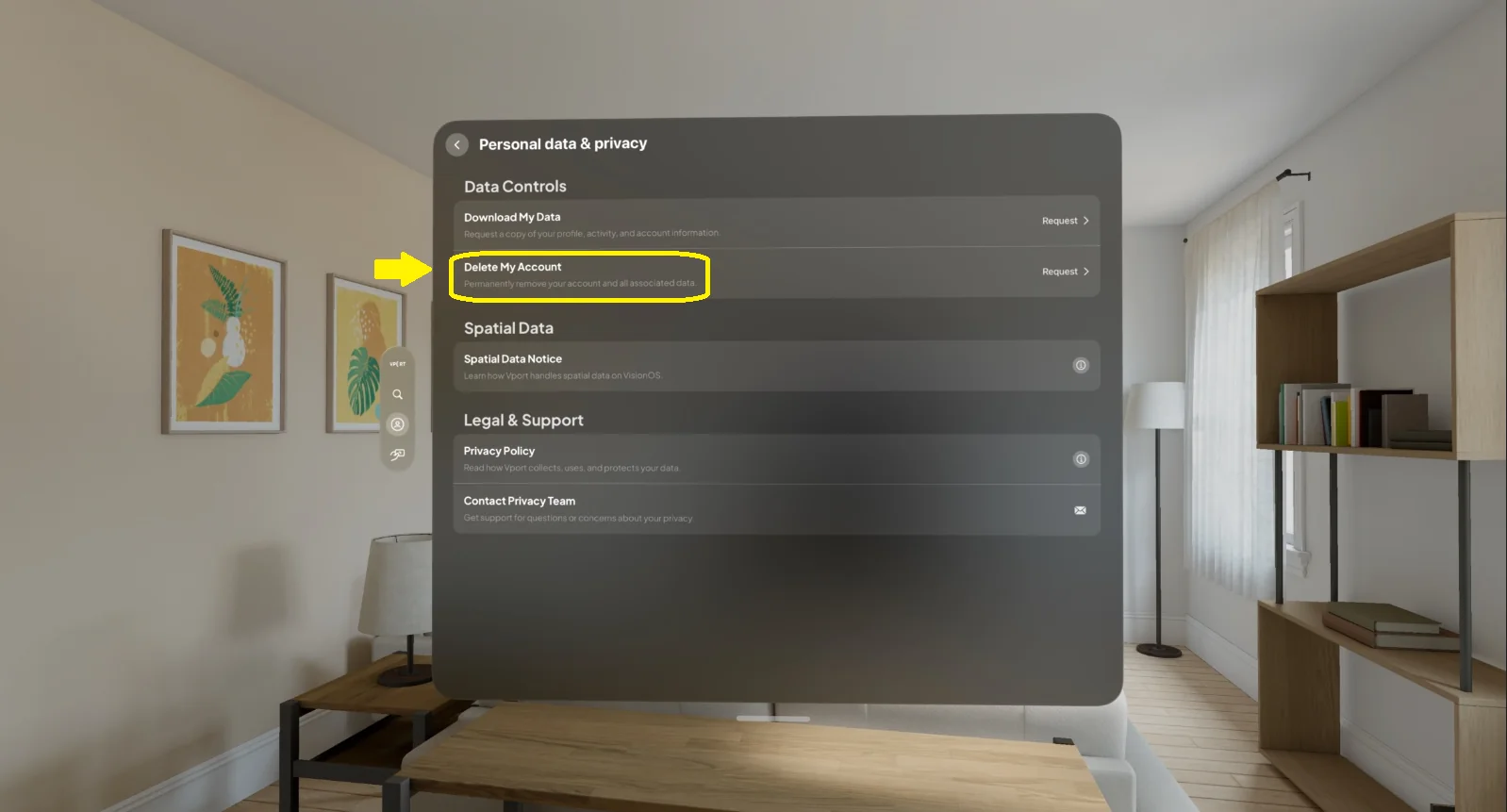
- Confirm when asked: “Are you sure you want to delete your account?”
- Choose Delete my account to proceed, or Cancel to back out.
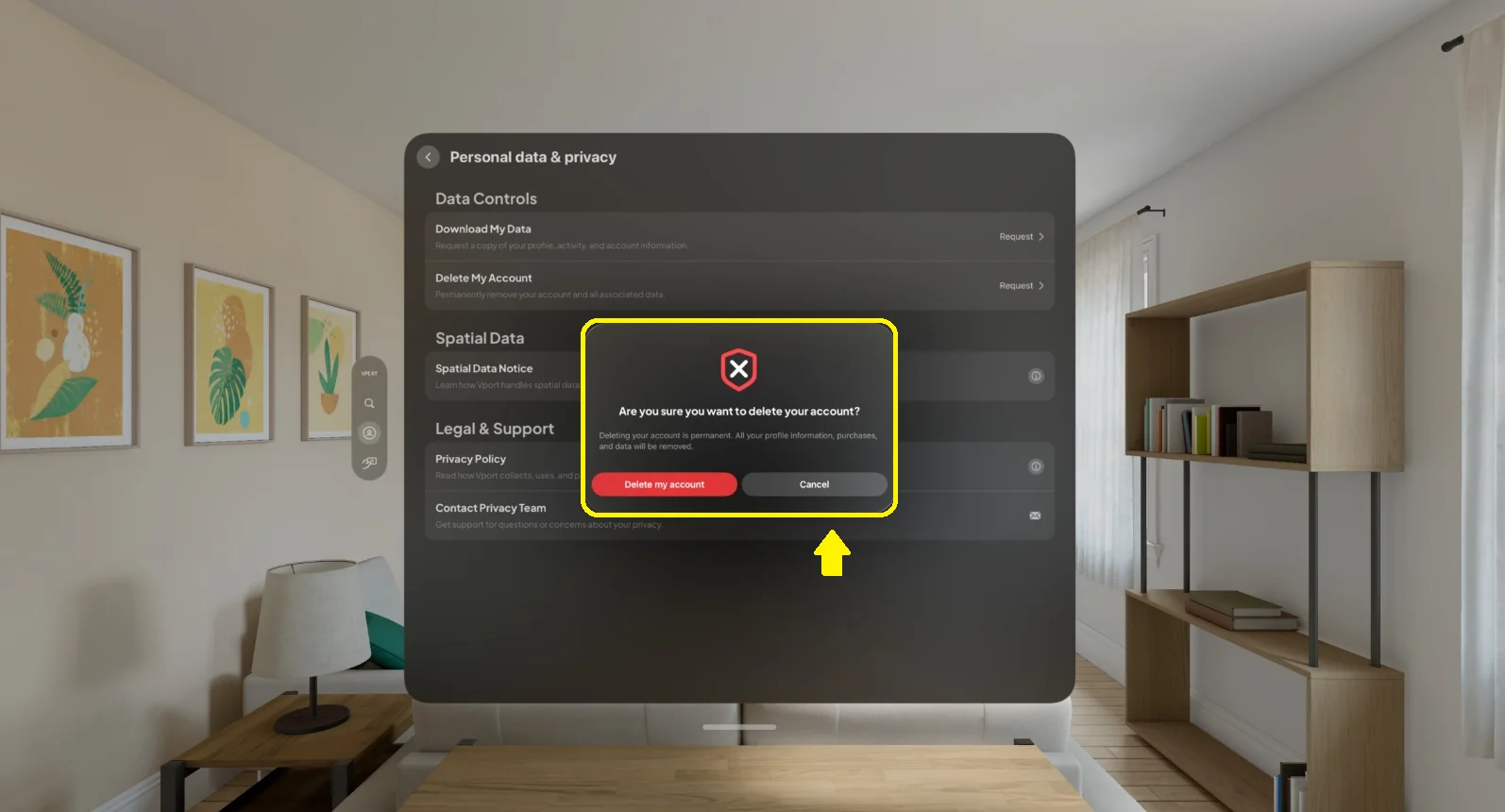
Once confirmed, your account and associated data are permanently removed according to Vport’s retention rules.
3.4.2 Spatial Data Notice
Select Spatial Data Notice to read how Vport handles spatial data on VisionOS.
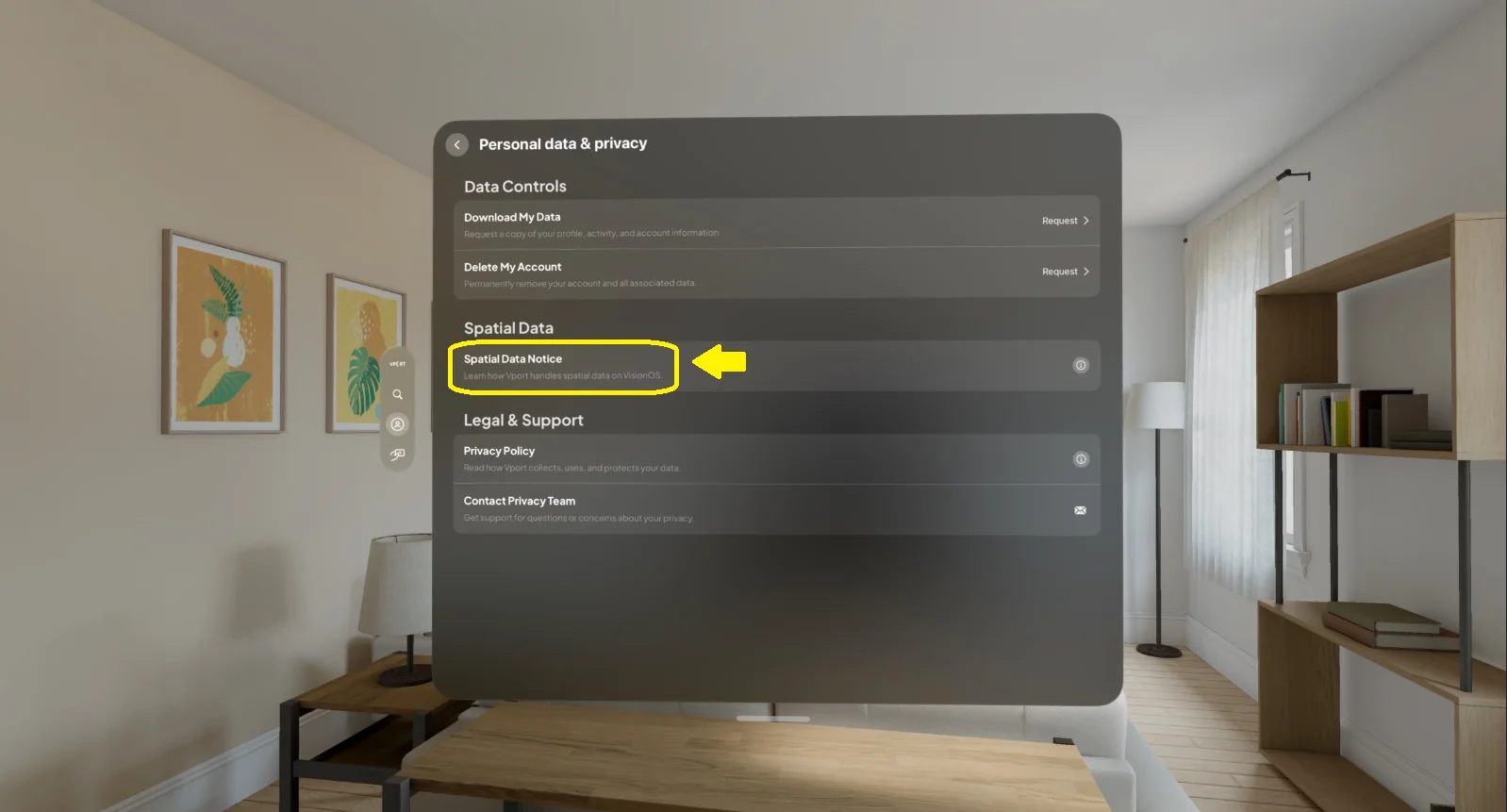
Key points include:
- Vport does not access raw camera feeds
- Vport does not collect or store gaze data
- No hand tracking, face data, or room mapping is captured
- All spatial processing is handled on-device by VisionOS
- Vport only receives minimal interaction events required for functionality
- No spatial data is stored on Vport servers
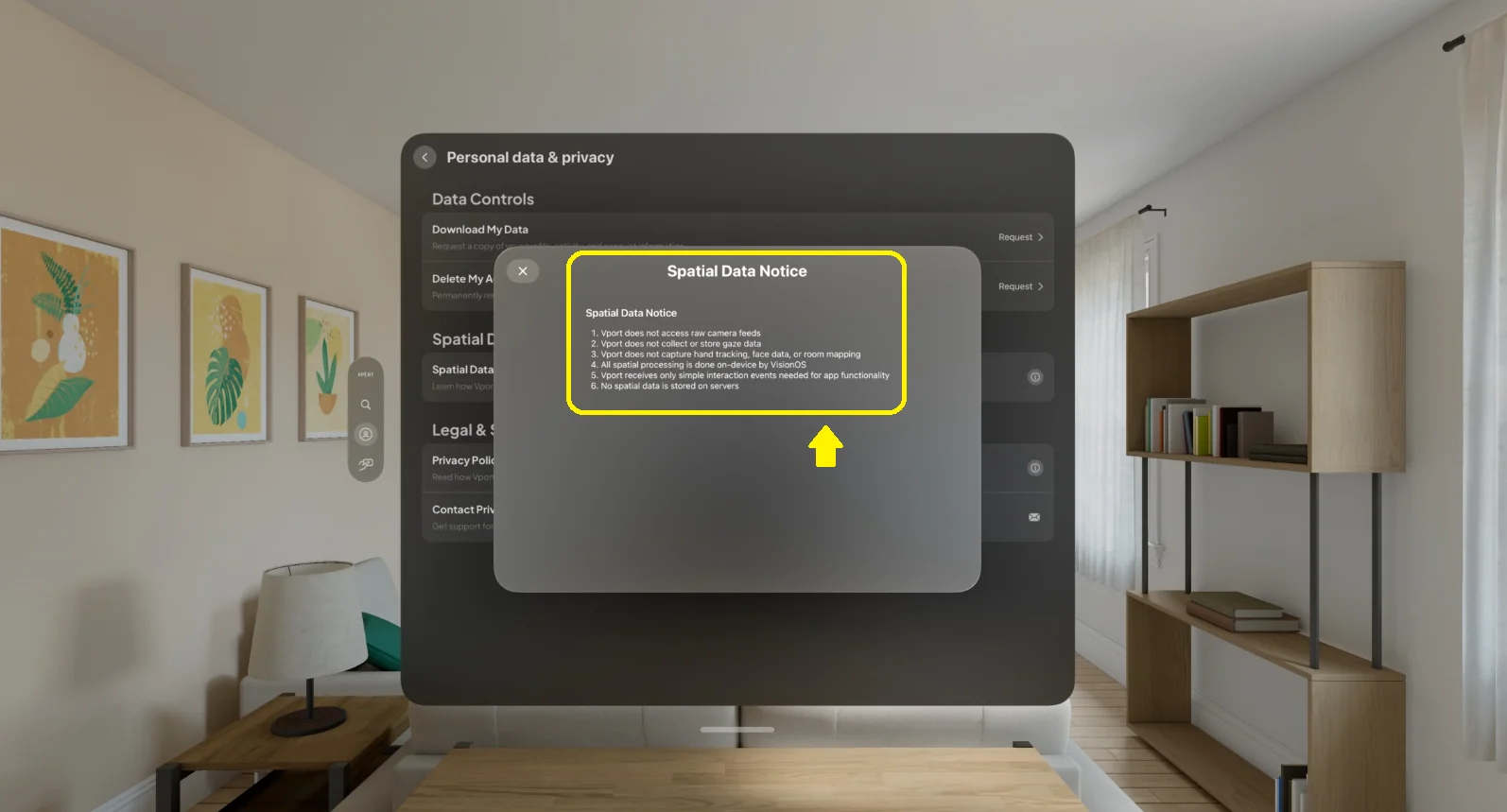
This section is informational only and contains no toggles.
3.4.3 Legal & Support
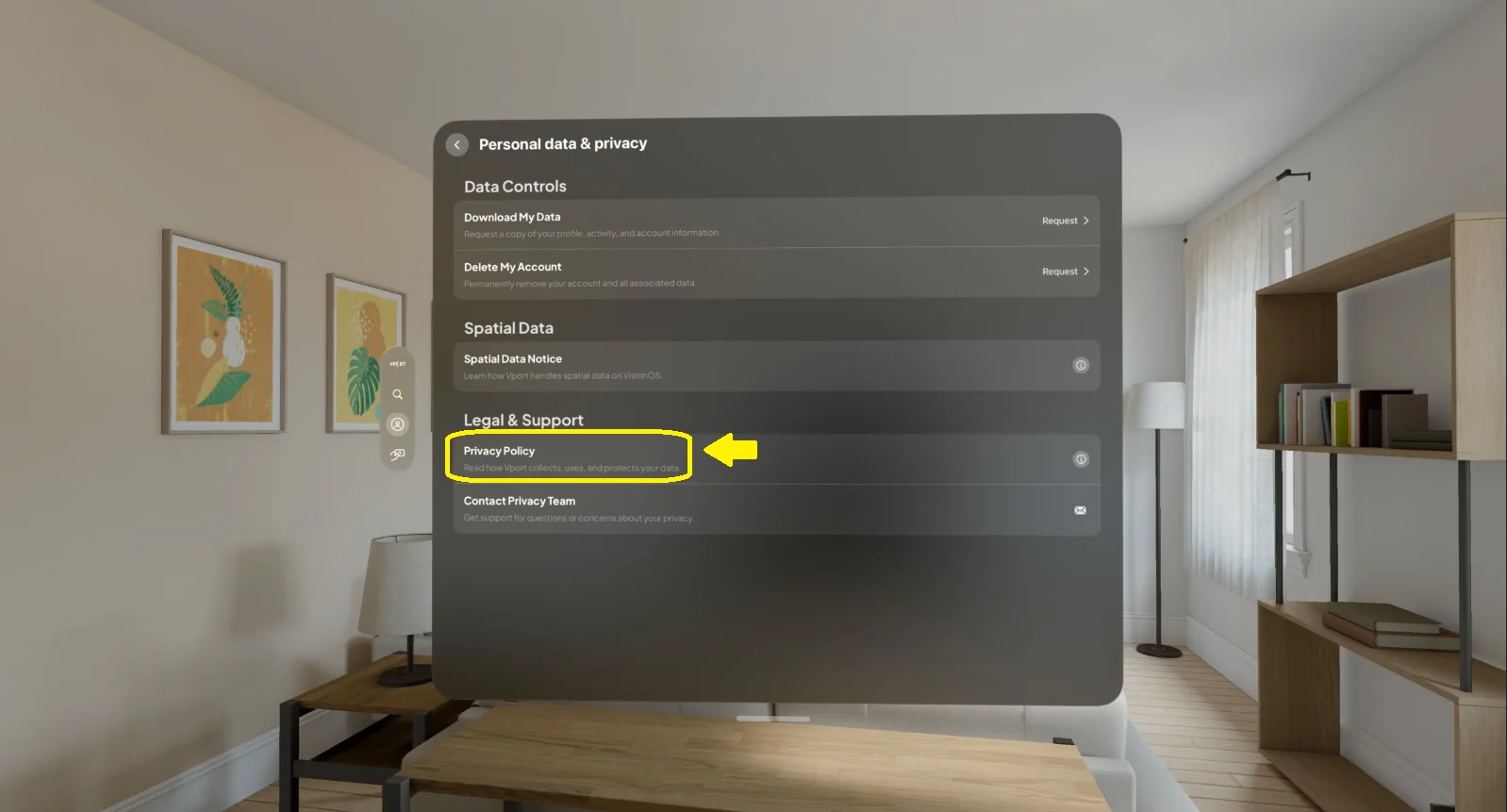
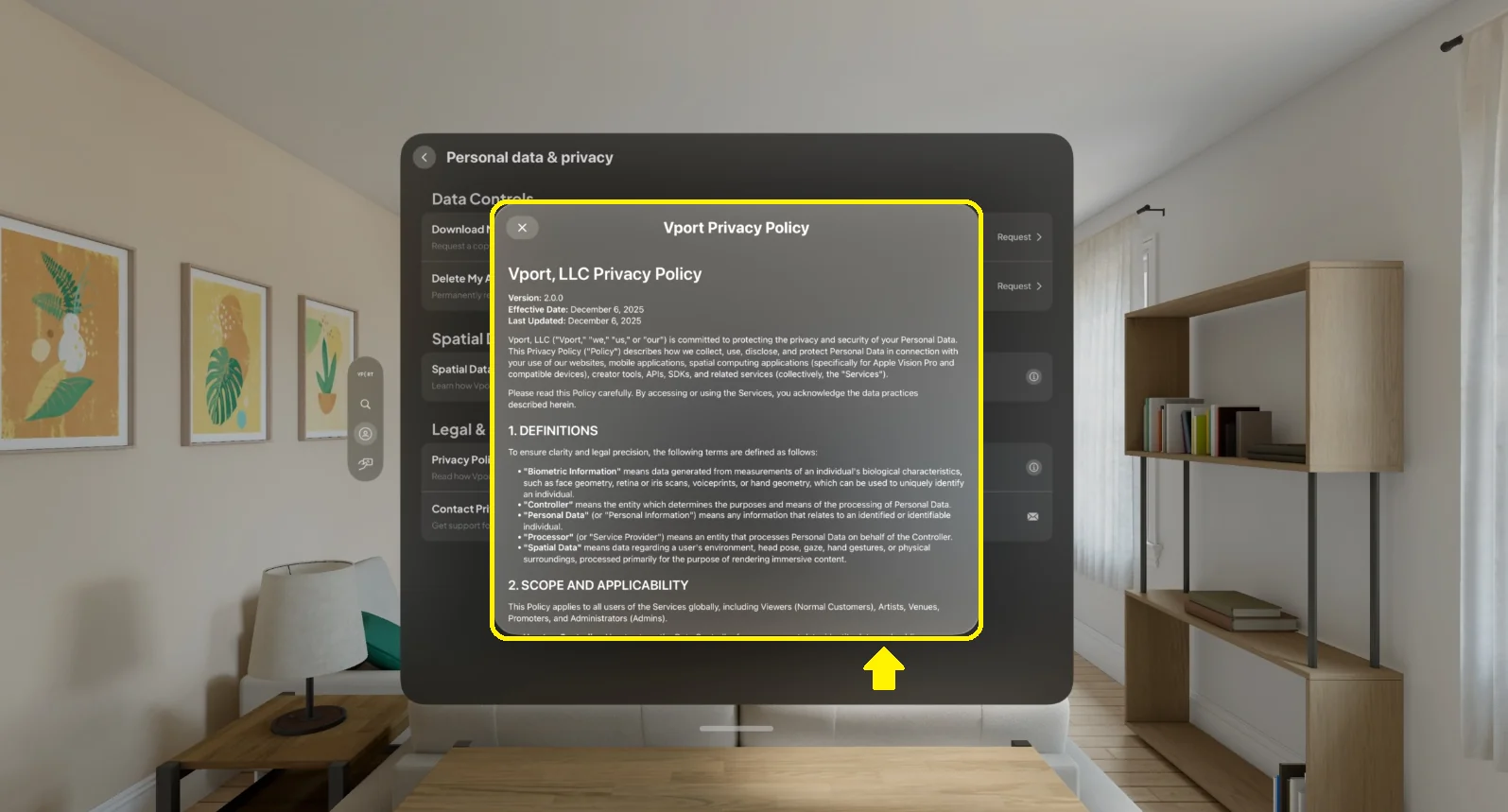
Privacy Policy
Opens the Privacy Policy document explaining how Vport collects, uses, and protects your data.
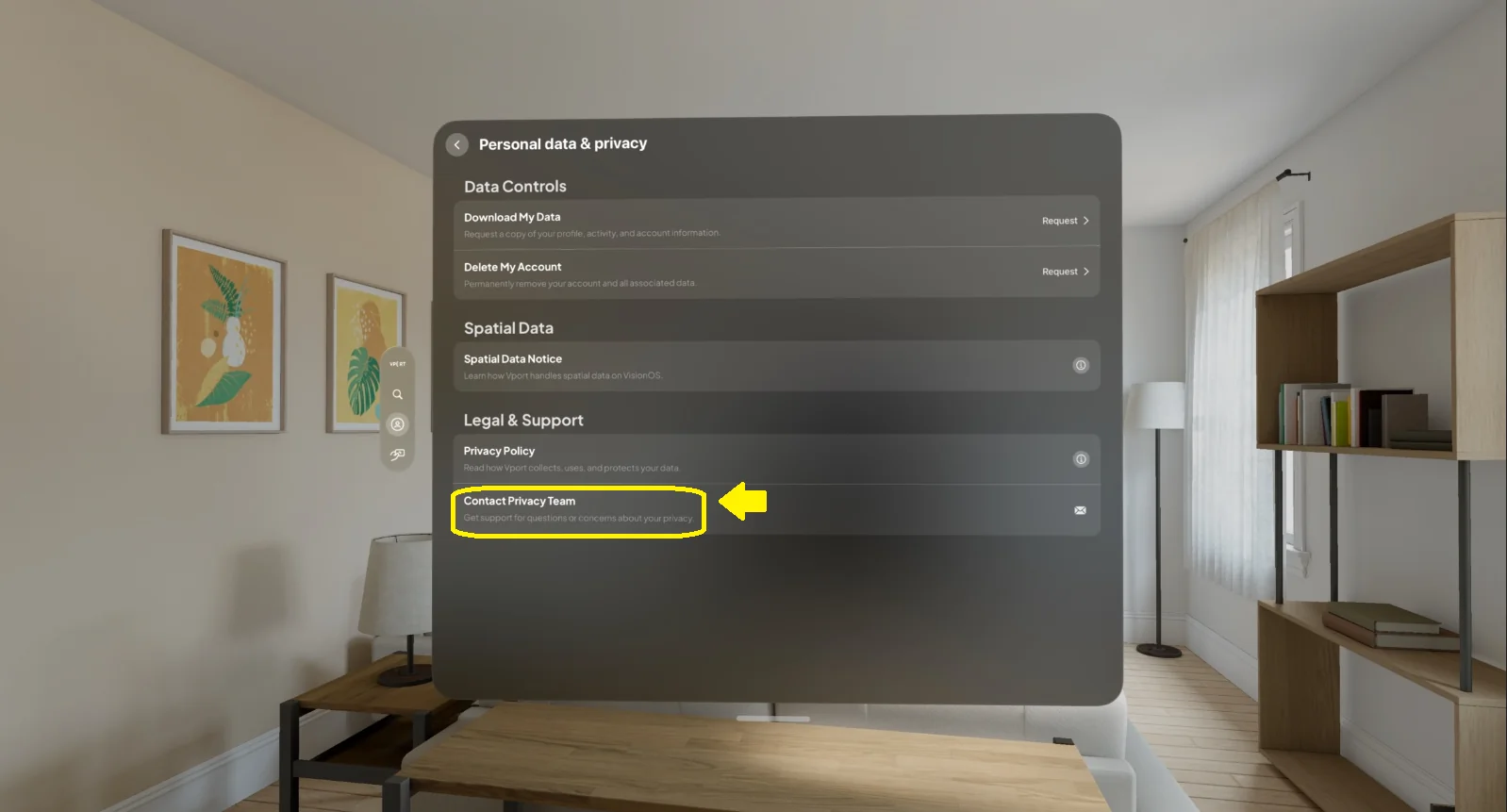
Contact Privacy Team
Use this option to contact Vport’s privacy or support team if you have questions or concerns about your data.
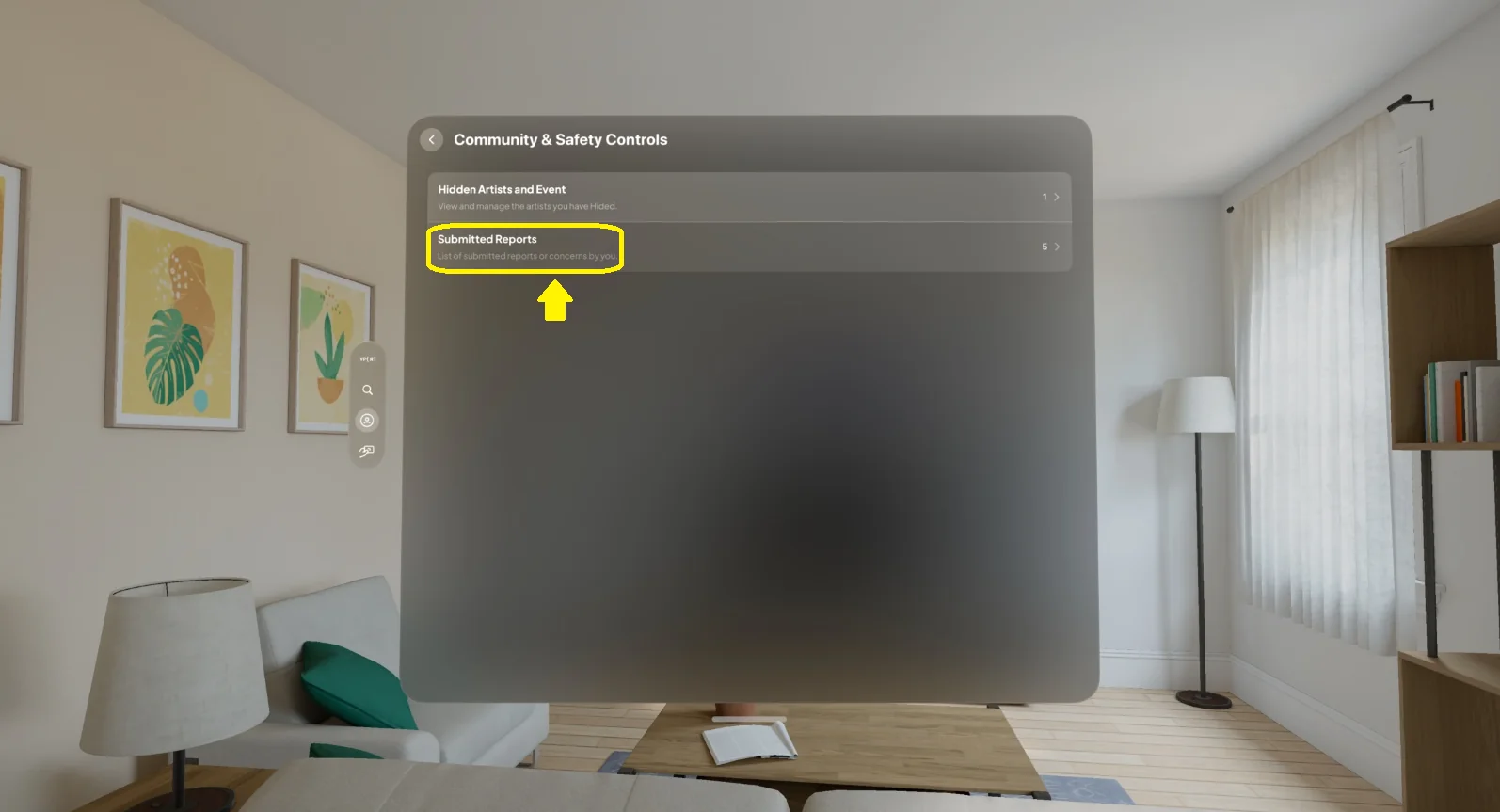
3.5 Community & Safety Controls
Under Settings → Community & Safety Controls, you can manage:
- Hidden artists and events
- Submitted reports
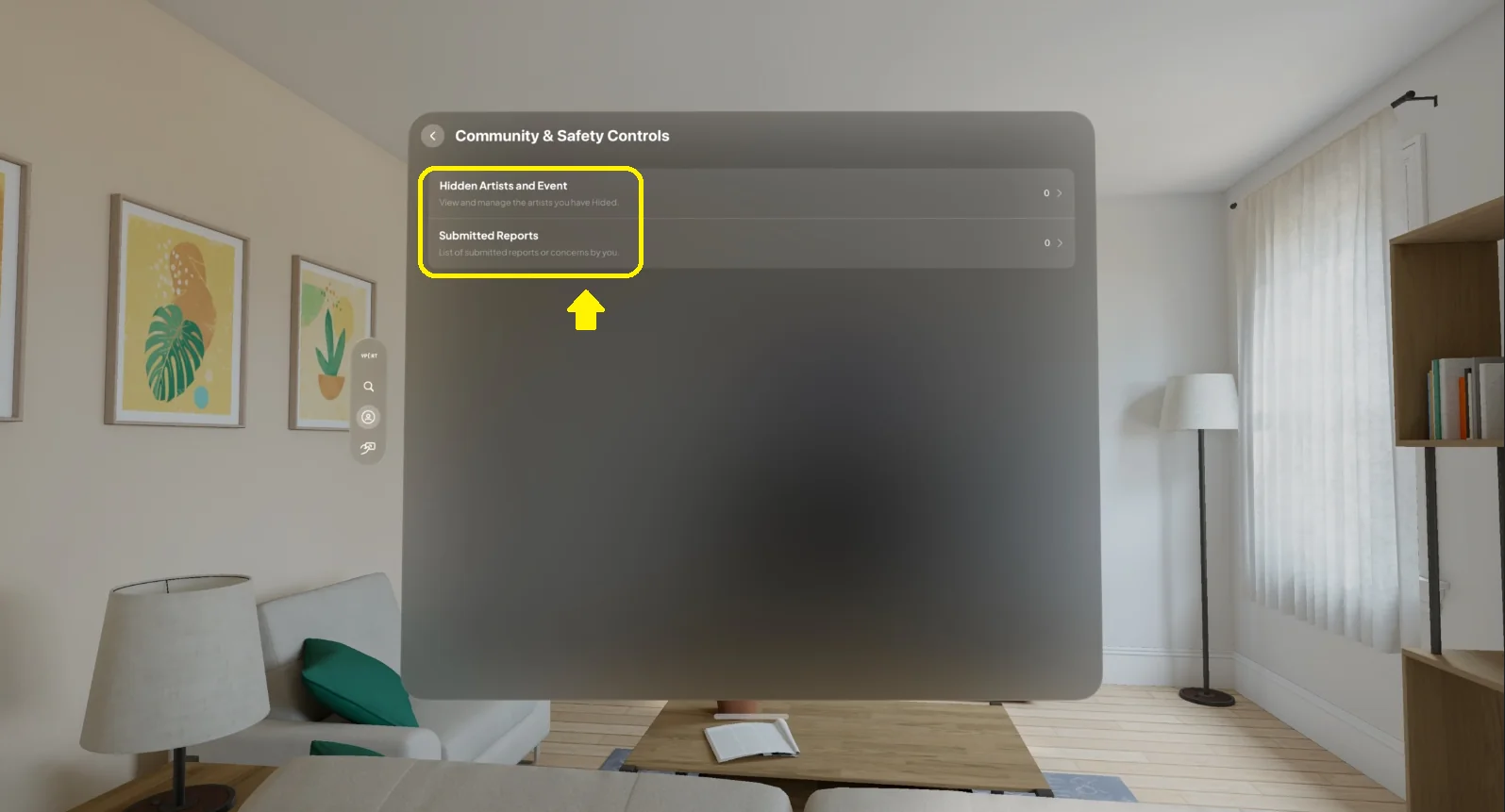
3.5.1 Hidden Artists and Events
This section lists content you’ve hidden from your experience.
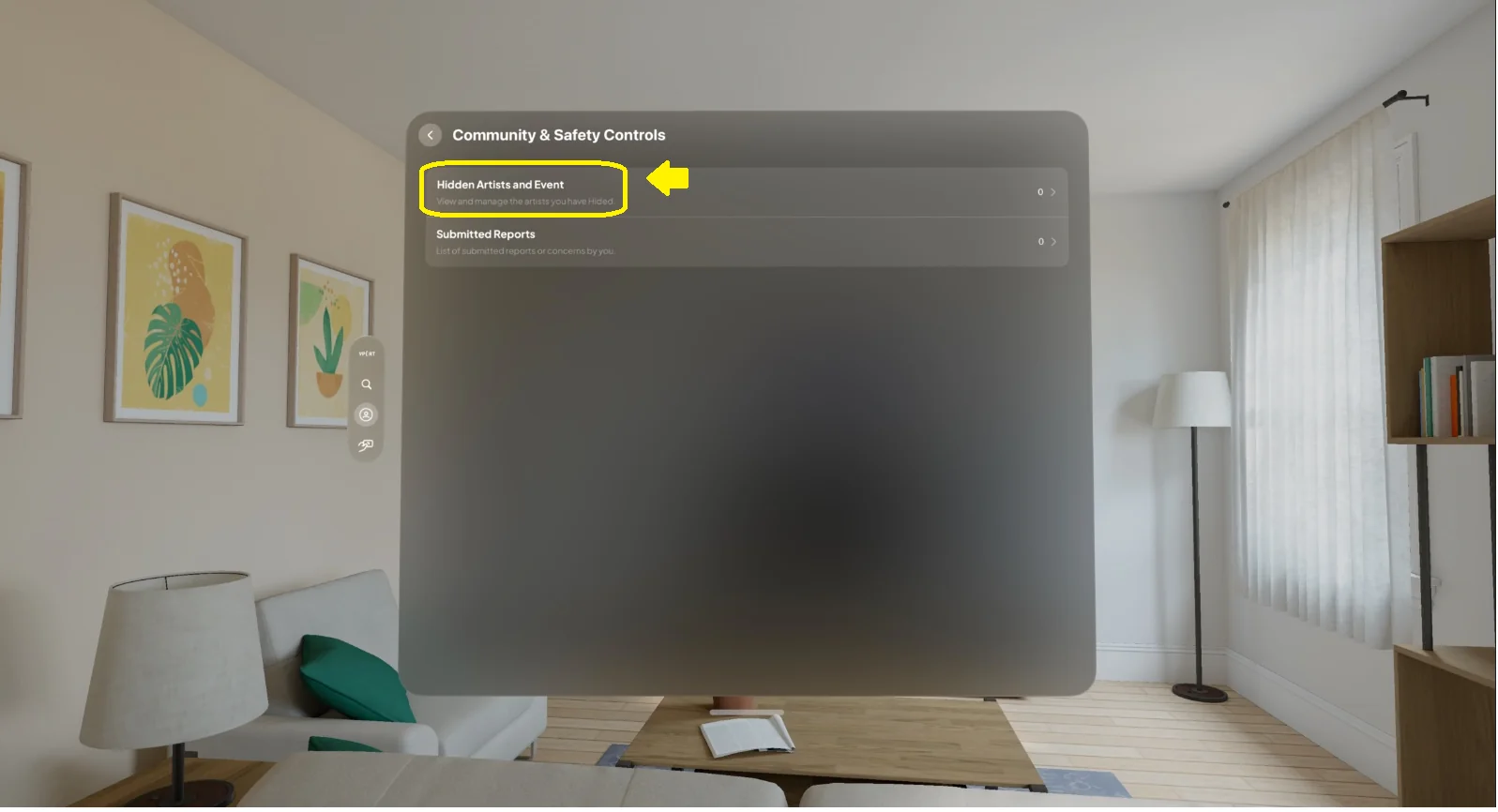
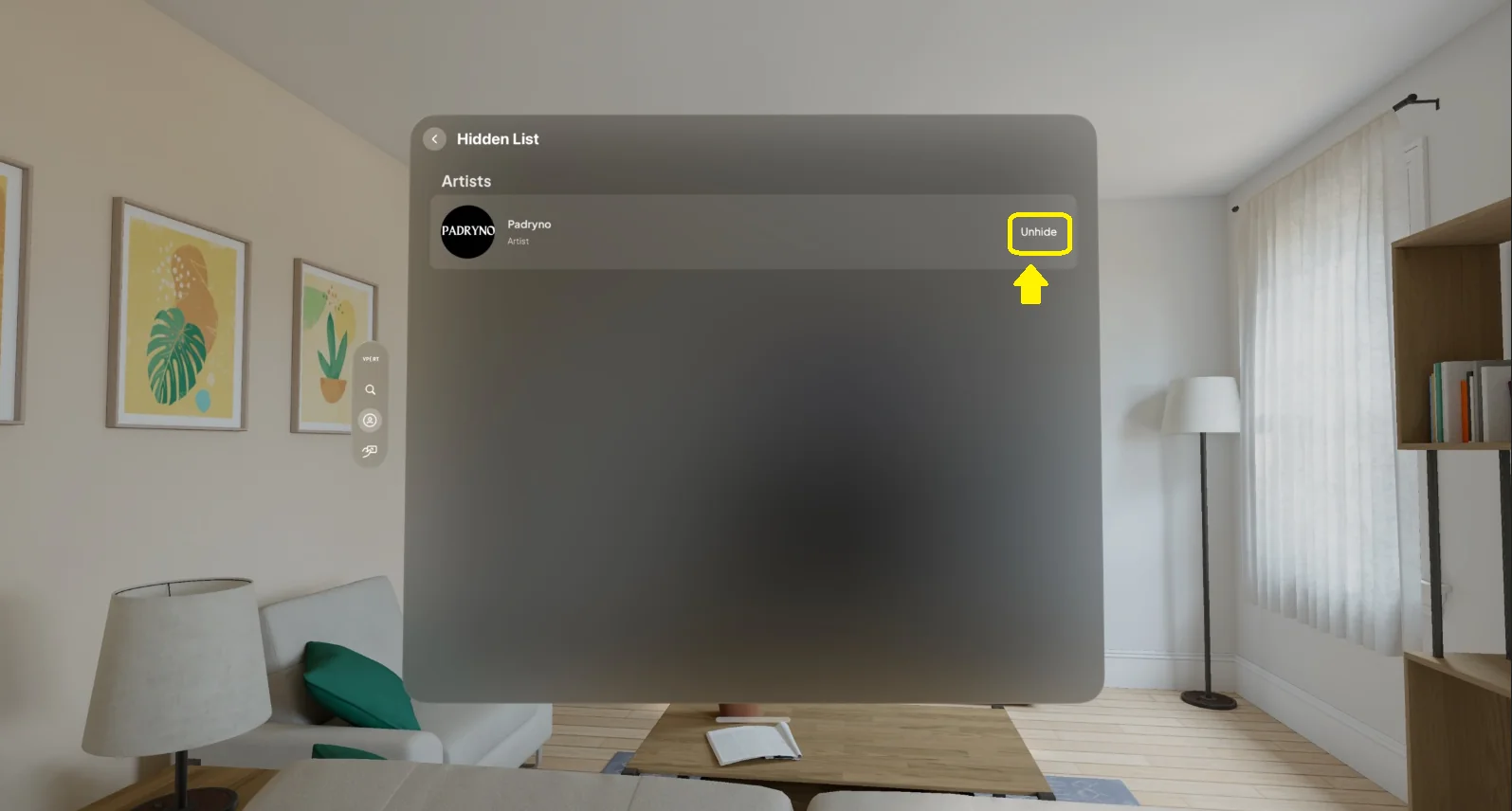
- If items are hidden, you’ll see a list of artists and events
- Select an item and choose Unhide to restore it
- If nothing is hidden, you’ll see a message like: “No hidden artists and events”
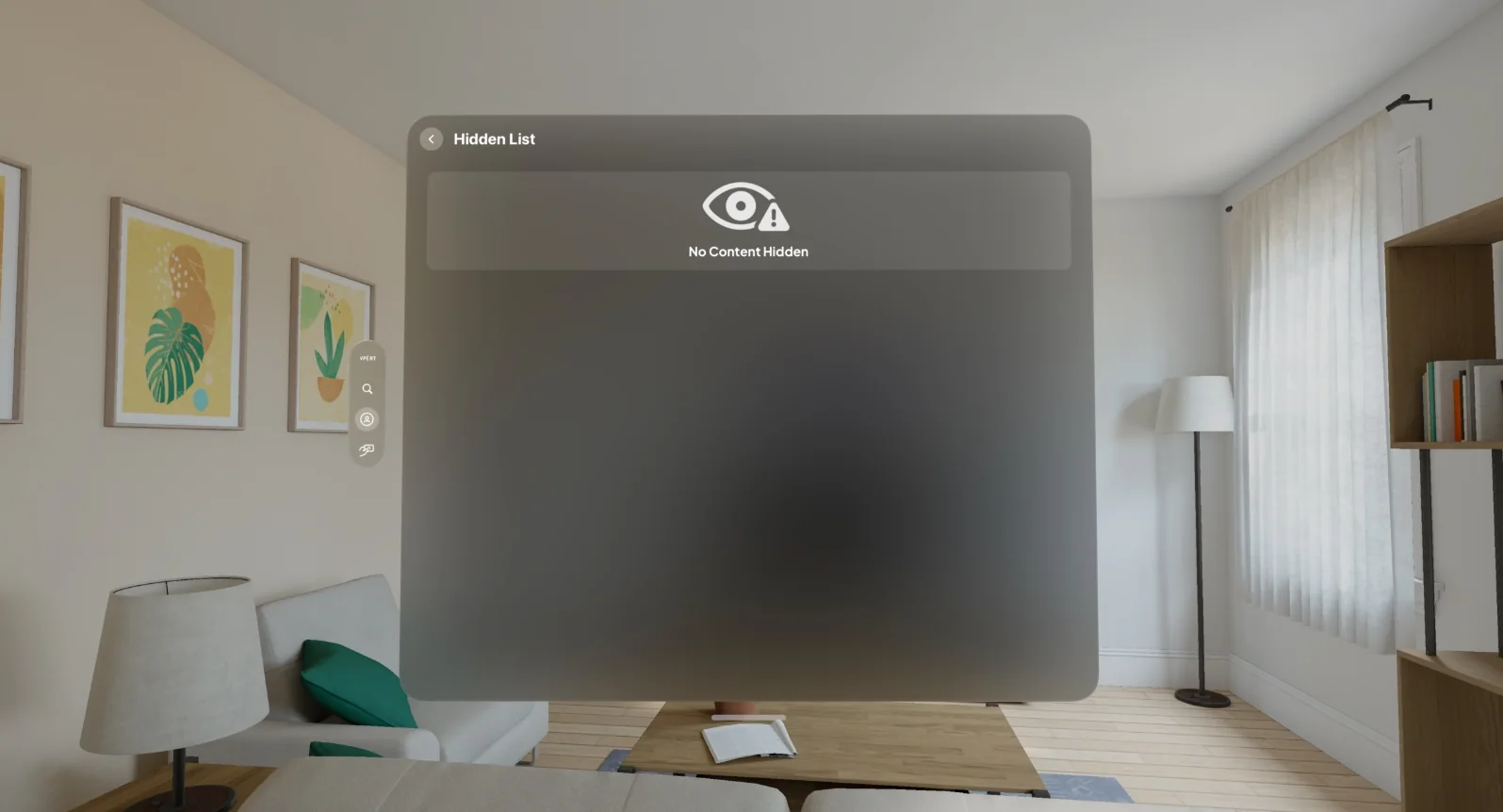
This is useful if you accidentally hide something or change your mind.
3.5.2 Submitted Reports
This section shows all reports you’ve submitted from the media player.
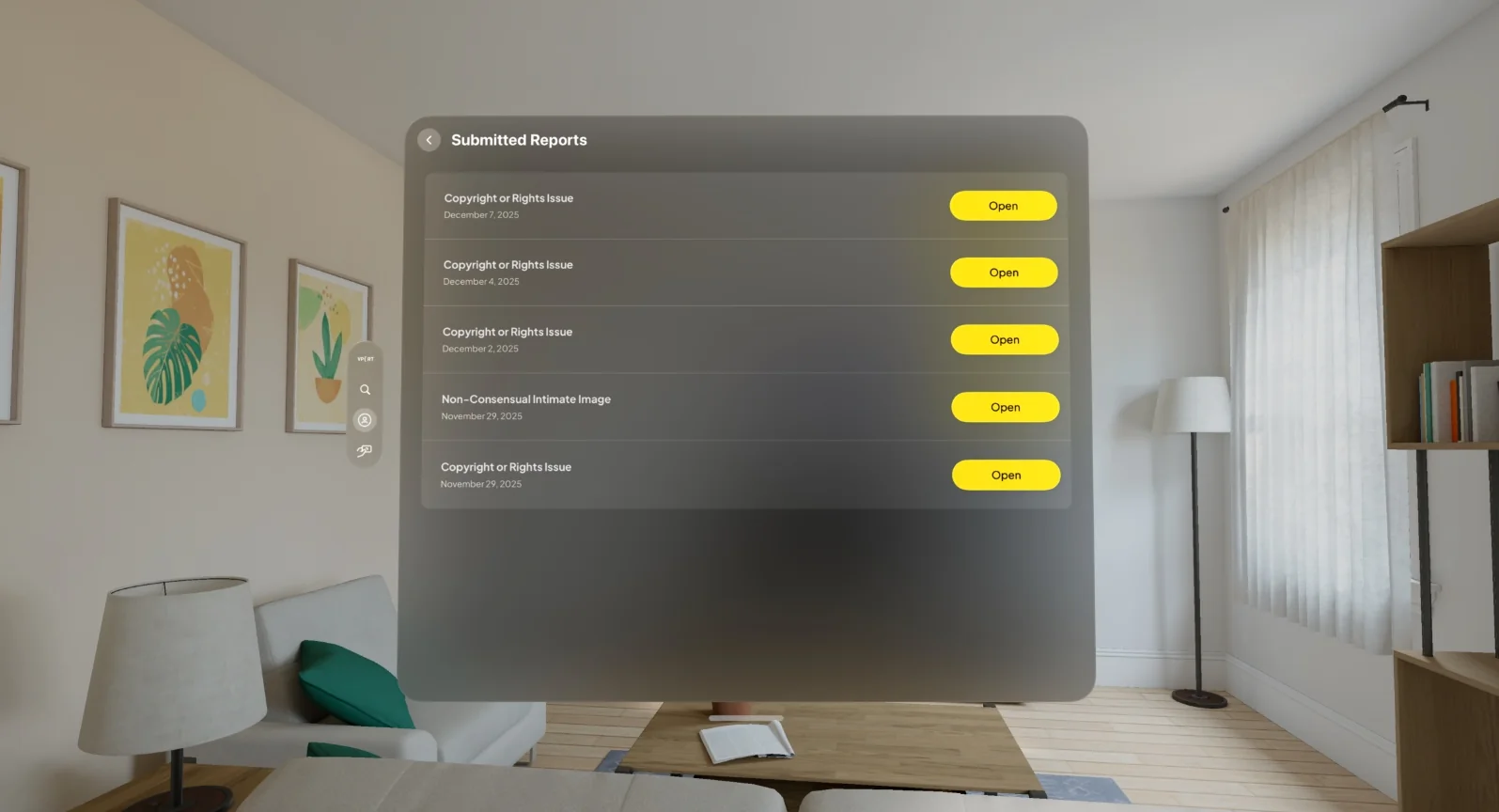
For each report, you may see:
- Submission date and time
- Reason or short description
- Status (e.g., Submitted, In review, Resolved)
Use this section to track progress or reference reports when contacting support.
3.6 Notification Preferences
Under Settings → Notifications, you choose which push notifications you receive. The page includes an Allow All Notifications switch plus per-type controls.
- On the User Account page, open Notifications.
- Use Allow All Notifications to enable or mute every listed type.
- When at least one type is enabled, use each Push switch to tune individual categories.
When all categories are muted, the individual list is hidden. Turn Allow All Notifications back on to restore all categories, then turn off any types you do not want.
You can control these notification types:
- Event Reminders -- upcoming events you follow.
- Live Events -- when an event goes live.
- New Content -- newly added footage and releases.
- Payments -- successful payments and credit purchases.
- Low Credit -- when your credit balance is running low.
- System Alerts -- important account and service messages.
- Promotions -- offers and promotional updates.
- Follow Activity -- activity from artists and venues you follow.
These preferences control what VPORT asks the service to send. visionOS notification permission must also be enabled for Vport in system settings for alerts to appear.
Key Features
Feature 1: Central Account Overview
View your name, username, and email in one place.
Feature 2: Account Security Controls
Change your password and enable New Login Alerts.
Feature 3: Data & Privacy Tools
Request a copy of your data or permanently delete your account.
Feature 4: Clear Spatial Data Notice
Understand exactly what spatial data Vport does and does not collect.
Feature 5: Legal & Support Access
Read the Privacy Policy and contact the Privacy Team easily.
Feature 6: Community & Safety Management
Manage hidden content and track submitted reports.
Feature 7: Notification Preferences
Choose which push notifications you receive, by type.
Feature 8: Profile Photo
Set or change the picture that appears on your profile.
Common Issues & Troubleshooting
Issue 1: I Don’t See the User Account Option
Try this:
- Confirm you’re logged in
- Check the global tab bar for Profile
- Restart the app if needed
Issue 2: I Requested My Data but Haven’t Received an Email
Try this:
- Confirm your email address is correct
- Check spam or junk folders
- Allow time for processing
- Contact the Privacy Team if needed
Issue 3: I Deleted My Account by Mistake
Account deletion is permanent and cannot be undone.
If you believe there was an error:
- Contact Vport Support or the Privacy Team immediately
- Recovery may not be possible, but status can be confirmed
Issue 4: I Enabled New Login Alerts but See No Emails
This is normal unless a new device logs in.
If you suspect suspicious activity:
- Change your password immediately
- Keep alerts enabled
Issue 5: A Hidden Artist or Event Still Appears
Try this:
- Go to User Account → Community & Safety Controls → Hidden Artists and Events
- Confirm the item is listed as hidden
- If it still appears, contact Support with screenshots
Issue 6: I Don’t See My Submitted Reports
Try this:
- Ensure you’re on the same account used to submit the reports
- Check the Submitted Reports section
- Contact Support if reports should exist but don’t appear