
Notifications
After you sign in, VPORT shows a notifications bell in the web header. Use it to review alerts, filter unread items, and mark notifications as read.
Finding the Notifications Bell
Look for the bell beside your wallet and profile controls. A red dot appears on the bell when you have unread notifications.
Reading Your Notifications
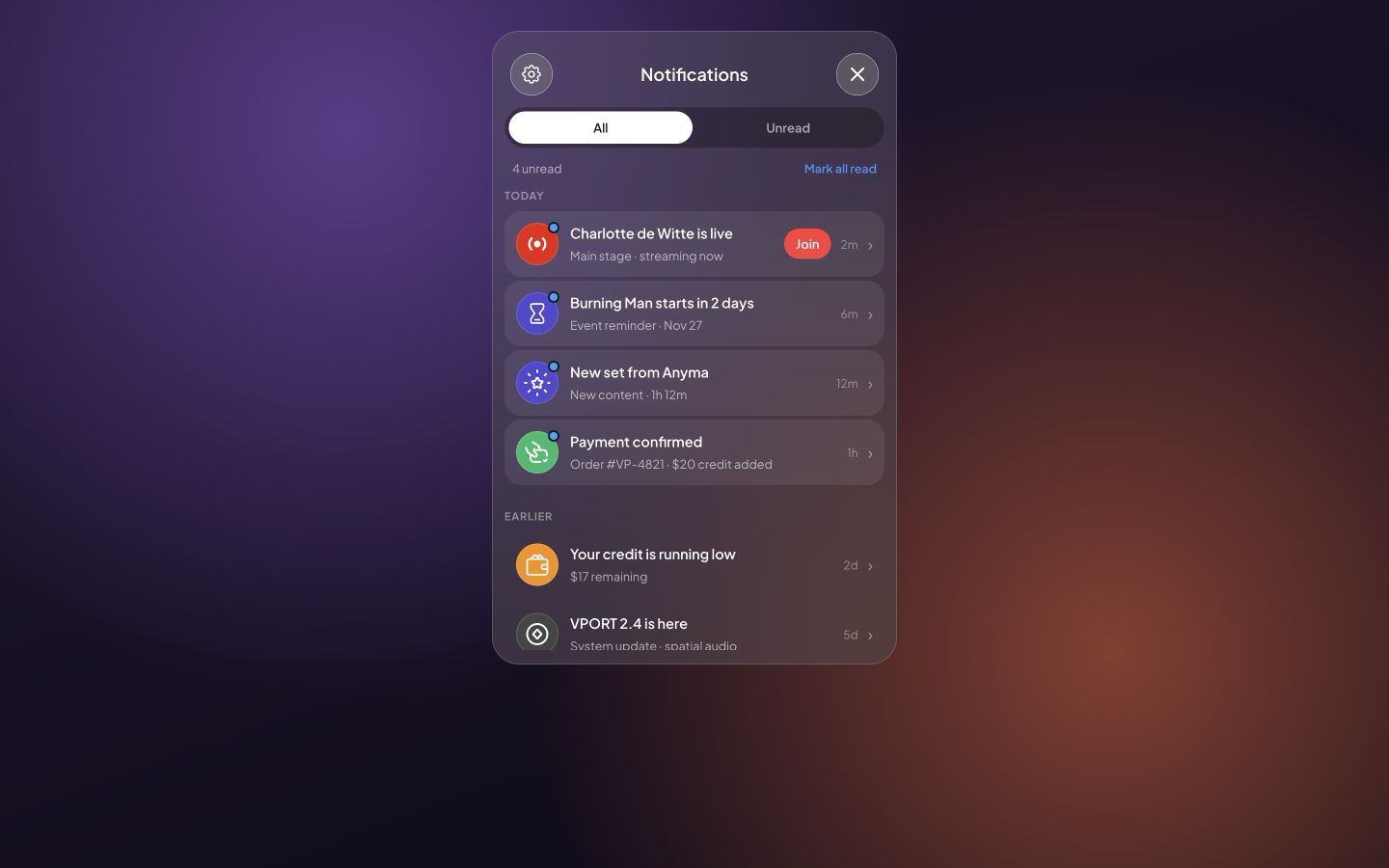
Select the bell to open the notifications panel. Choose All or Unread to filter the list. Notifications are grouped under Today and Earlier, and each item shows a title, short description, and compact time.
Unread items have a highlighted background and a blue dot. An unread live-event alert also shows Join. If the selected filter has no items, the panel shows You're all caught up.
Opening a Notification
Select a notification to mark it as read. If the notification includes a VPORT link, selecting it also opens that destination.
Marking Notifications as Read
To mark every loaded unread item as read, select Mark all read. The red dot on the bell disappears when your unread count reaches zero.
To choose which push notifications you receive, select the settings button in the panel header. This opens your notification preferences.