
Watching Live & On Demand
Review playback confirmation
Select a playable card from Home, Search, or a detail page. The confirmation shows the performance, live state, duration, performer timeline, per-minute rate, and the action available for your wallet.
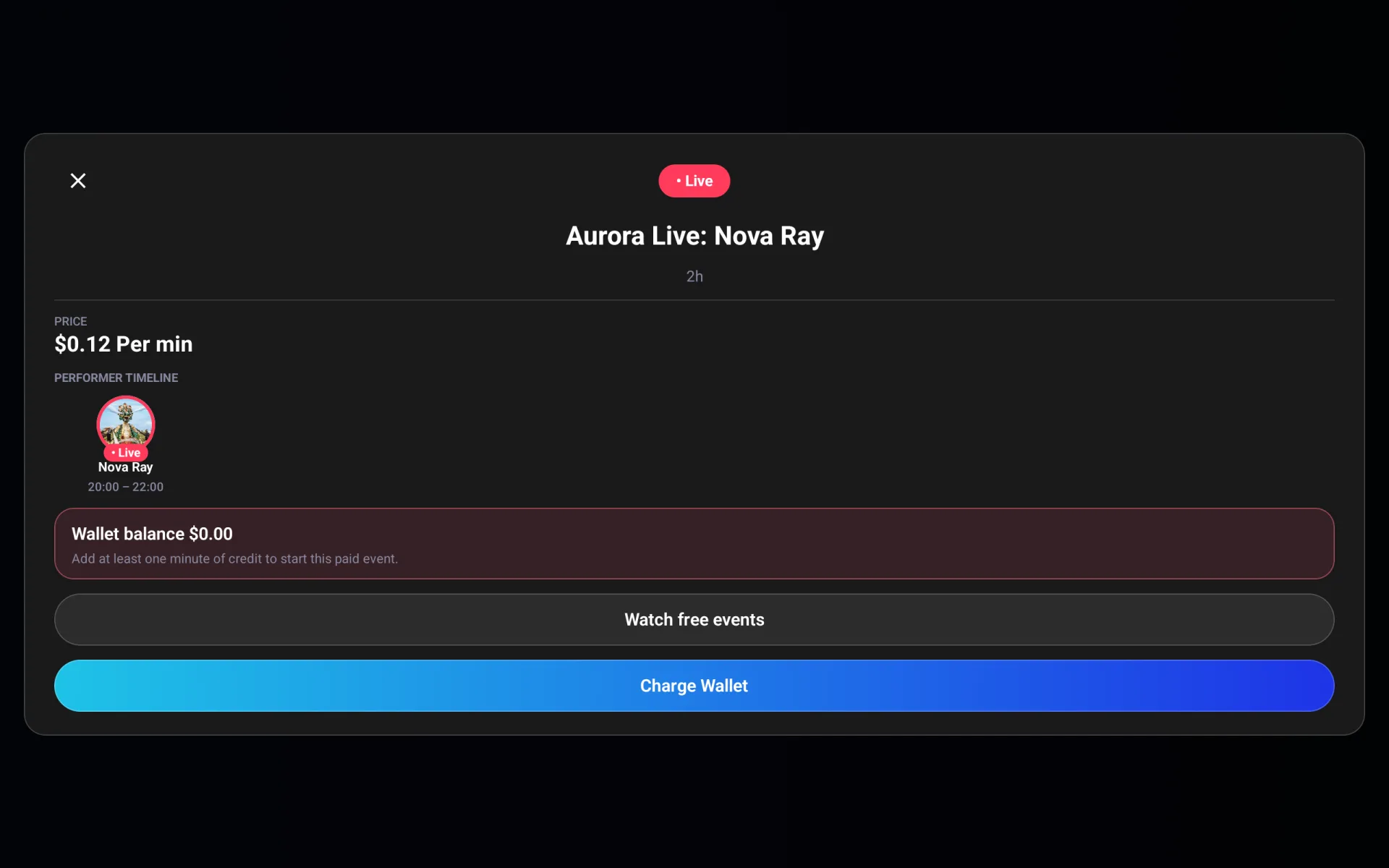
The confirmation can offer:
- Teleport for free content or paid content your wallet can start
- Charge Wallet when more credit is needed
- Watch free events when paid playback cannot start
- Sign-in or account-creation actions for guests
For paid content, VPORT charges only for the time played. The confirmation may show how many minutes the current balance covers. Select Teleport when you are ready to begin.
Watch a live performance
Live playback includes:
- Play and pause
- Go to Live when playback falls behind the current live point
- A live-position indicator
- Volume and mute
- Lock and unlock controls
- Event and performer details
- Report and exit actions
If a live connection is interrupted, use the on-screen retry or reconnect action. If the performance has ended, return to Home or Search for available recordings.
Watch an on-demand performance
The on-demand player includes:
- Play, pause, and replay
- Skip back or forward 30 seconds
- A seekable timeline
- Volume and mute
- Event and performer details
- Report and exit actions
- Watch in VR for supported immersive footage
Controls hide while playback continues. Interact with the player to reveal them again.
Use the immersive view
Select Watch in VR for supported 180-degree, 360-degree, or stereoscopic footage. The immersive view continues near the same playback position and provides a floating control panel with:
- Exit
- Play or pause
- Skip back or forward 30 seconds
- Timeline seeking
- 360° viewing state
- Volume (announces muted, low volume, or normal volume)
- Lock, unlock, and reposition
- Event and performer details (when available)
- Report
- Hide controls
Select the hidden panel again to bring it back. Use Exit to return to the VPORT panel. Before starting, clear enough space and remain aware of your surroundings.
Check the 360 viewing state
Select 360° to toggle the control between 360 viewing on and 360 viewing off. This control is not a monoscopic-versus-stereoscopic or quality selector. The performance's encoded camera format remains fixed.
Reposition the control panel
The floating control panel can be moved to a more comfortable position in your field of view.
- Select Reposition in the control panel.
- Pinch and drag a panel edge to move it.
- Select Done when the panel is in place.
To keep the panel from moving, select Lock position. While locked, the timeline and transport controls are disabled, but Exit remains available. Select Unlock position before moving the panel or using playback controls again.
View event details during a live stream
While teleporting to a live performance in immersive mode, select the event title to open its details. The panel shows the event title, a live indicator when the event is live, and the venue and performers when those fields are available. Select the close control when you are finished. If the details cannot load, the panel says they are unavailable.
Resume from Keep Watching
VPORT periodically saves eligible progress. Return to Home > Keep Watching to continue. Very short plays and content already near its end may not remain in the row. Removing a Keep Watching item clears the shortcut; it does not remove the event from VPORT.
Report a performance
- Select the flag control. Playback pauses.
- Choose the closest rights, safety, legal, or policy category.
- Review the performance and captured playback time.
- Select Submit Report.
Review sent reports under Profile > Community & Safety Controls > Submitted Reports.
Playback help
- Buffering: check Wi-Fi and pause other large downloads.
- Controls are hidden: interact with the player or immersive control panel.
- No audio: check both VPORT volume and headset volume.
- Immersive image looks stretched, split, or flat: exit and report the performance with a short description.
- Playback will not start: review the confirmation for a wallet or sign-in action.
When contacting Support, include the performance title and the approximate time the problem occurred.