
Can You Watch Concert Streams in Meta Quest Browser?
Can you watch concert streams in Meta Quest Browser? Often, yes, if the streaming site supports the browser, your account and region, and a video format the headset can play. But opening a stream inside a headset does not automatically turn it into a 180-degree, 360-degree, stereoscopic, or WebXR experience.
The safest approach is to test the exact event page before showtime. Confirm sign-in, playback, controls, format, access terms, accessibility, and a fallback screen. This checklist explains what each result means without assuming that one successful site will predict another.
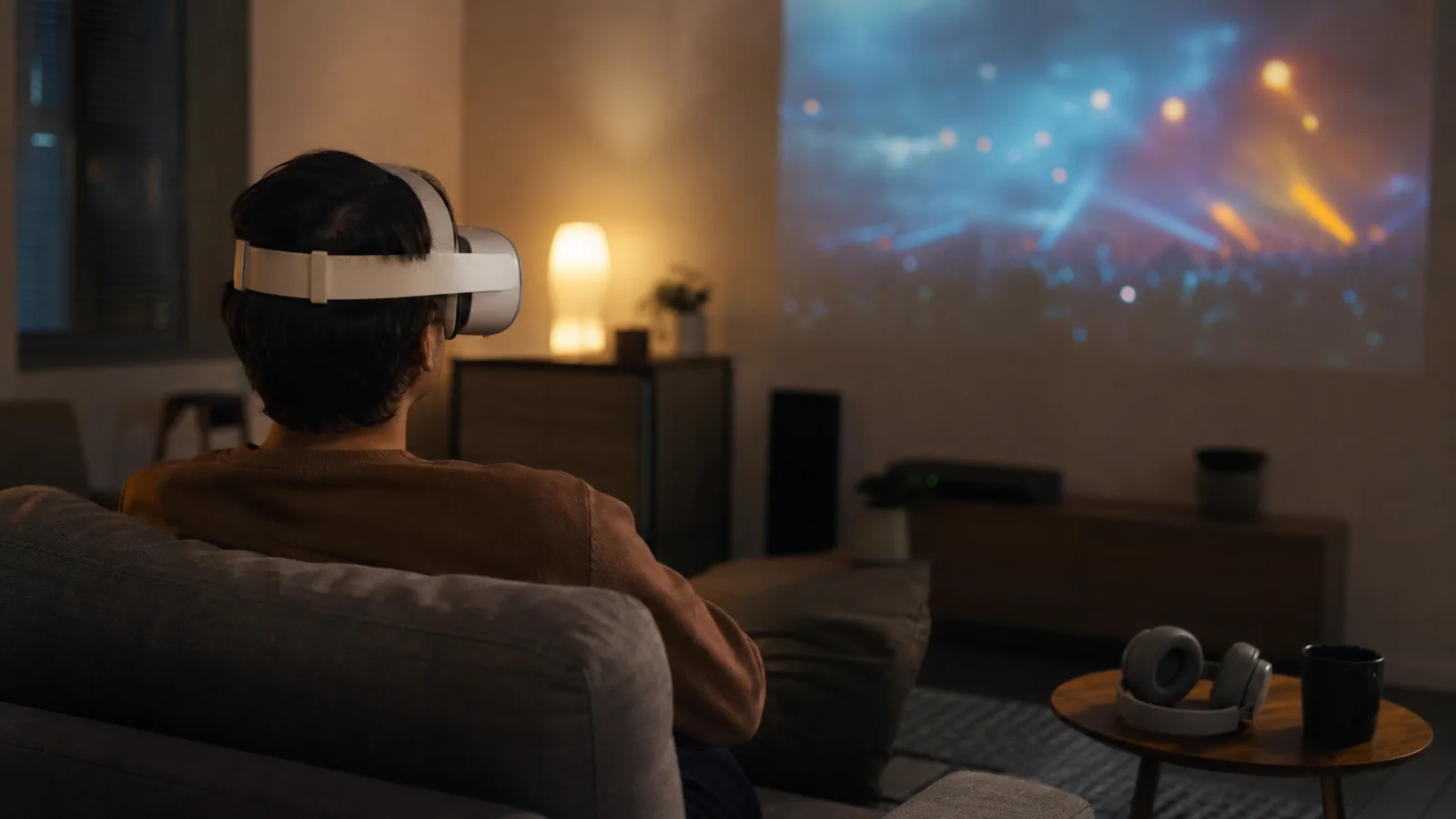
Browser support is only the first check
A streaming service can load in Meta Quest Browser while a particular video, sign-in method, payment flow, or immersive mode does not. Compatibility has several layers:
- Page compatibility: Does the event page render and respond to the headset's controls?
- Account compatibility: Can you sign in, pass any age or identity checks, and redeem a ticket?
- Media compatibility: Does the site's player deliver a supported video and audio stream?
- Format compatibility: Is the source a standard flat video, a 180-degree or 360-degree video, or an actual WebXR experience?
- Access compatibility: Is the event available in your region and during the advertised window?
Meta's developer documentation describes both browser video support and WebXR on Meta Quest. These are platform capabilities, not a promise that every streaming provider uses them. The event listing and a successful preview remain the best evidence for a specific show.
Identify what kind of experience the site provides
Do not use "VR concert" as a technical specification. Look at the player and the event description, then place the stream in one of these categories.
| Experience | What you should expect |
|---|---|
| Standard video in a browser window | A flat rectangular video that can be resized or viewed fullscreen |
| 180-degree or 360-degree video | A panoramic source that lets you look around when the player or Browser applies the correct projection |
| Stereoscopic 180-degree or 360-degree video | A panoramic source with a separate view for each eye, when the player and device support it |
| WebXR experience | A site-provided immersive session with an explicit action such as "Enter VR" |
| Native app experience | Playback and controls provided by an installed headset app rather than the browser |
Fullscreen only enlarges a standard video. Meta Quest Browser can apply a selected 180-degree or 360-degree projection to a correctly prepared panoramic source, but that control does not invent source data, stereoscopy, depth, or spatial audio. Likewise, the ability to drag around a panoramic video does not prove that the source is stereoscopic.
The WebXR Device API standard defines how web content can request an immersive session. In practical terms, a true WebXR page should offer a deliberate transition into an immersive mode. A normal video page that happens to be open inside a headset is not the same thing.
Run this ten-minute pre-show test
Test from the same headset, account, network, and location you plan to use for the event. A phone or laptop test will not expose every headset-specific issue.
1. Update the headset and restart it
Install available system updates before the event, then restart the headset. Do this early enough that an update cannot consume your showtime. Meta's help center explains how to update Meta Quest software.
2. Open the exact event URL
Do not stop after confirming that the provider's home page loads. Open the exact event or replay page and check:
- The title and date match the event you expect
- The start time includes a time zone
- Your country or region is supported
- The page states whether access is live, replay, rental, or permanent
- The price, subscription, ticket, or account requirement is clear
- The device list names Meta Quest Browser or provides an equivalent compatibility statement
If the listing only says "VR compatible," look for a support page that names the tested headset, browser, and format.
3. Complete sign-in and ticket access
Sign in before showtime. Test password managers, one-time codes, email links, consent dialogs, and any ticket redemption flow. A login link that opens on another device can leave the headset session unauthenticated.
Do not make a test purchase unless you intend to buy access and have confirmed the refund policy. If the provider offers a free trailer, sample, or preview, use that first.
4. Play a representative sample
Let the preview run long enough to reveal buffering, quality changes, audio output, and control behavior. Check play, pause, seek, volume, fullscreen, captions, and exit. If the event is live-only and no preview exists, test another stream that uses the same documented player while keeping in mind that this is weaker evidence.
Meta publishes a browser specification page for developers. A listed browser capability still does not prove that a provider's encoding, digital rights management, or player configuration will work. Only the provider can document those service-specific details.
5. Confirm the projection
Move your head while the sample plays:
- If the video remains a flat rectangle, it is standard video in a virtual screen.
- If the view changes across a panorama, confirm whether the source is 180 or 360 degrees.
- If nearby objects show believable binocular depth, the source may be stereoscopic.
- If the site offers "Enter VR," use it and confirm that you can also exit safely.
Do not infer the format from the thumbnail, camera rig, resolution, or words such as "immersive." The current listing or player should state it.
6. Check audio without chasing volume
Confirm that audio reaches the intended speakers or headphones and stays synchronized with the picture. Use a moderate level. If the event advertises spatial, binaural, or multichannel audio, look for a precise format statement and a supported playback path. A panoramic picture does not prove that the soundtrack is spatial.
Our spatial audio concert setup guide offers a repeatable listening test for source placement and ambience. It does not replace the provider's format specification.
7. Verify accessibility and comfort controls
The W3C's guidance on making audio and video accessible covers captions, transcripts, audio description, and accessible player controls. For a concert stream, check for:
- Captions for spoken introductions and meaningful non-music audio
- A transcript or set list when appropriate
- Clear pause, seek, volume, and exit controls
- A standard-screen alternative to an immersive mode
- Warnings for flashing lights, rapid cuts, or camera motion
- A seated option and enough physical clearance
Use a short first session if you do not know how the camera movement will feel. Stop if you experience discomfort.
8. Prepare a fallback
Keep a supported phone, tablet, computer, or television ready if the event matters more than the headset format. Save the sign-in details and exact event URL outside the headset. A flat-screen fallback is better than spending the opening set troubleshooting.
Troubleshoot by isolating the failing layer
If playback fails, identify what still works:
- The page does not load: Check the URL, Wi-Fi connection, headset date and time, and provider status page.
- The page loads but sign-in fails: Review cookies, pop-up permissions, one-time codes, and the provider's supported login methods.
- The player loads but video does not start: Look for a service-specific browser, encoding, region, or digital-rights restriction.
- Flat video works but 180-degree, 360-degree, or WebXR mode does not: Treat this as a format or player issue, not proof that all browser playback is broken.
- Video plays but quality drops: Close unused tabs, reduce competing network traffic, and try the provider's documented quality setting.
- Audio is missing or delayed: Check the selected output, reconnect headphones, and test a second known-working source.
Change one variable at a time. That makes a useful support report possible: include the headset model, system version, exact URL, local time, region, and the step that failed. Do not include passwords, payment details, or private ticket links.
What the event page should disclose
A trustworthy listing should let a viewer answer these questions before committing:
| Category | Useful disclosure |
|---|---|
| Source | Organizer, artist, rights holder, or authorized distributor |
| Schedule | Start time, time zone, replay window, and announced expiration |
| Access | Account, ticket, subscription, price, region, and refund terms |
| Video | Flat, 180-degree, 360-degree, monoscopic, stereoscopic, or WebXR |
| Audio | Stereo, binaural, multichannel, or another named format |
| Devices | Tested headset, browser or app, and minimum software version |
| Accessibility | Captions, transcript, audio description, controls, and fallback mode |
| Support | Current help page and a contact path for event-day problems |
When an item is not published, mark it unknown. Do not fill the gap with an old roadmap, another event's listing, or a social post.
The practical answer
Meta Quest Browser can be a useful way to watch a concert stream, but compatibility belongs to the exact service and event. A standard browser video, panoramic video, stereoscopic source, and WebXR session are different products with different requirements.
Run the test early, verify the advertised format, and keep a fallback ready. For recorded performances, use our on-demand VR concert checklist to evaluate replay duration, completeness, rights, and access terms before pressing play.