
Spatial Audio Concert Setup: A Practical Listening Test
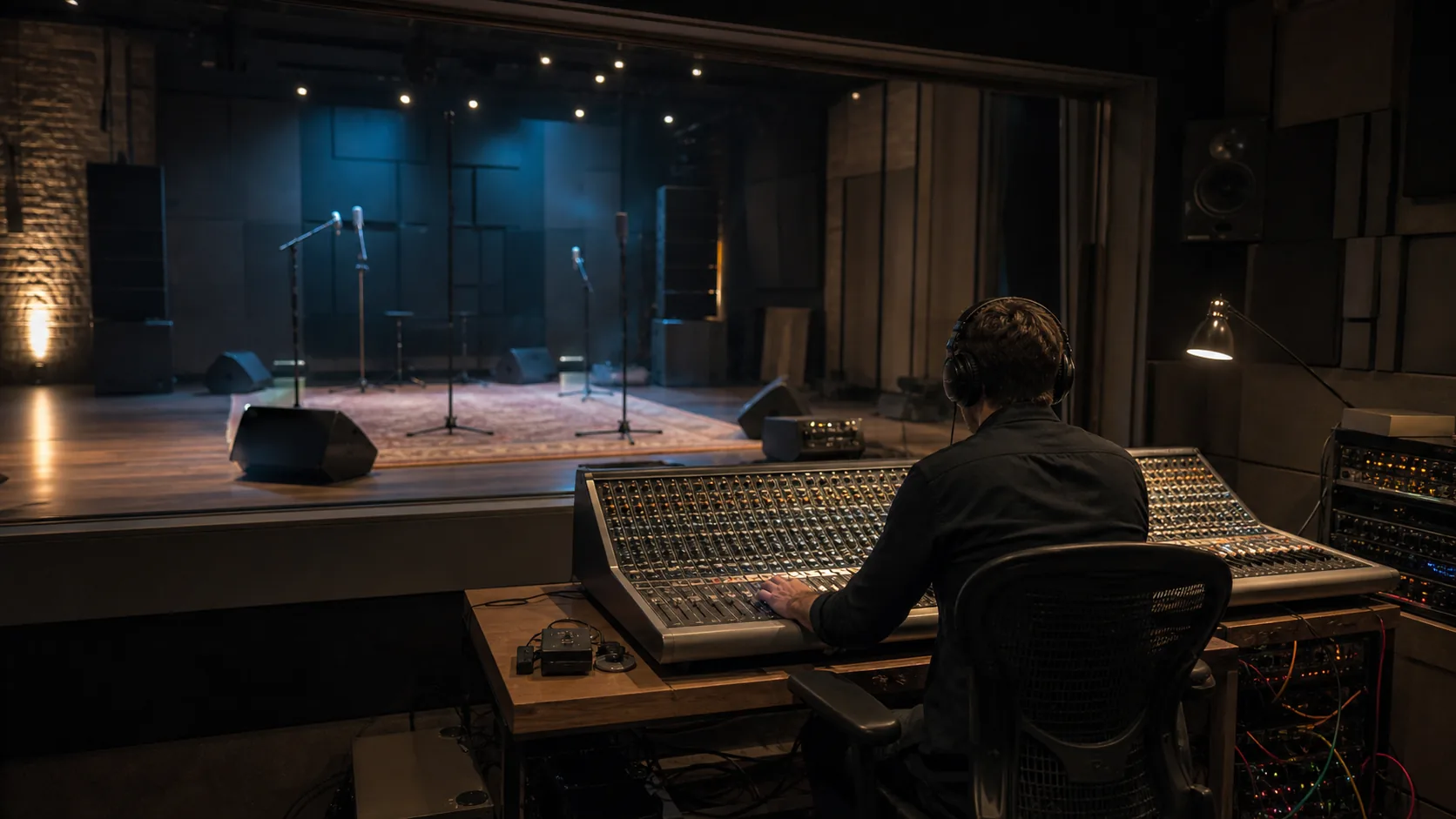
A spatial audio concert setup should answer a practical question: does the sound scene behave the way the release says it should on the device you are using?
The word spatial does not guarantee head tracking, a particular headphone experience, or even the same audio format from one app to another. The source mix, metadata, player, operating system, output device, and listening environment all influence the result.
This guide gives listeners a repeatable setup and troubleshooting process without assuming a VPORT feature, playback mode, device, catalog entry, or commercial offer.
Start by Checking the Source
Before changing device settings, confirm what the publisher actually delivers.
Look for specific information:
- Is the release stereo, binaural, multichannel, object-based, or ambisonic?
- Does the publisher identify a spatial-audio version?
- Is head tracking supported, optional, or unavailable?
- Which app, operating system, headset, headphones, or speaker layout is required?
- Is there a stereo fallback?
This matters because spatial playback begins with the source. For example, YouTube's spatial-audio requirements for 360 and VR video require defined Ambisonics channel ordering, normalization, metadata, sample rates, and containers. A device setting cannot add missing production metadata or repair an incorrectly authored mix.
If the listing says only “immersive audio,” treat that as a description, not a technical specification.
For a deeper explanation of stereo, binaural rendering, channel-, object-, and scene-based audio, read What Spatial Audio Really Does to a Live Set. This article focuses on setup and diagnosis rather than repeating that format overview.
Build a Clean Listening Baseline
Troubleshooting is easier when you change one variable at a time.
- Update the playback app and operating system if the publisher requires a minimum version.
- Confirm the intended headphones, headset, or speaker output is selected.
- Disable unrelated sound enhancements or equalizer presets for the first test.
- Move to a quiet room and reduce background noise.
- Start at a moderate listening level.
- Play a short passage with clear voices, percussion, crowd sound, or another visible source.
Do not turn the volume up just to make the spatial effect seem stronger. The World Health Organization's safe-listening guidance explains that risk depends on level, duration, and frequency of exposure, and that safe listening time falls as sound intensity rises.
If your device provides exposure warnings or level monitoring, use them. Stop if you experience discomfort, ringing, or hearing changes.
Compare Off, Fixed, and Head-Tracked Playback
When the platform offers these controls, an A/B comparison is more reliable than guessing.
Apple's AirPods spatial-audio controls distinguish three states for supported apps and content:
- Off disables Spatial Audio and head tracking.
- Fixed enables Spatial Audio without head tracking.
- Head Tracked enables both, so the presentation can respond to head movement.
Other ecosystems may use different names or offer fewer choices. Use the controls documented for the exact app and device.
Play the same 20- to 30-second passage in each supported state. Keep the volume constant. Listen for:
- whether the stereo or spatial image becomes wider or more enveloping;
- whether a visible source stays plausibly associated with its position;
- whether ambience surrounds the performance without masking it;
- whether dialogue, vocals, kick, snare, or other anchors remain clear;
- whether turning your head changes the scene smoothly or distractingly.
A difference does not automatically mean an improvement. Choose the version that preserves clarity, direction, comfort, and the intended relationship between sound and picture.
Test Direction and Sync Together
Head tracking and synchronization are separate, but a problem in either one can make the scene feel wrong.
Use a visible transient such as:
- a drumstick contacting a drum;
- a hand clap;
- a singer's consonant;
- a lighting cue that lands on a beat;
- a crowd reaction with a clear visual trigger.
First, keep your head still and confirm that sound and picture arrive together. Then turn slowly toward a visible source. If head-tracked playback is supported, the source should not jump, drift, or rotate unpredictably.
Repeat the check near the beginning and later in the programme. A file can start in sync and drift over time. Our production-focused guide to audio sync in 360 video explains why longer checks matter.
Troubleshoot by Symptom
“It sounds like ordinary stereo”
Check the source listing, app support, device support, and selected output again. Confirm that the spatial version has finished loading and that a stereo fallback was not selected automatically. If the publisher does not identify a spatial format, do not assume one is present.
“The whole room turns with my head”
The playback may be fixed rather than head tracked, head tracking may be disabled, or the content may not provide the required behavior. Compare the available settings using the same passage. Do not infer a fault if the publisher promises only fixed spatial playback.
“The stage moves or snaps when I turn”
Recenter using the device's documented control, check tracking conditions, and retry from a stable seated or standing position. If the behavior persists in one title but not another known-compatible sample, the issue may be specific to the content or player.
“The sound is spacious but unfocused”
Return to a neutral equalizer setting, verify the headphone fit, and compare the fixed and stereo versions. More ambience is not always better. A mix can be immersive and still obscure vocals, rhythm, or musical detail.
“The audio is late or drifts”
Restart the same passage, test a second output path if the platform supports one, and note whether the offset is constant or grows over time. Report the device, app version, output device, title, timestamp, and observed delay to the publisher. Those details are more useful than saying only that spatial audio is broken.
“I cannot find the setting”
Spatial controls are often available only when compatible content and output hardware are active. Consult the official support page for the exact operating system and device. Menu names and compatibility can change, so avoid relying on an old generic tutorial.
Personalization Is Optional, Not a Quality Guarantee
Some systems offer a personalized profile based on the listener's head and ear geometry. Apple documents Personalized Spatial Audio for supported AirPods, Beats products, apps, and operating systems.
Personalization may improve localization for some listeners, but it does not replace correct production or compatibility. Compare personalized and standard playback at the same volume. Keep the version that sounds more stable and natural to you.
If multiple people are evaluating a release, record their results separately. A mix that localizes clearly for one listener may be less precise for another.
A Five-Minute Spatial Audio Concert Setup
Use this sequence before a longer session:
- Verify the published audio format and device requirements.
- Select the intended output and a moderate volume.
- Play one reference passage with spatial audio off.
- Replay it with fixed spatial audio if supported.
- Replay it with head tracking if supported.
- Check a visible transient for synchronization.
- Turn slowly and confirm that direction behaves as documented.
- Compare clarity, ambience, comfort, and stereo fallback.
- Keep the setting that works best, not the one with the strongest label.
For recorded immersive concerts, our on-demand VR concert checklist adds video format, access, completeness, accessibility, and source-verification questions.
What This Guide Does Not Announce
This article does not announce:
- a VPORT spatial-audio format, playback mode, smart default, or head-tracking implementation;
- support for a particular headset, browser, headphones, or operating system;
- the availability of any concert recording;
- a VPORT partnership, price, credit bundle, starter bundle, or signup offer; or
- a future product feature or launch date.
Check the current listing and support documentation before deciding what a specific release or device can do.
A good spatial audio concert setup is not about maximizing effect. It is about verifying the source, controlling variables, protecting your hearing, and choosing the presentation that keeps the music clear and the scene coherent.